One way to use Local Lead Finder. Local Lead Finder is a $10 Google Sheets template I built that turns any Google Maps search into a lead list: every business, with phone, website, rating and reviews. This post is one use case for it: a lead tracking spreadsheet for the local businesses you contact. Other ways to use it are listed at the end, or see all 18 lead generation ideas.
You’re about to contact a list of local businesses, and you want a spreadsheet that tracks each lead without turning into a mess by week two. Search “lead tracking spreadsheet” and page 1 is free templates from Smartsheet and HubSpot (Excel and Google Sheets), a Jira lead tracking template, OnePageCRM’s review of 14 free lead management templates, and an Etsy seller charging $8.50 for a Google Sheets lead tracker. They’re general sales lead templates: you bring the leads, they give you empty rows. If you’re the one reaching out to local businesses, you need different columns: where you found them, how you reached them, and whether you already did.
So this page is the layout I’d use: which tabs, which columns, and what goes in each. The first ten columns come straight from Google Maps through Local Lead Finder, a $10 Google Sheet I built. The rest are the tracking columns you add. I’ll use my real Gainesville, Florida run (74 coffee shops across 69 areas) and the Boise plumber list (98 plumbers, every one with a phone number) as examples.
TL;DR
- Three tabs: a results tab per search, an OUTREACH tab for who you contacted, and a TOTALS tab with a few counts.
- The first 10 columns come from Google Maps; add 7 tracking columns, starting with Status and Follow-up date.
- Never track leads on a results tab: running the exact same search again writes over it, notes included.
Who this is for
- Freelance web designer: you need to know which businesses have no website and which ones you’ve already pitched.
- Cold caller or appointment setter: every row has a phone column, and your Channel and Last contact columns show who you’ve dialed.
- Coffee roaster or food supplier: you track samples dropped, visits and follow-ups across every cafe in a city.
- Bookkeeper or virtual assistant: you keep a short list of small businesses you’re talking to, with notes from every call.
- Local marketing freelancer: you see which neighborhoods you’ve already worked and which you haven’t touched.
Before you start
- A Google Places API (New) key
- Local Lead Finder set up in your Google Drive
- Local Lead Finder itself
- A keyword and a region, like coffee shop in Gainesville, Florida
- A short outreach message
Don’t have a Places API key yet? How to get one free. Haven’t set up the sheet? Setup takes about 5 minutes.
The layout: three tabs
A lead tracking spreadsheet gets messy when the list of everyone and the list of people you’re talking to live in the same place. I keep them apart:
- A results tab per search. Local Lead Finder writes one per search, named after it, like Coffee Shop (AREAS). This is everyone. You don’t type here.
- OUTREACH. Every business you’ve contacted, one row each. This is where the tracking columns go.
- TOTALS. A handful of formulas: how many you contacted, how many replied, which areas you’ve covered.
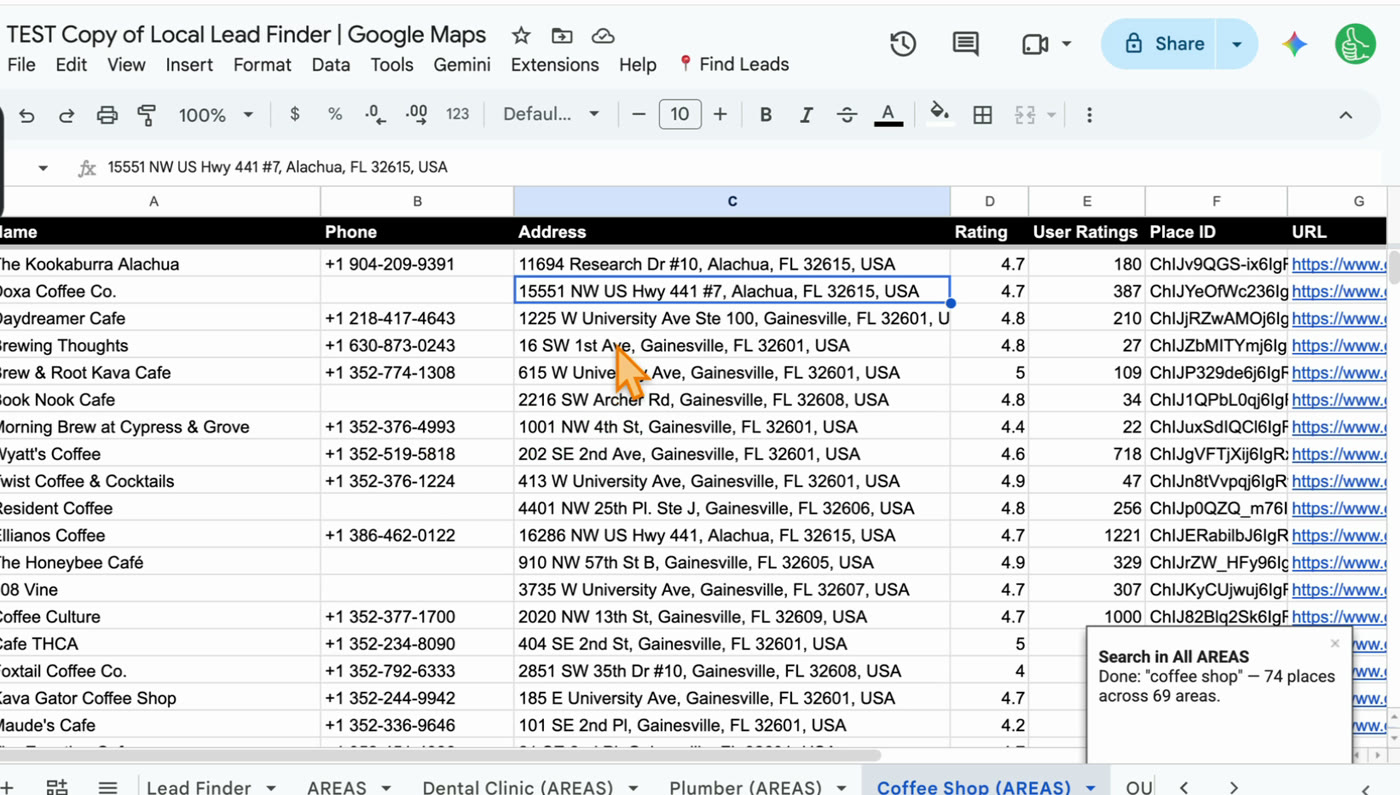
The columns Google Maps fills in for you
Every results tab has the same ten columns, A to J. Here’s what each one is for when you’re tracking leads:
Column Header Why it’s in a lead tracker A Name Who the lead is. B Phone How you call or text them. All 98 Boise plumbers had one. C Address Where to visit, and which town they’re in. D Rating A quick read on how the business is doing. E User Ratings Number of reviews. Small numbers often mean small or new businesses. F Place ID Google’s ID for that place. Names repeat; this doesn’t, so it’s the best column to look a business up by. G URL The Google Maps link, to check the business is real before you pitch. H WA A WhatsApp link with your message already in it. I Website Their site, or blank. 16 of the 98 Boise plumbers had no website. J Area Which neighborhood or town the search found them in.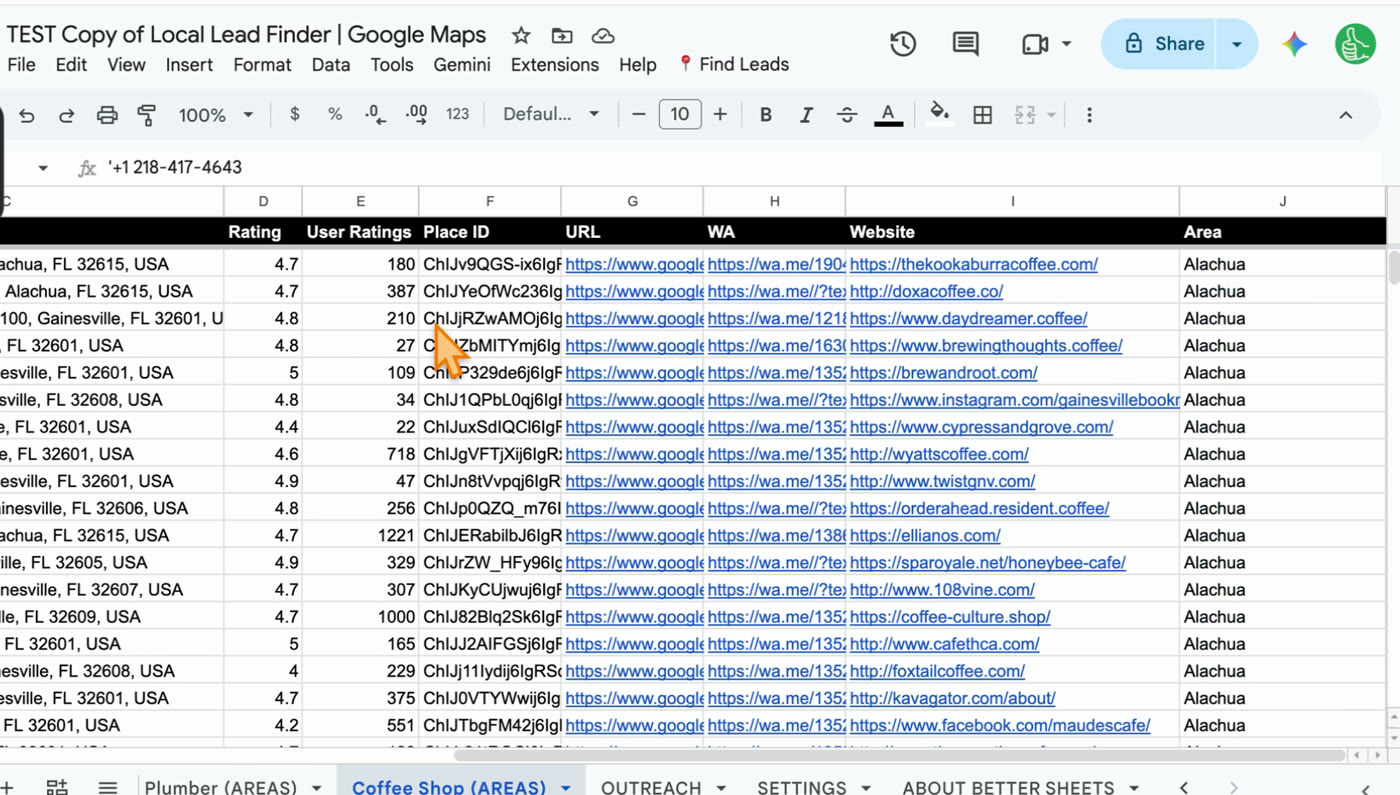
You don’t build any of that. You run a search and the tab appears. If you want to see how that works without scraping, there’s Free Google Maps Scraper in Google Sheets (That Doesn’t Scrape).
How a lead gets onto OUTREACH
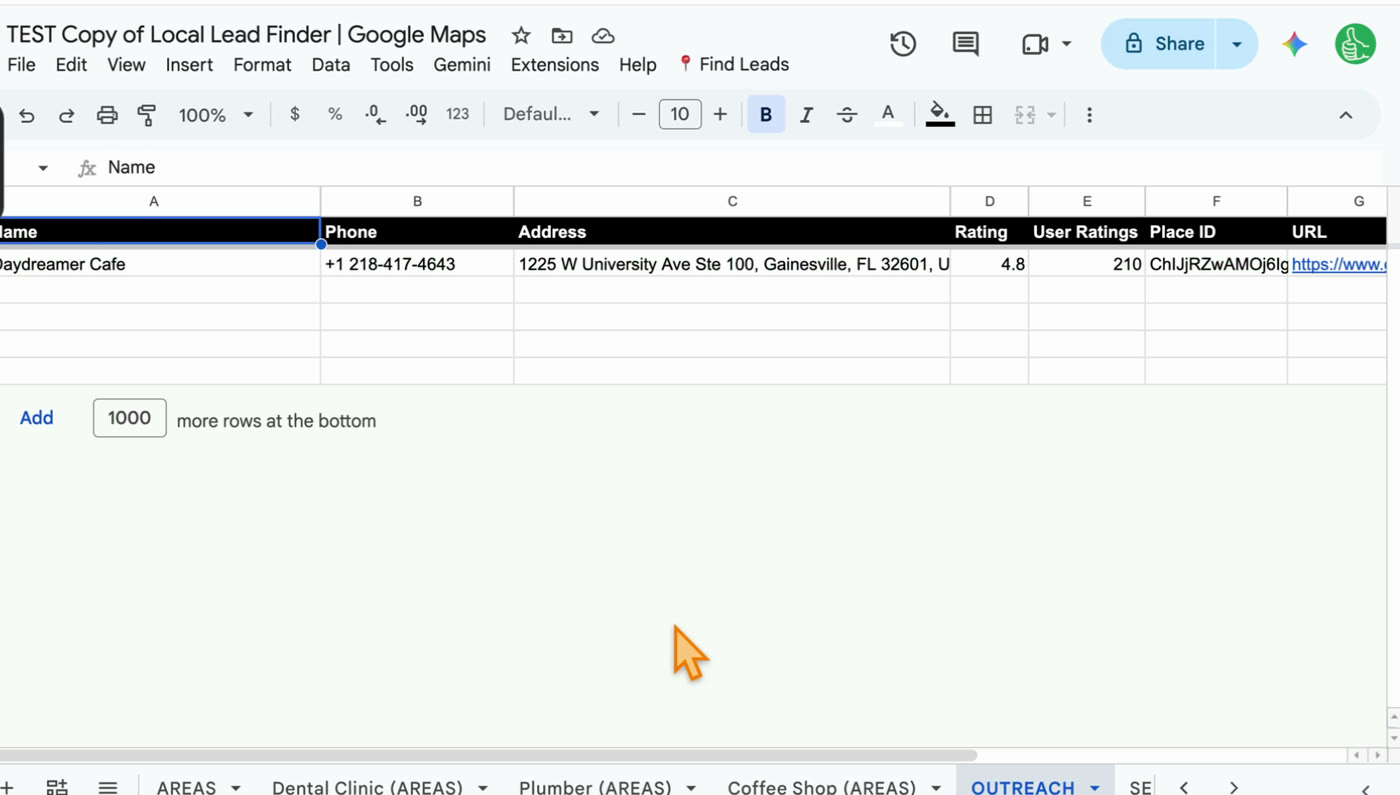
When you’ve contacted a business, select its row and click Find Leads > 3. Outreached. The row turns green and is copied to the OUTREACH tab with the same columns.
That green stays. When I searched tea shop across the same 69 Gainesville areas (146 places), Daydreamer Cafe came back green because I’d already marked it.
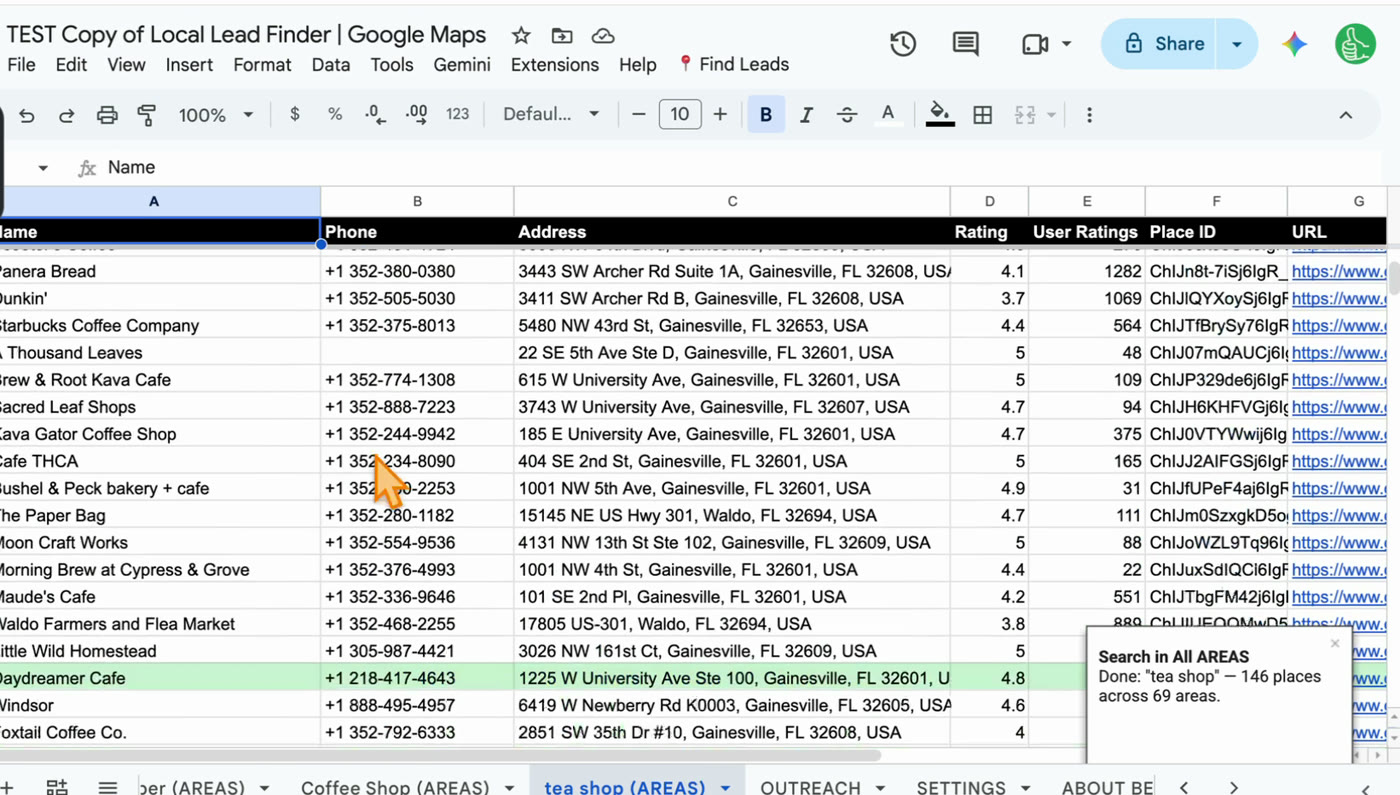
That’s the “did I already contact them?” column most lead trackers make you fill in by hand.
The tracking columns to add
On OUTREACH, add these seven headers in the first empty columns after Area. In my layout that’s K to Q:
Column Header What goes in it K Status Contacted, Replied, Meeting, Won or Lost. A dropdown, not free text. L Channel How you reached them: WhatsApp, Phone, Email, Visit. Also a dropdown. M First contact The date you first reached out. N Last contact The date of your most recent touch. O Follow-up date When you’ll reach out next. P Next step One short line: “send price list”, “call after 2pm”. Q Notes Who you spoke to and what they said.Here’s the header row if you want to paste it into K1:
Status Channel First contact Last contact Follow-up date Next step Notes
That’s 17 columns in all: ten from Google Maps, seven of yours. I’d stop there. Every extra column is one more thing to fill in after each call, and the columns people skip are the ones that make a tracker go stale.
Why these seven
- Status is the one column that tells you where everything stands. If you add only one, add this.
- Channel matters for local businesses because they answer different things. If 16 plumbers have no website, they have no contact form, so the channel is the phone.
- First contact and Last contact together tell you how long a lead has been open.
- Follow-up date and Next step are what turn a list into a to-do list.
- Notes saves you from asking the same question twice on a second call.
What I leave out: deal value, probability and lead score. They’re on most sales templates, but if you’re pitching the same service to every business on the list, they don’t tell you anything Status doesn’t.
Make the columns behave
- Dropdowns: select K2:K, then Data > Data validation > Dropdown, and add your five statuses. Do the same for Channel in L.
- Dates: select M2:O, then Data > Data validation > Is valid date. Double-click a cell and you get a date picker.
- Overdue follow-ups in red: select A2:Q, then Format > Conditional formatting > Custom formula is, and use the formula below with a red fill.
=AND($O2<>"",$O2<TODAY(),$K2<>"Won",$K2<>"Lost")
- Days since last contact: if you want a number instead of a date, put this in R1 (it fills the whole column):
={"Days since contact";ARRAYFORMULA(IF(N2:N="","",TODAY()-N2:N))}
The TOTALS tab
Three formulas cover most of what I want to know. How many businesses I’ve contacted:
=COUNTA(OUTREACH!A2:A)
How many replied:
=COUNTIF(OUTREACH!K2:K,"Replied")
And which areas I’ve covered, using the Area column Local Lead Finder already filled in:
=QUERY(OUTREACH!J2:J,"select J, count(J) where J is not null group by J order by count(J) desc label count(J) 'Contacted'",0)
That last one is the one I’d look at most. Gainesville had 69 areas. If all your contacts are in three of them, you know where to go next.
If you want stages, a follow-ups due list and how to run the pipeline day to day, that’s the Google Sheets CRM for Leads: Pipeline, Follow-Ups, No Repeats post. This page is the template; that one is how to work it.
Step by step
- Set up Local Lead Finder and run a search (about 5 minutes).
- Leave the results tab alone; it’s your full list.
- Contact a business, select its row, and click Find Leads > 3. Outreached.
- On OUTREACH, paste the seven tracking headers after Area (K to Q in my layout).
- Add dropdowns for Status and Channel and date validation for the three date columns.
- Add the red overdue rule and, if you like, the days since contact column.
- Make a TOTALS tab with the contacted, replied and areas covered formulas.
Common pitfalls
- Tracking on the results tab: running the exact same search again writes over that tab, notes and all. Track on OUTREACH.
- Forgetting to mark Outreached: the row never reaches OUTREACH and won’t show green in your next search, so it’s easy to contact it twice.
- Too many columns: a tracker with 30 columns gets abandoned. Start with the seven above and add one only when you miss it.
- Free-text statuses: “replied”, “Replied” and “got back to me” break your counts. Use dropdowns.
- Tracking junk rows: neighborhood names can pull in junk. In other cities I got a park, a cemetery, and a dentist in Dartford, England. Check the Google Maps link before a row goes on OUTREACH.
- Not checking the first new row: after you add your columns, mark one more business Outreached and check it lands on the next empty row with your columns lined up.
Learn the Google Sheets formulas in this post
- 3 Ways to Count in Google Sheets: COUNTA and COUNTIF for the TOTALS tab.
- User Filter a Google Sheet Database based on Dates, Checkboxes, Dropdowns: working with the date and dropdown columns you add on OUTREACH.
- How To Sort A Filter: sorting your tracker by follow-up date or by area.
- Rishabh Asks: Conditional Format Whole Row Via Text inside a Cell: coloring a whole row, like the red overdue rule above.
- Make a Quick Pipeline (For Sales and More): turning the Status column into a pipeline.
Better Sheets has hundreds more tutorials like these. If you want to get better at Google Sheets, join Better Sheets.
Other ways to use Local Lead Finder
- Cold Calling List: Build One From Google Maps (98 Plumbers): for cold callers who want a phone number on every row.
- List of Plumbers: 98 in Boise, for Anyone Who Sells to Plumbers: for suppliers, bookkeepers, marketers and web designers who sell to plumbers.
- How to Get Clients for Web Design: 4 Real Lead Lists, in Order: for web designers looking for local businesses that need a site.
- How to Find Handyman Jobs: 35 Rental Managers to Call: for handymen pitching property managers.
All 18, grouped by who they’re for: Lead generation ideas: 18 local businesses to sell to.
FAQ
How do I create a spreadsheet for tracking leads?
Keep everyone on one tab and the people you’ve contacted on another. Give the contacted tab Status, Channel, First contact, Last contact, Follow-up date, Next step and Notes columns, with dropdowns for Status and Channel. With Local Lead Finder the first tab is filled in from Google Maps.
Where can I find a free Excel lead tracking template?
Smartsheet and HubSpot both offer free lead tracker templates in Excel and Google Sheets. If you build the layout in this post in Google Sheets, File > Download > Microsoft Excel gives you an .xlsx copy.
What columns should a lead tracker have?
Who they are (name, phone, address, website), where you found them, and how it’s going: Status, Channel, First contact, Last contact, Follow-up date, Next step and Notes. That’s 17 columns here, and I’d stop there.
What is the best app for tracking leads?
It depends on how many people and leads you have. For one person contacting local businesses, a Google Sheet with the columns above is enough. If you need call logging, reminders or a team with permissions, a dedicated CRM does those and a sheet doesn’t.
Is there a lead tracker template for Google Sheets?
Local Lead Finder is a Google Sheet that fills in the lead columns from Google Maps and tracks who you’ve contacted on its OUTREACH tab. You add the tracking columns in this post yourself. It’s $10, and free for Better Sheets lifetime members.
How do I avoid contacting the same lead twice?
Mark each business with Find Leads > 3. Outreached as soon as you contact it. It turns green, copies to OUTREACH, and stays green in every future search.
Get the sheet
Local Lead Finder is $10, and free for Better Sheets lifetime members.