One way to use Local Lead Finder. Local Lead Finder is a $10 Google Sheets template I built that turns any Google Maps search into a lead list: every business, with phone, website, rating and reviews. This post is one use case for it: running a simple CRM for those leads in the same Google Sheet. Other ways to use it are listed at the end, or see all 18 lead generation ideas.
You’ve got a list of local businesses to contact, and you want one place to see who you messaged, who wrote back, and who you need to chase this week. A Google Sheets CRM sounds right: it’s free, you already know it, and you don’t need another login. Search “google sheets crm” and you get HubSpot’s free CRM spreadsheet template, Sheetify’s Google Sheets CRM template, a few how-to videos (one of them is mine), a Reddit thread of free templates, and OnePageCRM explaining when to move off Sheets to a real CRM. They show you the columns. The templates start with empty rows. What I didn’t see on page 1 is where the leads come from, or how to stop yourself messaging the same business twice.
So here’s the whole loop in one sheet. Local Lead Finder fills the rows from Google Maps. When you message a business, one menu click turns its row green and copies it to an OUTREACH tab. Then I add five columns to that tab (status, last contact, next step, follow-up date, notes) and two formulas: one counts your pipeline, one lists who’s due today. I’ll be straight about it, too: Local Lead Finder tracks who you’ve contacted. It isn’t a full CRM, and I’ll say where it stops.
TL;DR
- Find Leads > 3. Outreached turns a row green, copies it to OUTREACH, and keeps it green in every future search.
- The sheet tracks who you contacted; status, follow-up dates and notes are columns you add yourself on the OUTREACH tab.
- Don’t type notes on a search results tab: running the exact same search again writes over that tab.
Who this is for
- Freelance web designer: you pitch local businesses one by one and need to see who replied and who to nudge on Friday.
- Coffee roaster selling wholesale: every cafe you message, sample or visit sits in one tab with a status and a next step.
- Local marketing agency owner: you want a lead pipeline without paying for CRM seats before you have clients.
- Outside sales rep: your territory comes from Google Maps, and you want the people you’ve already called to stand out in green.
- Small business owner doing your own outreach: you only need a list, a status and a date, not a CRM you have to learn.
Before you start
- A Google Places API (New) key
- Local Lead Finder set up in your Google Drive
- Local Lead Finder itself
- One search already run, like coffee shop in Gainesville, Florida
- A short outreach message you’re happy to send
Don’t have a Places API key yet? How to get one free. Haven’t set up the sheet? Setup takes about 5 minutes.
What a CRM in Google Sheets needs to do
Strip a CRM down and for a small outreach list it does four things:
- Holds your leads: one row per business, with a way to reach them.
- Remembers who you contacted: so you never pitch the same place twice.
- Shows where each lead is: contacted, replied, meeting, won, lost. That’s your pipeline.
- Tells you who to follow up with: a date per lead, and a list of who’s due.
Local Lead Finder does the first two for you. The last two are columns and formulas you add, and I’ll show you exactly which.
Step 1: The leads land in rows
You run a search and the sheet writes a new tab. When I set it up, I searched coffee shop in Gainesville, Florida. The sheet split Gainesville into 69 areas, searched every one, removed duplicates, and wrote 74 coffee shops into a tab called Coffee Shop (AREAS).
Each row has name, phone, address, rating, number of reviews, Place ID, a Google Maps link, a WhatsApp link with your message already in it, the website, and the area it was found in. That’s the contact part of a CRM, filled in for you. If you want the long version of how that search works without scraping, see Free Google Maps Scraper in Google Sheets (That Doesn’t Scrape).
Step 2: Mark who you contacted
Once you’ve messaged a business, click its row, go to Find Leads, and click 3. Outreached.
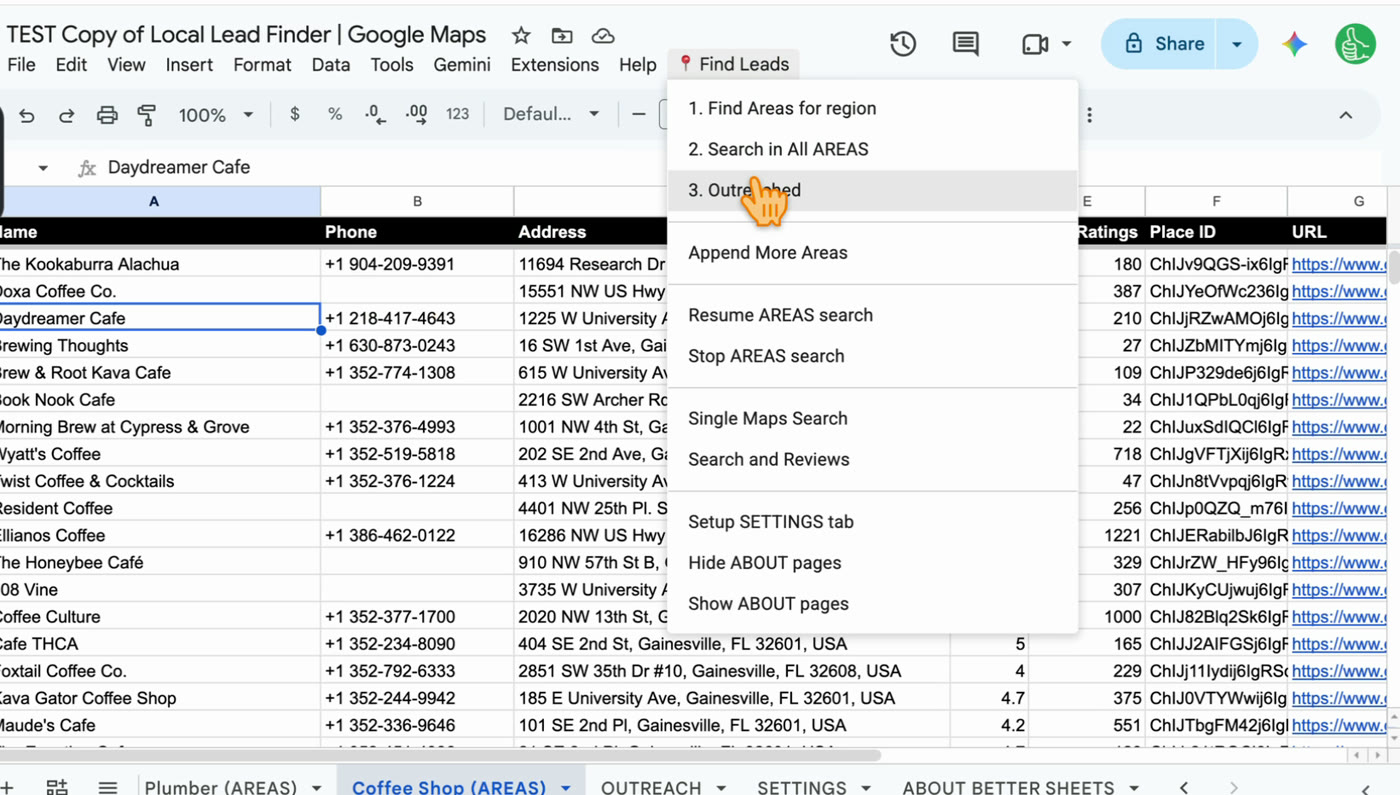
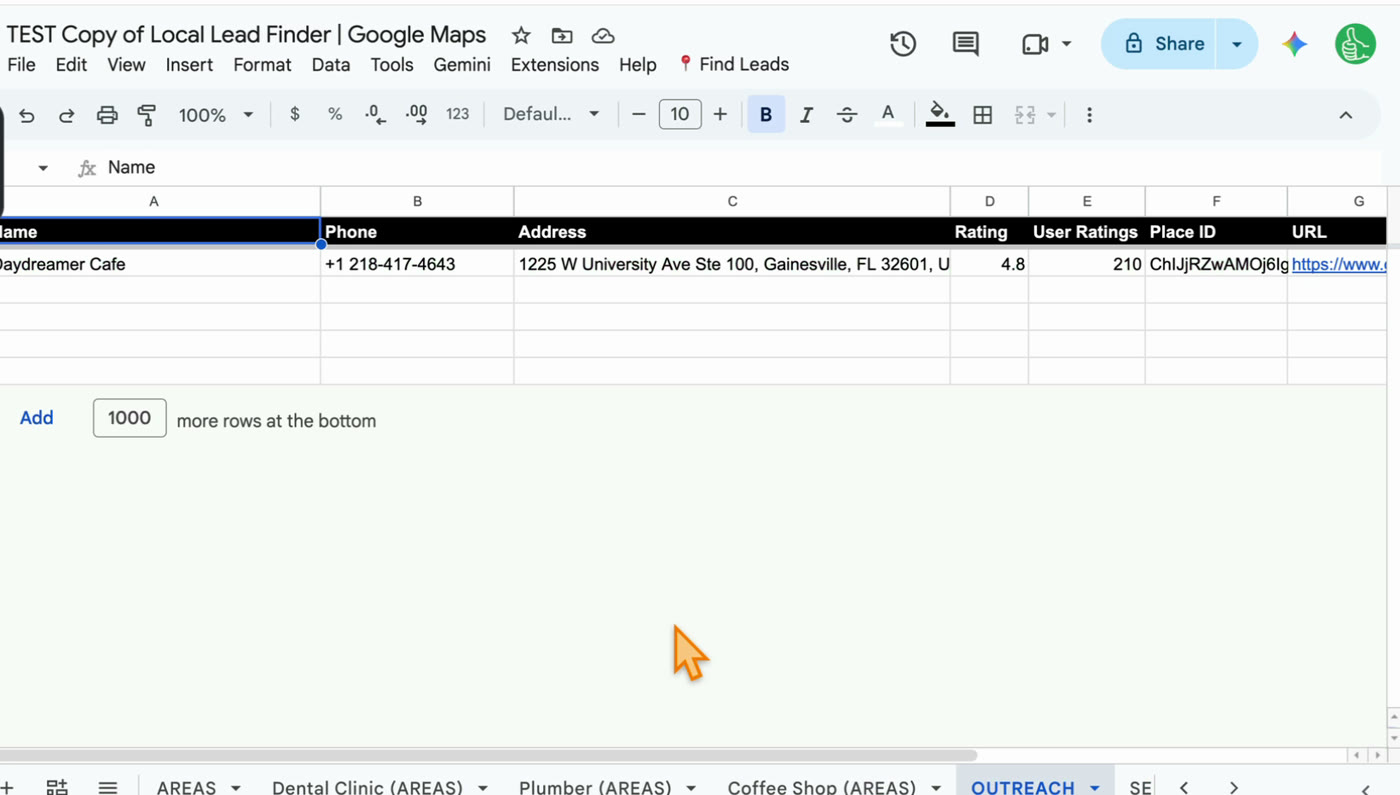
Two things happen. The row turns green, and the whole row gets copied to the OUTREACH tab.
This is the part a blank CRM template can’t do. Later I searched tea shop across the same 69 areas and got 146 places. Some coffee shops are also tea shops, and Daydreamer Cafe, which I’d already marked, came back highlighted green in the new tab.
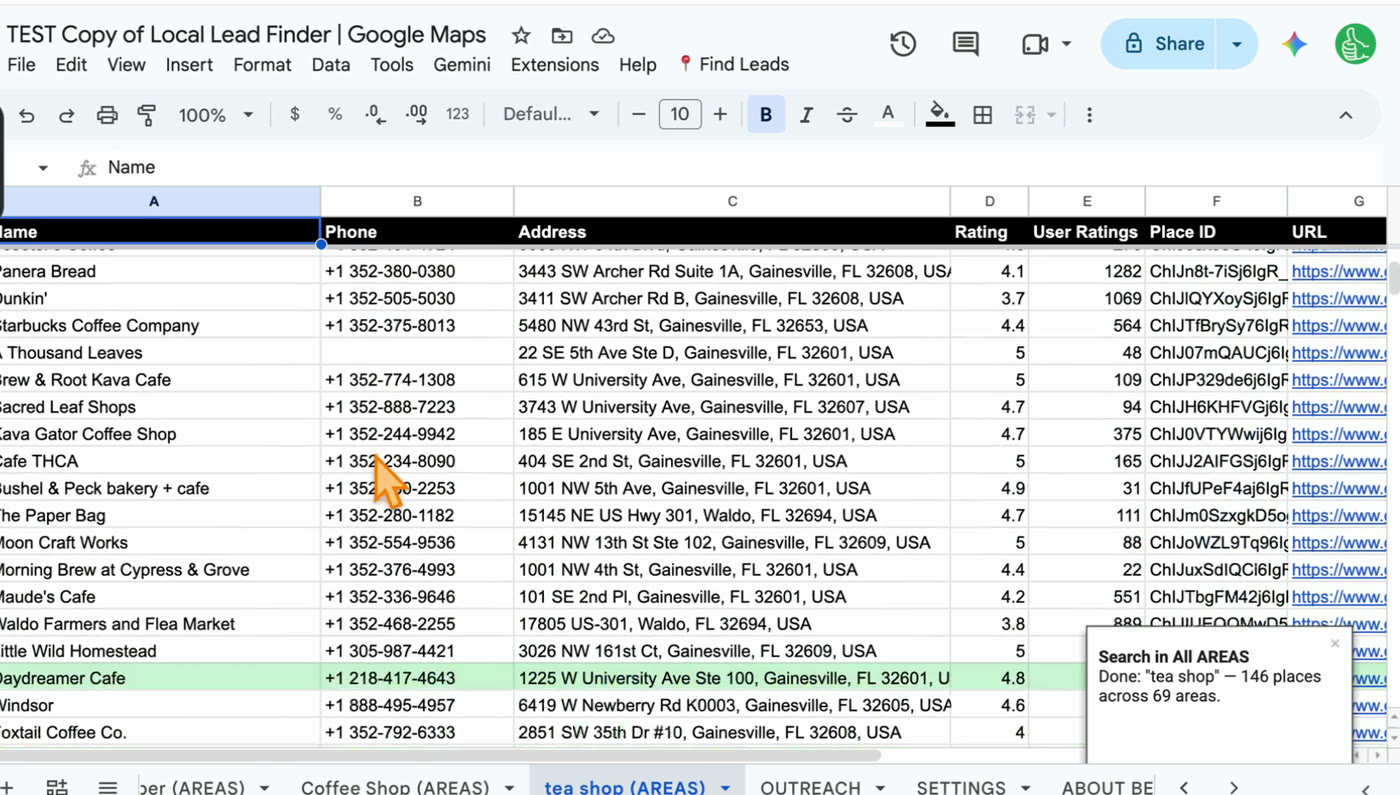
So the “have I already contacted them?” question gets answered across every search you run, not just the one you’re looking at.
Step 3: Add your pipeline columns to OUTREACH
The OUTREACH tab is your contact list of people you’ve actually reached out to. That makes it the right place for CRM columns. In the first empty columns after the copied data, add these five headers:
- Status: where the lead is right now.
- Last contact: the date you last messaged, called or visited.
- Next step: one short line, like “send price list” or “call Tuesday”.
- Follow-up date: the day you’ll do that next step.
- Notes: who you spoke to, what they said, anything you’ll forget.
The copied data in my OUTREACH tab is the same as a results tab, Name through Area, so in the formulas below I’m using K for Status, L for Last contact, M for Next step, N for Follow-up date and O for Notes. If your first empty column is a different letter, shift them.
Why OUTREACH and not the results tab? If you run the exact same search again, it writes over that tab, and your notes go with it. OUTREACH only gets added to.
Step 4: Make Status a dropdown
Free-typed statuses drift. “Replied”, “replied”, “Replied!” and “got a reply” are four different things to a formula. Select column K, go to Data > Data validation, add a rule, choose Dropdown, and add your stages. I’d keep it to five:
- Contacted
- Replied
- Meeting
- Won
- Lost
Do the same for Last contact and Follow-up date with Is valid date, so you get a date picker when you double-click the cell.
Step 5: Count your pipeline
Make a new tab called PIPELINE. In A1, this counts how many leads sit at each status:
=QUERY(OUTREACH!K2:K,"select K, count(K) where K is not null group by K label count(K) 'Leads'",0)
If you’d rather have one number per cell, COUNTIF does the same thing one status at a time:
=COUNTIF(OUTREACH!K2:K,"Replied")
That’s your pipeline view. It’s not a drag-and-drop board, but it tells you how many conversations you have going.
Step 6: List who’s due for a follow-up
In the PIPELINE tab, a few columns over, this lists every lead whose follow-up date is today or earlier and who isn’t Won or Lost yet:
=FILTER({OUTREACH!A2:B,OUTREACH!M2:N},OUTREACH!N2:N<>"",OUTREACH!N2:N<=TODAY(),OUTREACH!K2:K<>"Won",OUTREACH!K2:K<>"Lost")
You get name, phone, next step and follow-up date. Open the sheet in the morning, work down that list, update Last contact and Follow-up date as you go, and the list shrinks.
Step 7: Keep it moving
The loop, every time you work the list:
- Message a business from the results tab (the WhatsApp link already has your message in it).
- Mark it with Find Leads > 3. Outreached.
- On OUTREACH, set Status to Contacted, Last contact to today, and a Follow-up date.
- When they reply, change Status and write the next step.
Where it stops being a CRM
I’d rather you know this before you start. Local Lead Finder finds leads and remembers who you contacted. With the columns above, it’s a working lead pipeline in Google Sheets. It isn’t a full CRM:
- It doesn’t log your emails, calls or WhatsApp chats. You write the date and notes yourself.
- It doesn’t send reminders. The follow-up list only shows up when you open the sheet.
- It doesn’t track deal values, forecasts or sequences unless you build them.
- It’s one Google Sheet. Anyone you share it with sees everything in it.
If you’re a solo person or a tiny team working a list of local businesses, that’s usually plenty. If you need any of the above, that’s when a dedicated CRM earns its monthly fee, and you can still use the sheet to find the leads.
Step by step
- Get a free Places API key and set up Local Lead Finder (about 5 minutes).
- Run Find Areas on your region and Search in All AREAS with your keyword.
- Message a business, select its row, and click Find Leads > 3. Outreached.
- On the OUTREACH tab, add Status, Last contact, Next step, Follow-up date and Notes.
- Make Status a dropdown (Contacted, Replied, Meeting, Won, Lost) and the two date columns date-only.
- Add a PIPELINE tab with the QUERY count and the FILTER for follow-ups due.
- Each time you work the list, update Status, Last contact and Follow-up date.
Common pitfalls
- Forgetting to mark Outreached: if you skip it, the row isn’t copied to OUTREACH and won’t show green in your next search, so you might message the same business twice.
- Writing notes on a results tab: running the exact same search again writes over that tab. Keep Status, dates and notes on OUTREACH.
- Typing statuses by hand: “Replied” and “replied!” count as different things. A dropdown keeps your pipeline count honest.
- Leaving Follow-up date blank: a lead with no date never shows up in the follow-up list, so it quietly drops out of your pipeline.
- Pitching rows you haven’t checked: neighborhood names can pull in junk. In other cities I got a park, a cemetery, and a dentist in Dartford, England. Look at a business before you message it.
- Adding columns and not checking the next row: after you add your columns, mark one more business Outreached and check it lands on the next empty row with your columns still lined up.
Learn the Google Sheets formulas in this post
- 3 Ways to Count in Google Sheets: the COUNTIF behind counting leads at each status.
- User Filter a Google Sheet Database based on Dates, Checkboxes, Dropdowns: filtering on a date column and a dropdown, like the follow-ups due list.
- How to Create a CRM in google sheets w/ Dashboard: a fuller CRM build with a dashboard, if you want more than the PIPELINE tab.
- Make a Quick Pipeline (For Sales and More): turning your Status column into a pipeline you can see at a glance.
- Rishabh Asks: Conditional Format Whole Row Via Text inside a Cell: coloring a whole row by its status, the same idea as a row turning green after Outreached.
Better Sheets has hundreds more tutorials like these. If you want to get better at Google Sheets, join Better Sheets.
Other ways to use Local Lead Finder
- Where to Get Local Leads: Google Maps showed 20 plumbers, the sheet found 98: for anyone deciding where their leads should come from in the first place.
- How to Sell to Coffee Shops: 83 independent cafes in Boise: for roasters and bakeries working a cafe list like the one above.
- How to Get Bookkeeping Clients: small plumbers in Boise: for bookkeepers, VAs and answering services looking for small trades clients.
- How to Find Local Businesses Without Websites (131 hair salons, Chattanooga): for web designers looking for businesses that need a site.
All 18, grouped by who they’re for: Lead generation ideas: 18 local businesses to sell to.
FAQ
Can Google Sheets be used as a CRM?
Yes, for a small list. One row per lead, a Status dropdown, a last contact date, a follow-up date and notes covers most of what a solo person needs. It won’t log emails or send reminders, so you update it yourself.
What are CRM sheets?
A CRM sheet is a spreadsheet you use to track customers or leads: who they are, how to reach them, where they are in your pipeline and what happens next. In this post that’s the OUTREACH tab plus five columns.
Does Google have its own CRM?
Not one I use. What I use is Google Sheets with columns and formulas, as in this post. The Google Workspace Marketplace also has a Sales and CRM category of add-ons that connect to Sheets and Gmail.
How do I use Google Sheets to track leads?
Put one lead per row, add a Status dropdown and date columns, and use COUNTIF or QUERY to count each stage. With Local Lead Finder the rows come from Google Maps, and Find Leads > 3. Outreached marks who you’ve contacted.
Is Local Lead Finder a CRM?
No. It finds local businesses on Google Maps and tracks who you’ve contacted: those rows turn green, copy to the OUTREACH tab, and stay green in every future search. Status, follow-up dates and notes are columns you add.
How do I stop messaging the same business twice?
Mark each one with Find Leads > 3. Outreached right after you message it. It stays green in every future search, even a different one, like tea shop after coffee shop.
How much does it cost?
The sheet is $10, and free for Better Sheets lifetime members. Searches run on your own Google Places API (New) key, and Google gives up to 1,000 searches a month free. The sheet shows the most a search could cost before it runs.
Get the sheet
Local Lead Finder is $10, and free for Better Sheets lifetime members.
