A Google Maps API key is the free code from Google Cloud that lets an app, a website or a Google Sheet pull data from Google Maps. You probably need one because a tool asked for it. Maybe it’s Local Lead Finder, which pulls businesses straight from Google Maps using Google’s Places API, or maybe it’s something else. Either way, Google Cloud is not a friendly place to find it. Search for how and page 1 is help pages for other products, Stack Overflow threads from 7 and 8 years ago about getting around the billing step, Google’s pricing page, and a couple of YouTube videos. Most of them send you to the Credentials page and skip the two parts that trip people up: picking the right Places API, and what to do when Google asks for a billing account.
This page is the whole thing, step by step, with a screenshot of every screen. I made a brand new project and did it for real, so it’s exactly what you’ll click. The key is free to create, and Google gives you up to 1,000 searches a month for free. It takes about five minutes. You leave with a working Places API (New) key pasted into Local Lead Finder, and you’ll know how to find it again if you lose it.
TL;DR
- To get a Google Maps API key, enable Places API (New) in Google Cloud, copy the key, and paste it into Local Lead Finder in about five minutes.
- Google asks for a billing account, but the key is free and you get up to 1,000 searches a month free. The Google Maps API pricing calculator shows the free cap for every other Maps API.
- The most common mistake is enabling the old Places API. Local Lead Finder needs Places API (New).
Who this is for
- Local Lead Finder buyer: this is the one key the sheet needs before it can pull anything from Google Maps.
- Freelance web designer: you get the key that lets you list every local business in a city and find the ones to pitch.
- Local SEO freelancer: you can pull ratings and review counts for a whole category of businesses into a sheet.
- Virtual assistant: clients ask for lead lists, and this key is the first step to building them in Google Sheets.
- Small business owner: you can build your own list of local businesses to sell to without buying one.
Before you start
- A Google account
- A billing account in Google Cloud, or a few minutes to set one up
- Local Lead Finder itself
- About five minutes
Rather watch? Here’s the video walkthrough on Loom (about 4 and a half minutes).
1. Open Google Cloud and pick a project
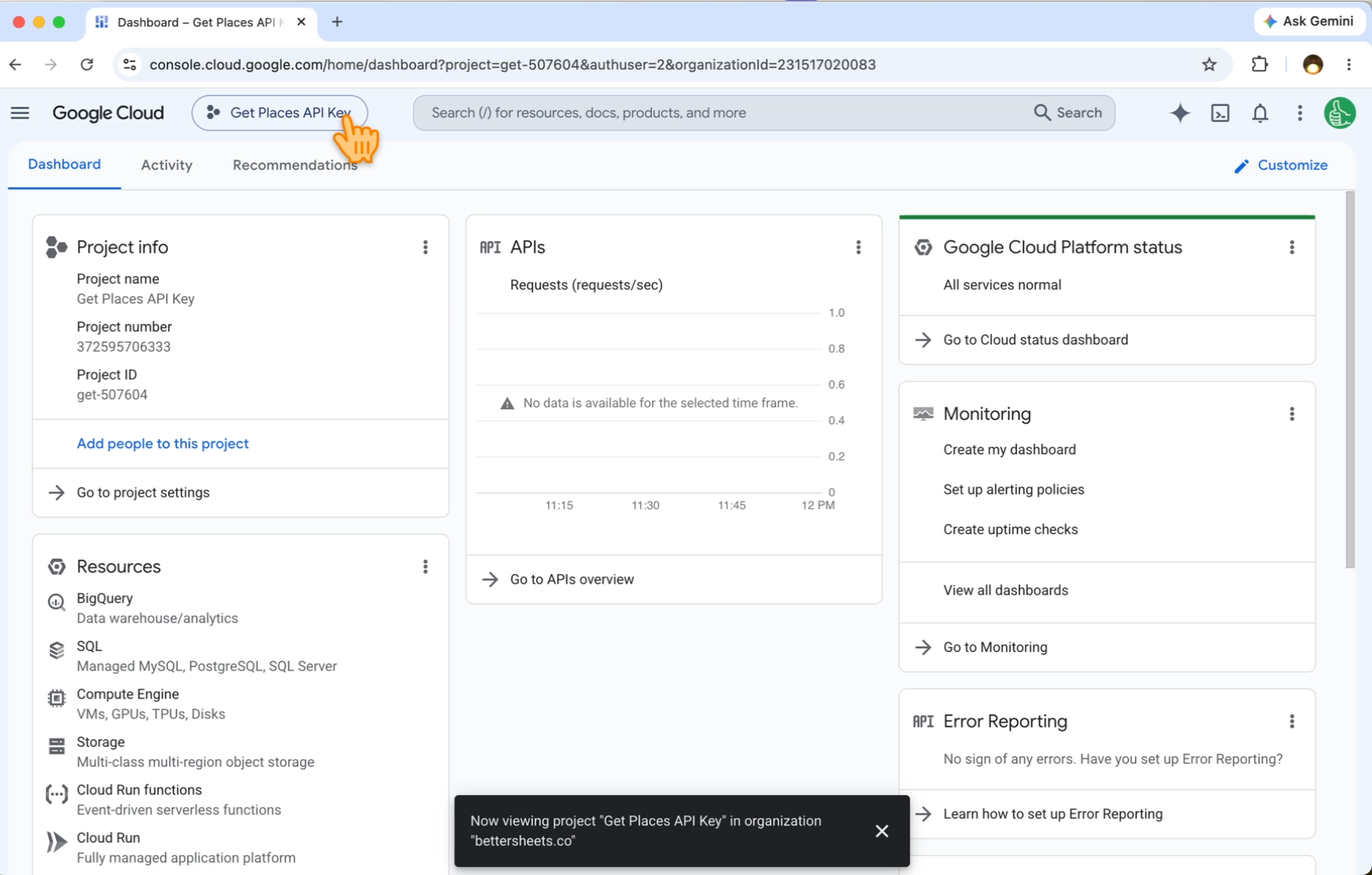
Go to console.cloud.google.com. You need a project. You could use an existing project or create a project yourself. I made a brand new one called “Get Places API Key”.
2. Go to APIs & Services
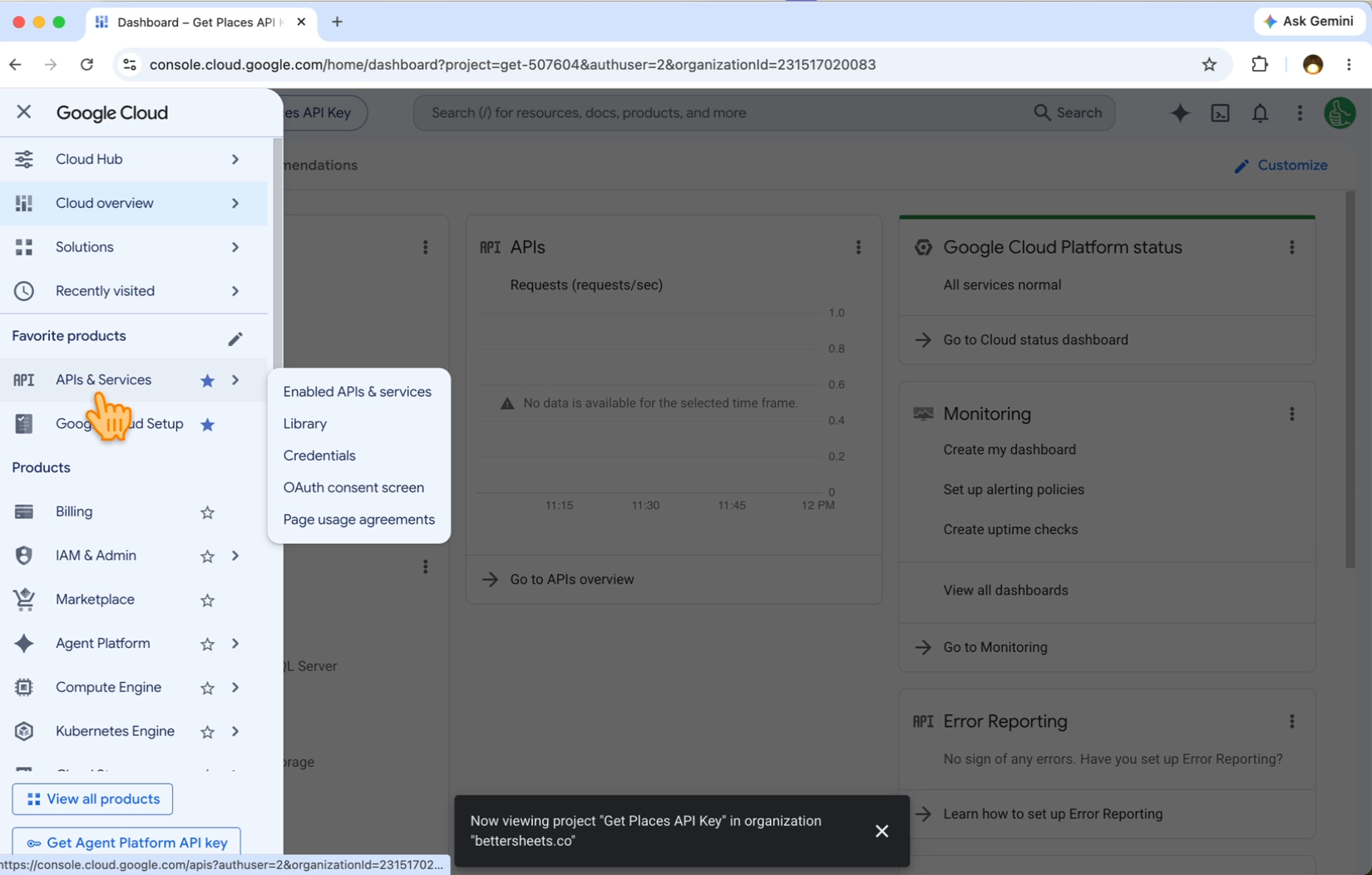
Click the three bars on the left side, go to APIs & Services, then Enabled APIs & services.
3. Click “Enable APIs and services”
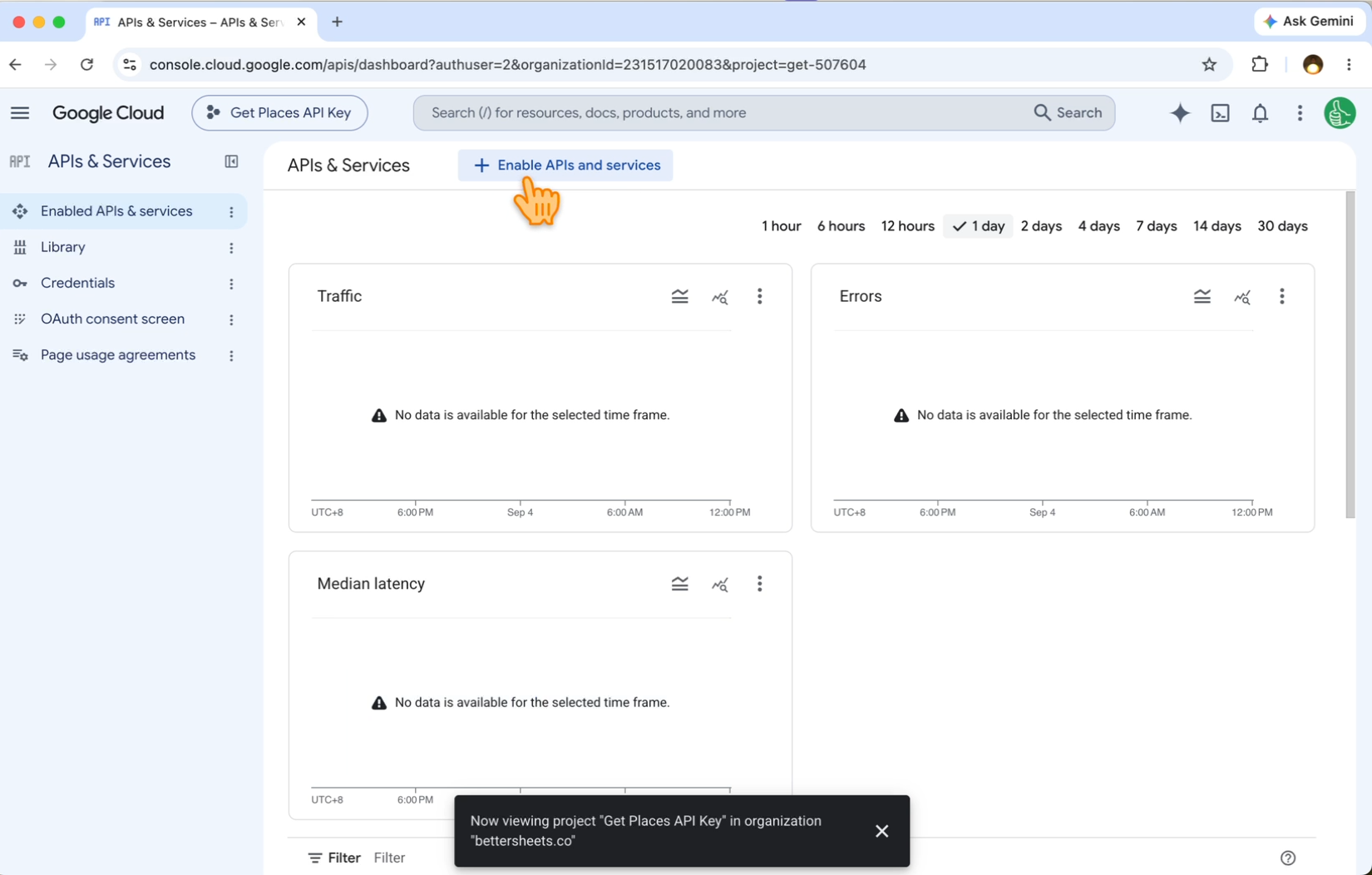
At the top of the page, click the plus sign: + Enable APIs and services.
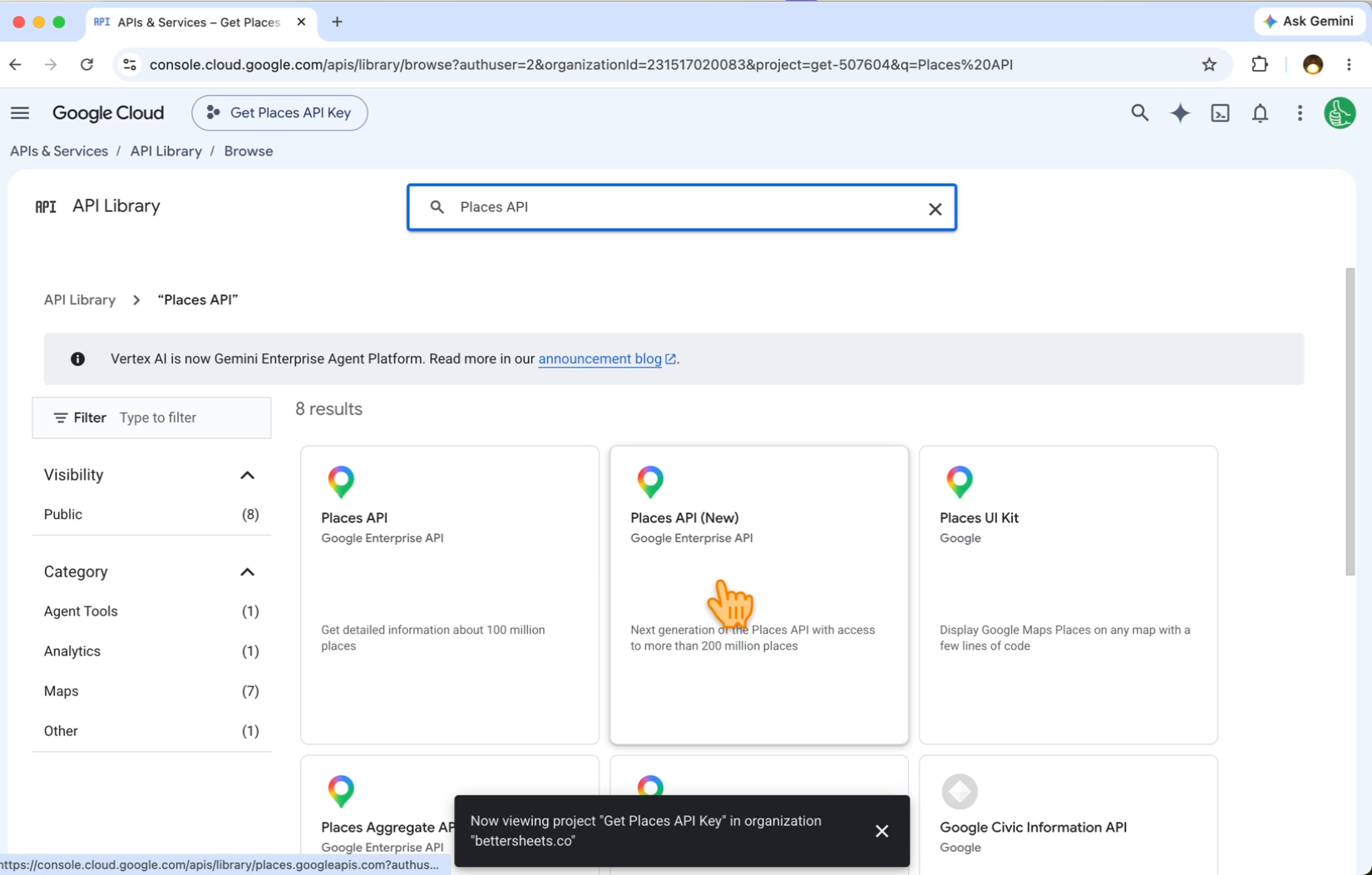
4. Search for “Places API”
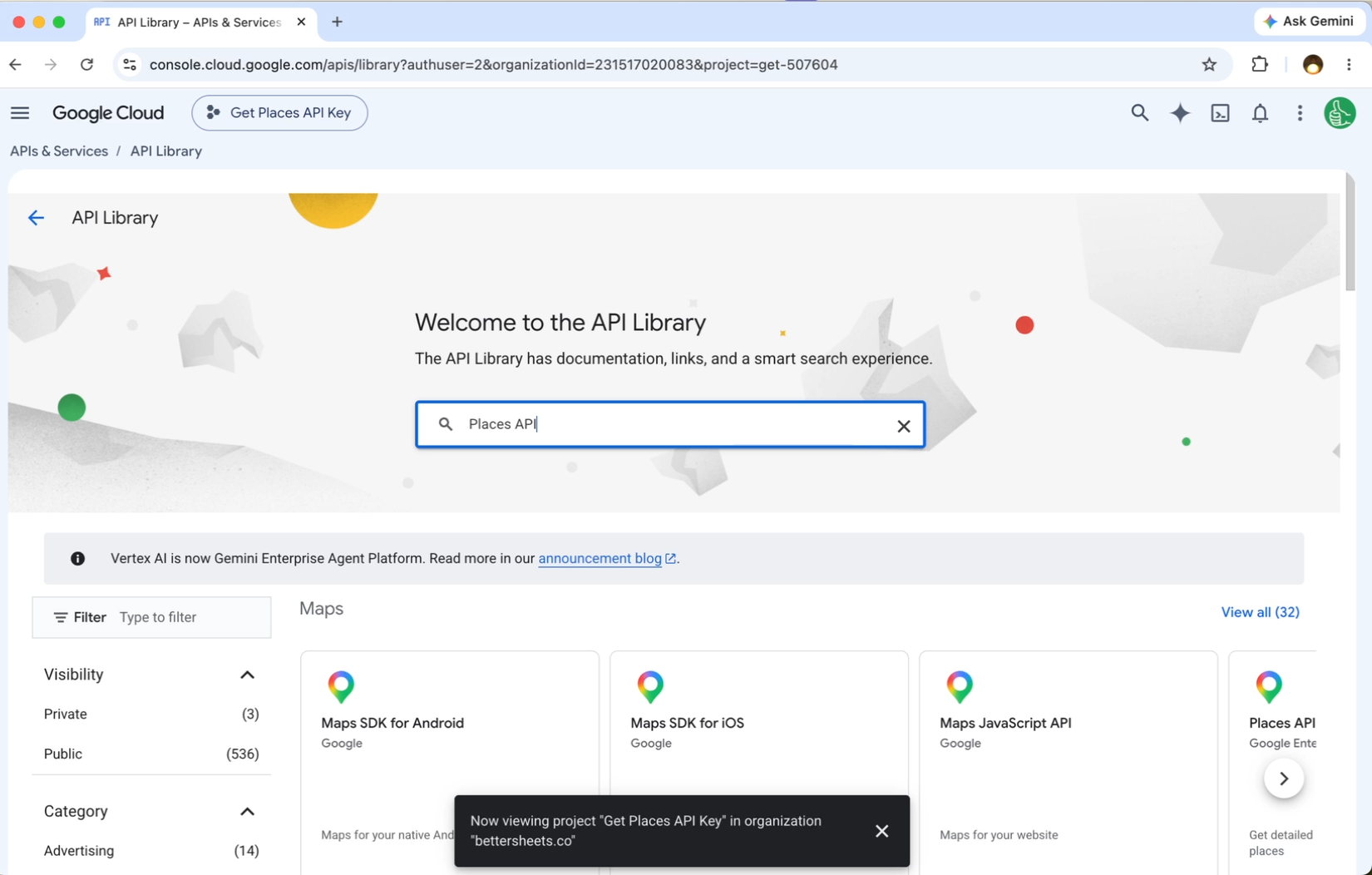
In the API Library search box, type Places API and hit Enter.
5. Pick “Places API (New)”
You’ll see a few results. There’s Places API, and there’s Places API (New). Click the new one.
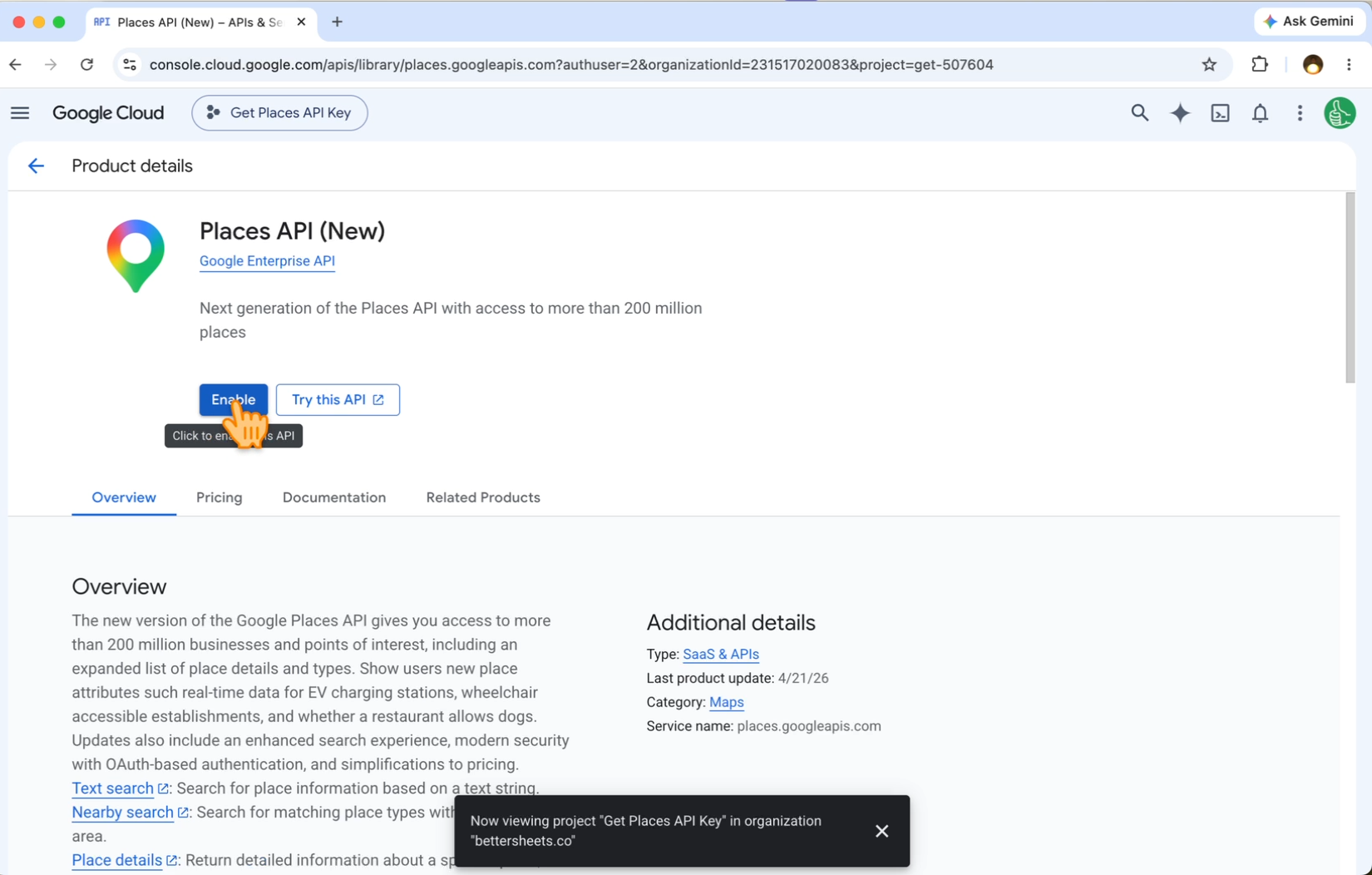
6. Click Enable
Click the blue Enable button. It’s going to do its thing. It shouldn’t take too long, but it does take some amount of time.
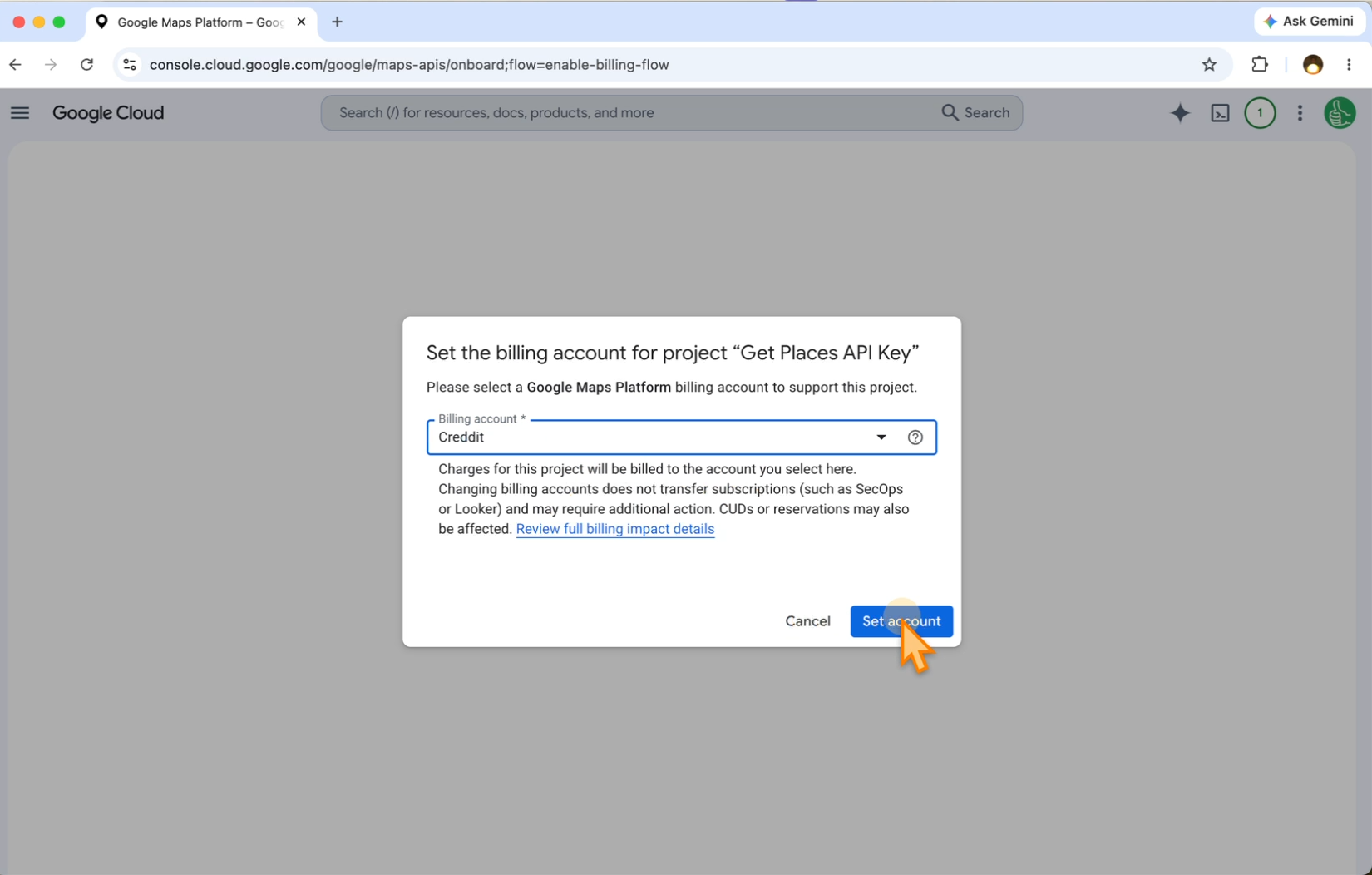
7. Connect a billing account
Google asks you to connect the project to a billing account. Select your billing account and click Set account.
The free allowance is high, so you could use this for free for a long time. Local Lead Finder also shows you the most a search could cost before it runs. Want the exact number for your own usage? Try the Google Maps API pricing calculator.
8. Copy your Google Maps API key
That’s it. Google shows you Your API Key. Click the copy icon on the right and save the key somewhere. I pasted mine into a blank sheet (sheet.new) for now.
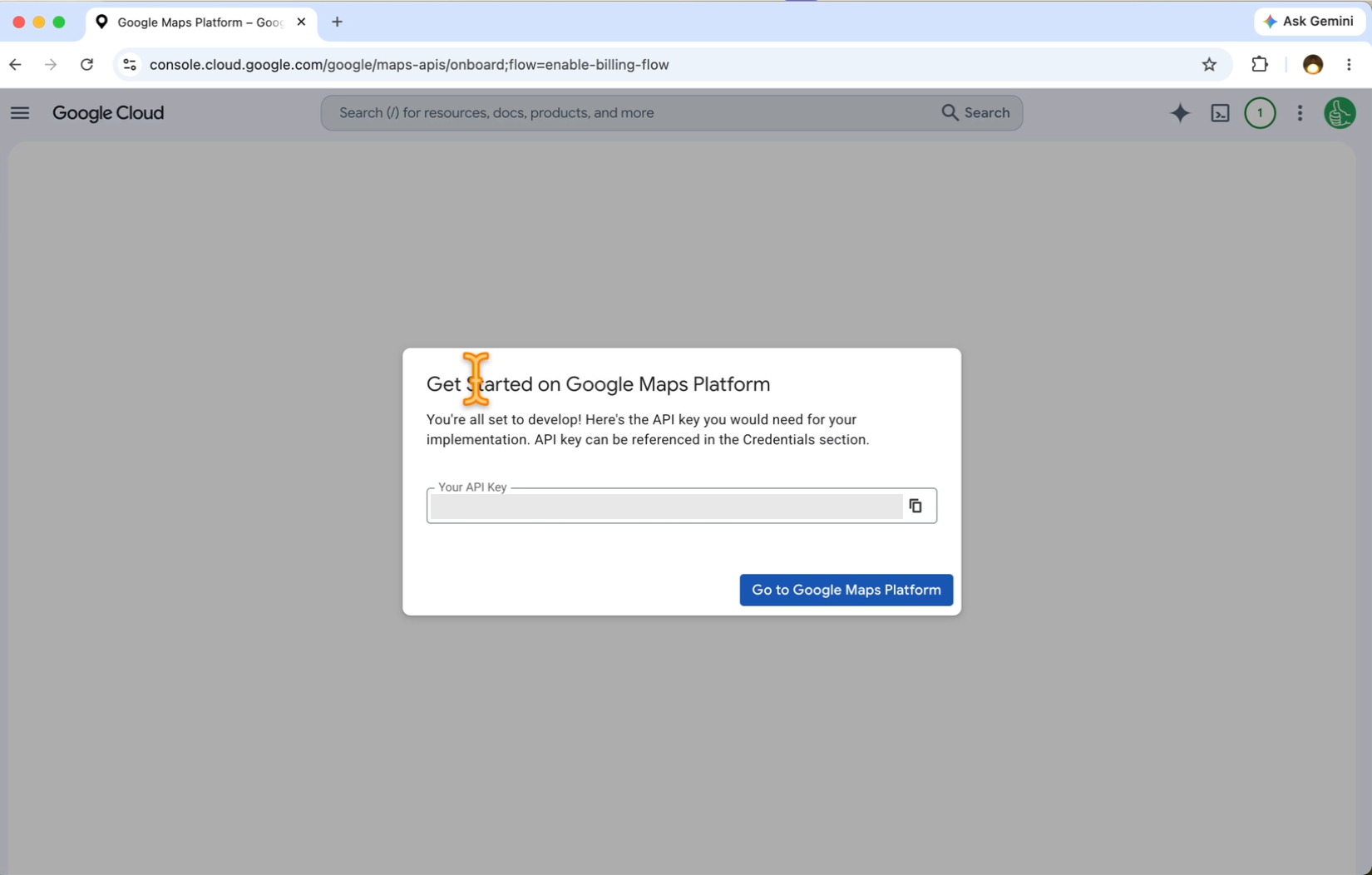
Treat the key like a password. Don’t post it anywhere public.
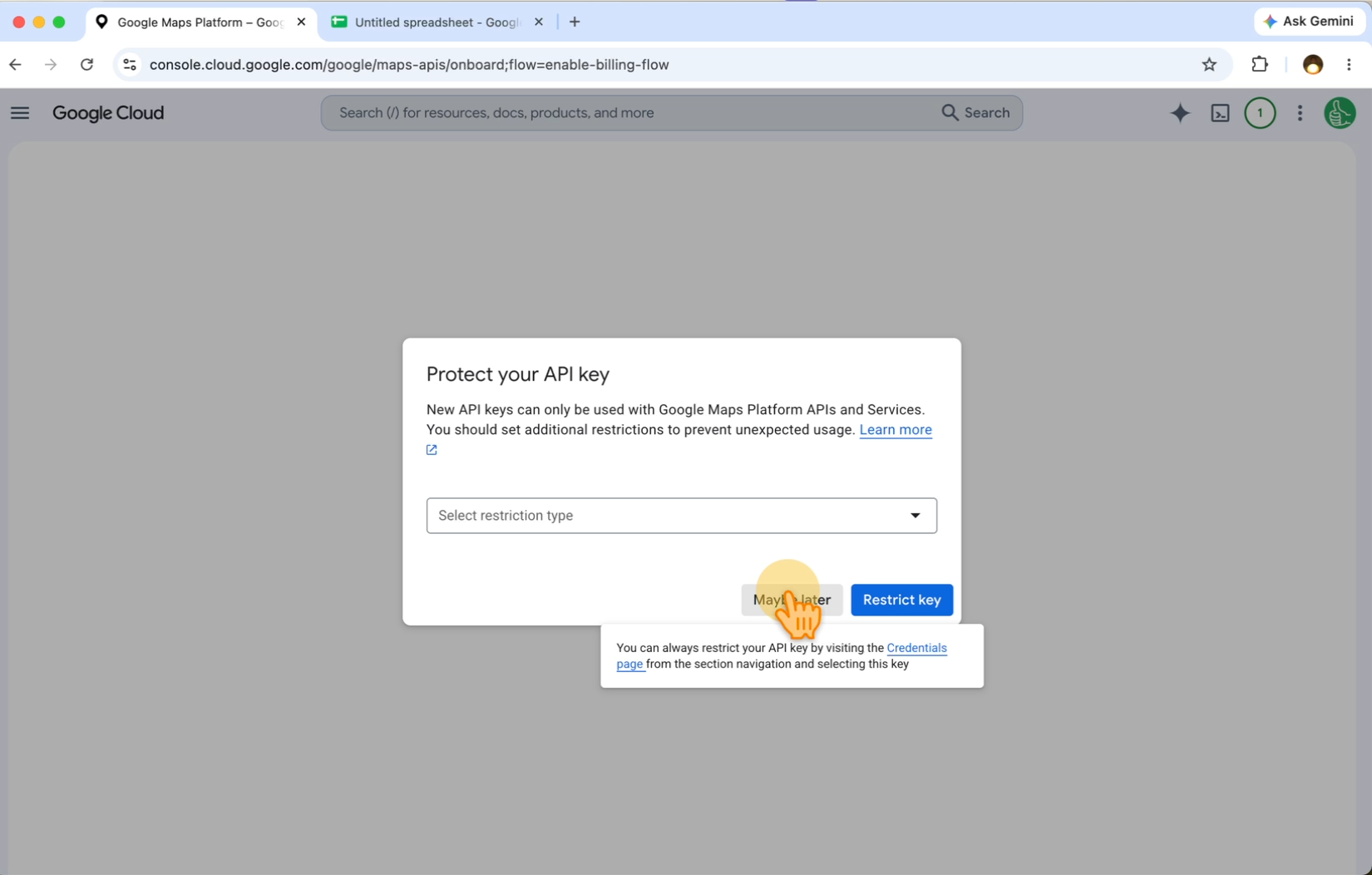
9. Restrictions: “Maybe later” is fine
Next it asks you to protect your key with restrictions. You might want to set up restrictions later, depending on how you use it. To get going, click Maybe later.
Lost your Google Maps API key? Here’s how to find it again
If you already made a key and need it again, or want a new one:
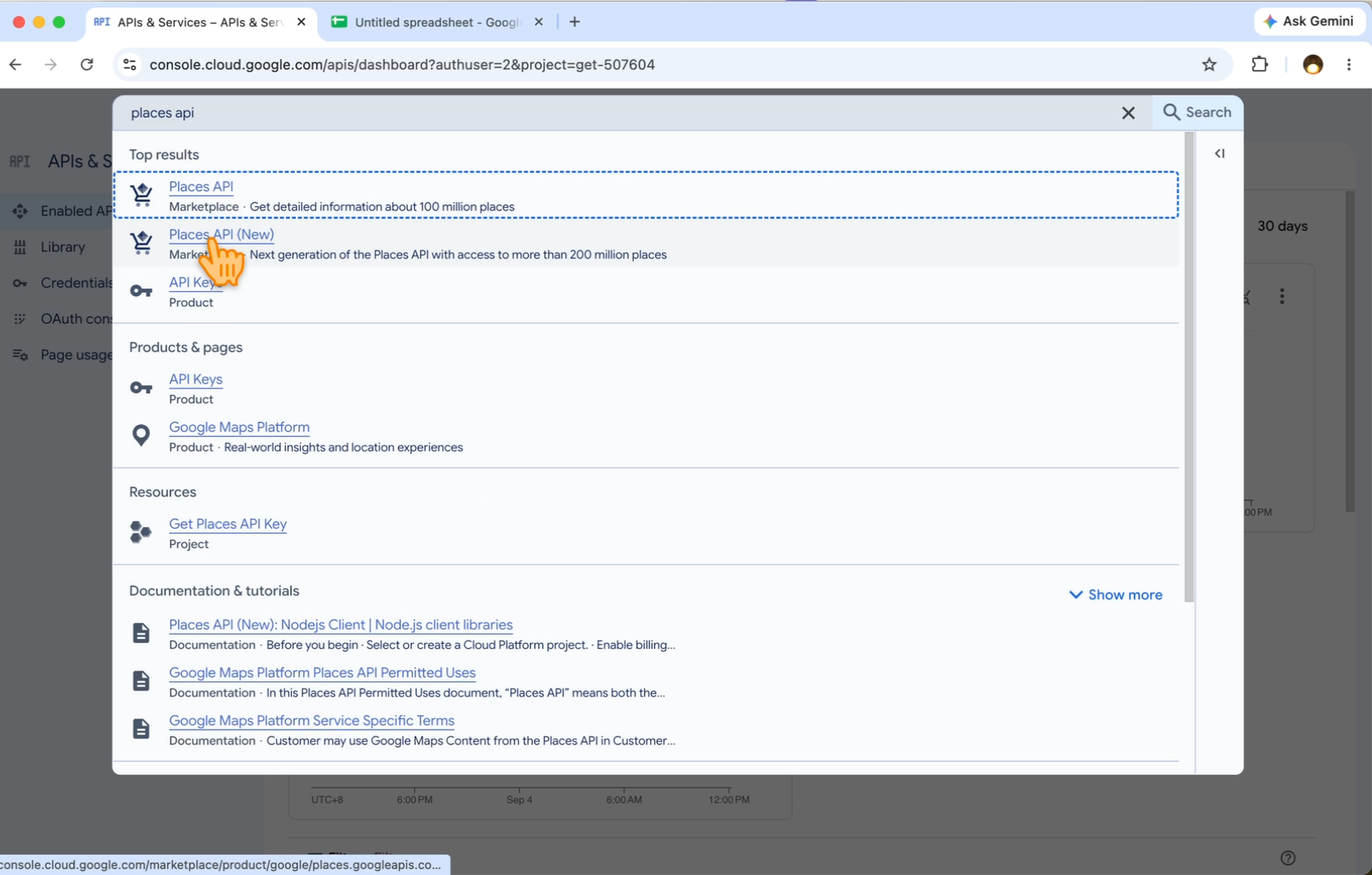
Go back to console.cloud.google.com. Make sure you’re in the right Google account, if you have more than one. Then type places api in the search bar at the top and click Places API (New).
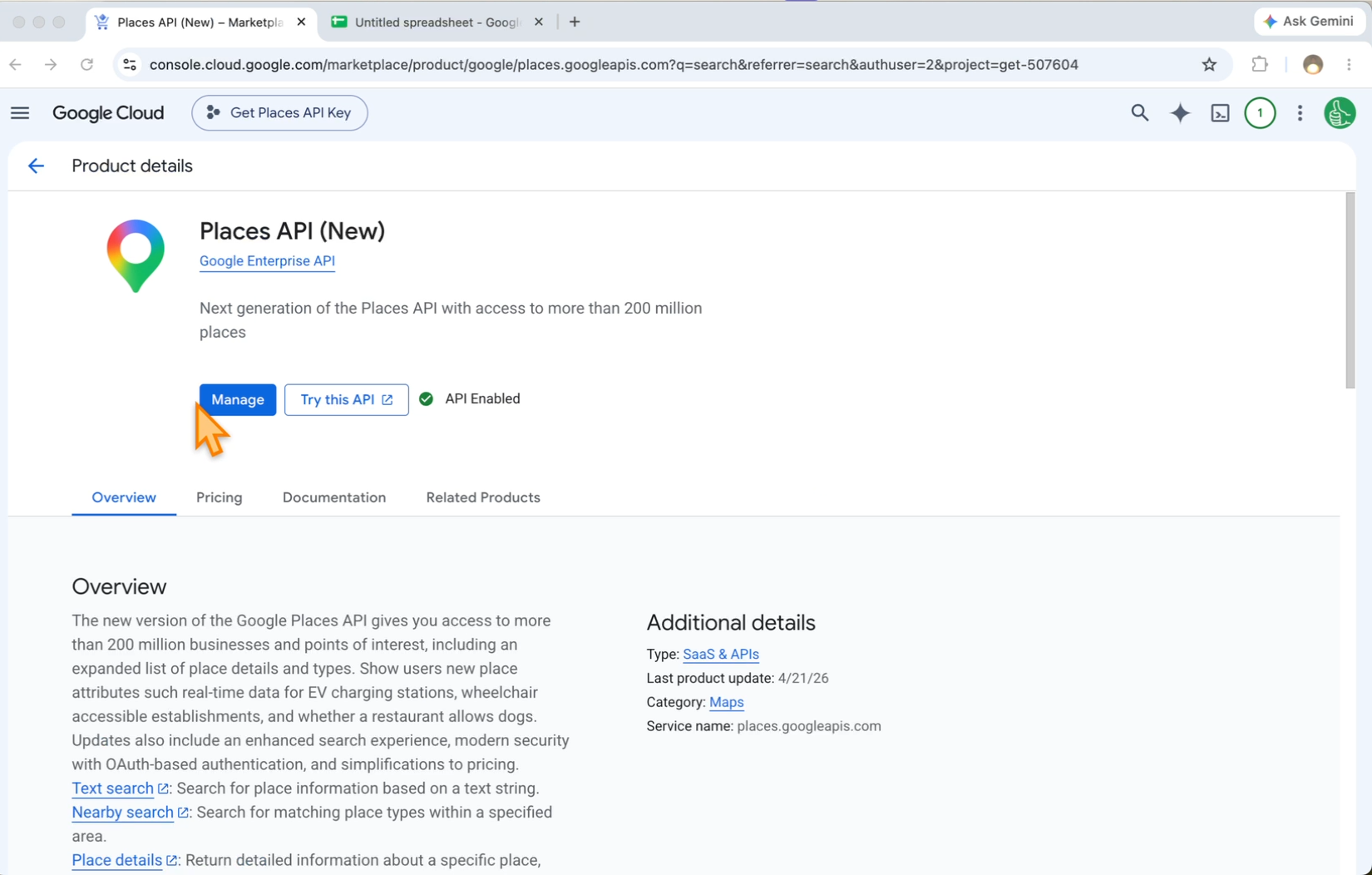
Click Manage. Because it’s already enabled, the button says Manage now instead of Enable.
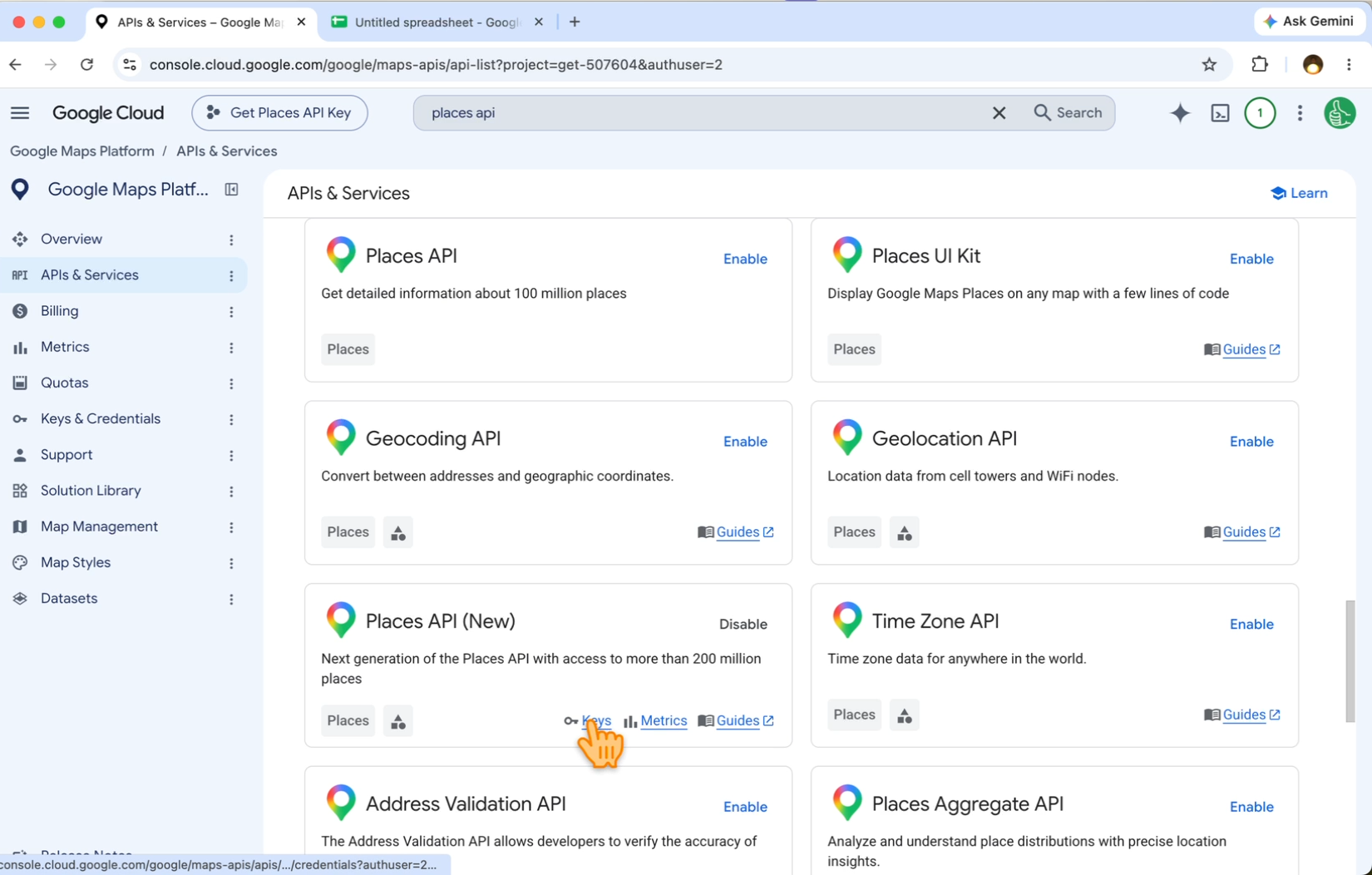
You’ll see a list of Google Maps products. Find Places API (New). It’s enabled, so it has a button called Disable. All the other ones ask you to Enable. Click Keys under it.
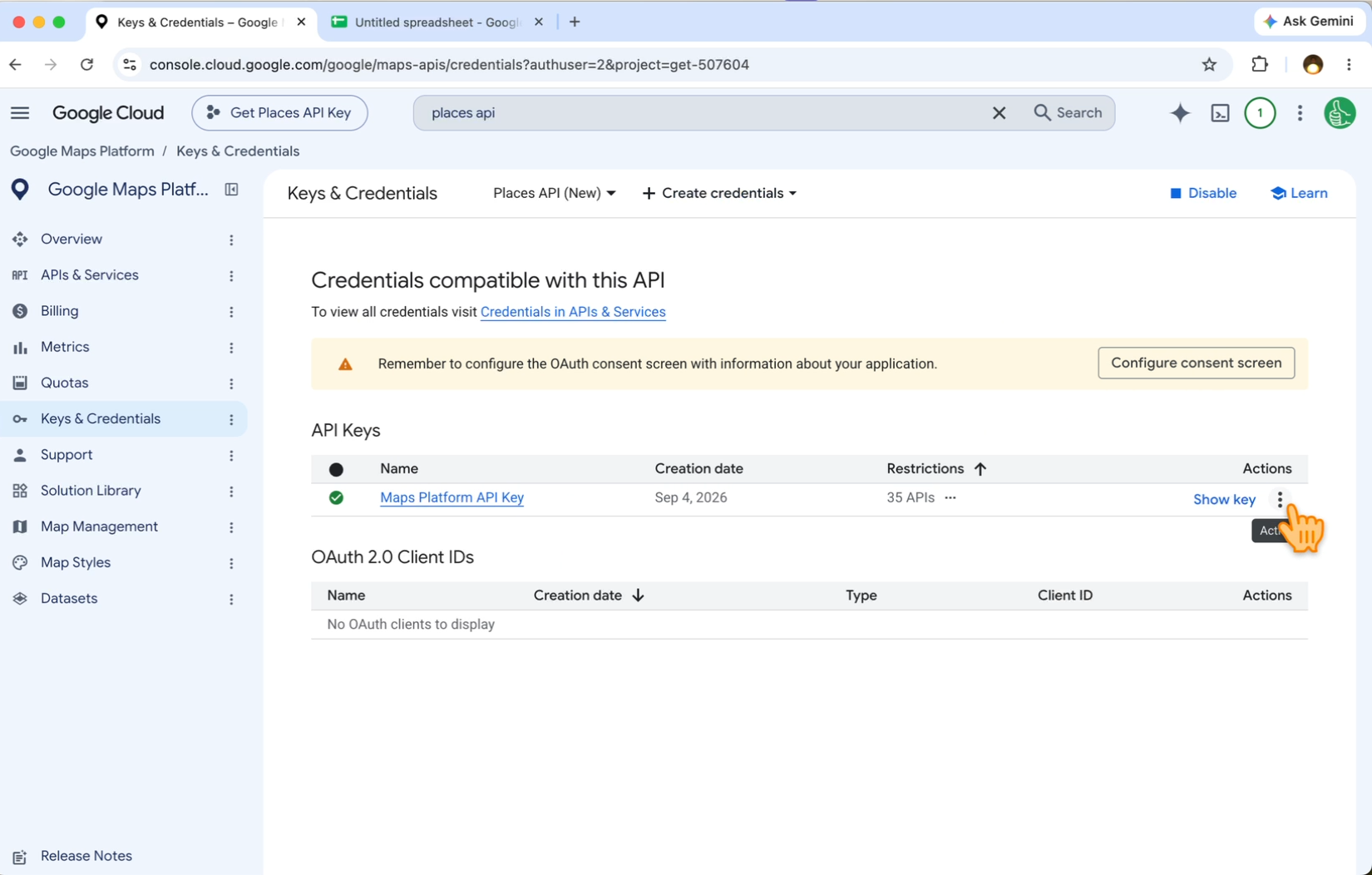
Click Show key to see your key again. The three dots next to it let you delete the key.
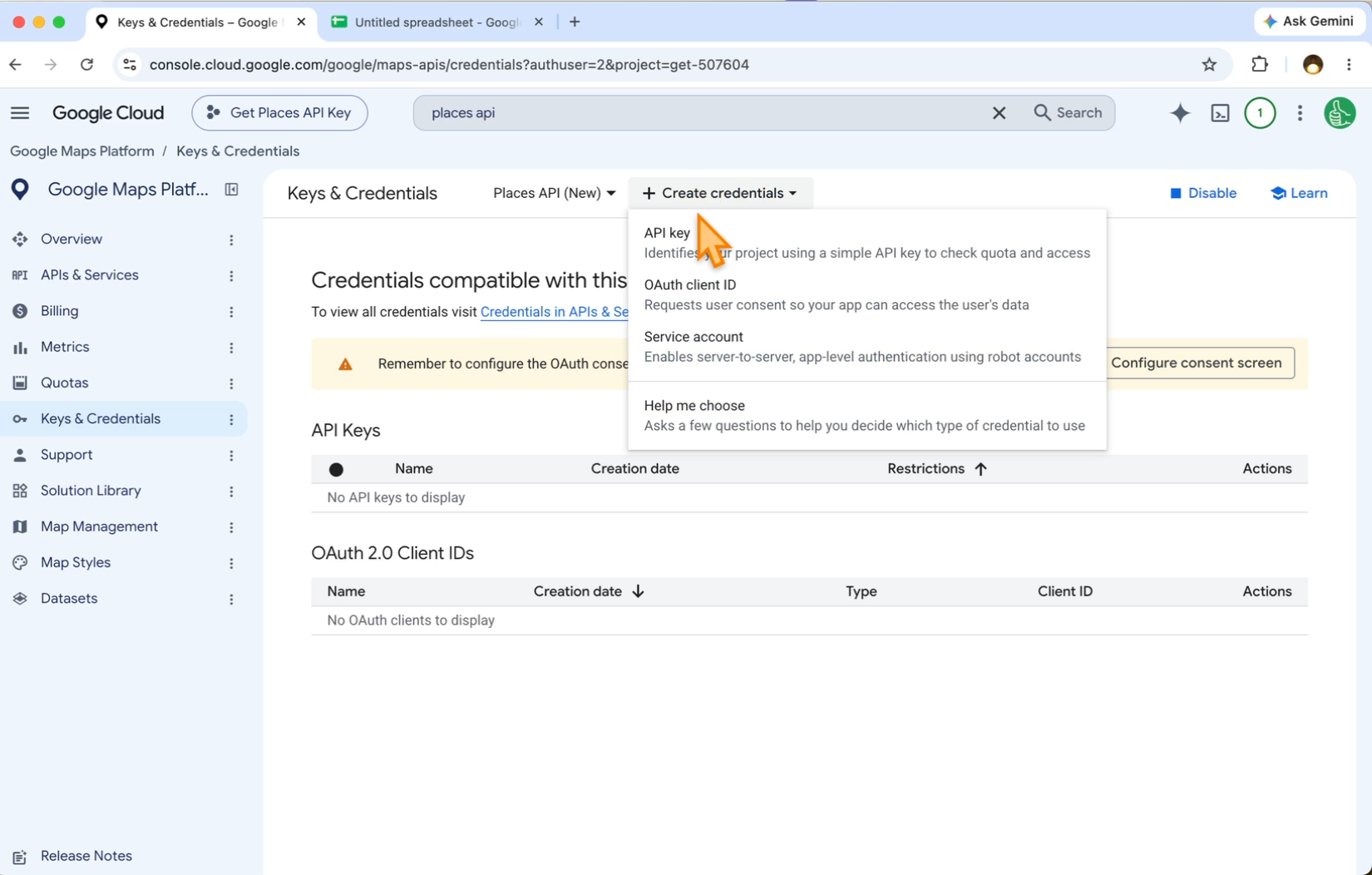
Need a brand new key? Click + Create credentials at the top, then API key. Leave it with no restrictions and click Create. You get a brand new key, completely different from the old one.
Paste the key into Local Lead Finder
Now copy your key and paste it into Local Lead Finder. In your copy of the sheet, open the SETTINGS tab and paste it into “New Places API Key”. Then type a city and a kind of business, and it lists every result from Google Maps in your sheet.
The rest of the setup, step by step: How to Set Up Local Lead Finder in Google Sheets.
Step by step
- Go to console.cloud.google.com and pick or create a project.
- Open the menu, then APIs & Services > Enabled APIs & services.
- Click + Enable APIs and services and search for Places API.
- Click Places API (New), then Enable.
- Pick your billing account and click Set account.
- Copy Your API Key and save it somewhere safe. Click Maybe later on restrictions.
- Paste the key into “New Places API Key” on the SETTINGS tab of Local Lead Finder.
Common pitfalls
- Enabling the old Places API: the search shows Places API and Places API (New). Local Lead Finder needs Places API (New), the one the SETTINGS field “New Places API Key” is named after.
- Stopping at the billing popup: Google asks you to connect a billing account when you click Enable. Pick yours and click Set account. The free allowance is high, and Local Lead Finder shows the most a search could cost before it runs.
- Restricting the key before it works: click Maybe later on restrictions, paste the key and run a search first. If you add restrictions later, open the key in Google Cloud, choose Restrict key under API restrictions and tick Places API (New). Leave Application restrictions set to None: the sheet calls Google from Apps Script, not from a website, so a website restriction can block every search.
- Copying the key with extra spaces: use the copy icon next to Your API Key instead of selecting the text by hand, and paste it into “New Places API Key” with nothing before or after it.
- Looking in the wrong Google account: if you have more than one, check which account and project you’re in before you go looking for your key in Google Cloud.
- Sharing the key: treat it like a password. Don’t post it, or a copy of the sheet with it filled in, anywhere public.
Learn the Google Sheets formulas in this post
This post doesn’t use any formulas, but once your leads are in a sheet these are where I’d start.
- 3 Ways to Count in Google Sheets: count how many businesses you found, by area or by rating.
- How To Sort A Filter: sort your results so the businesses with the most reviews come first.
- 6 Ways to Make Your Checkboxes Better: the AREAS tab runs on checkboxes, and this shows what else they can do.
- Most Common Errors and How To Handle Them in Google Sheets: what #N/A and #REF mean when you start adding your own formulas.
Better Sheets has hundreds more tutorials like these. If you want to get better at Google Sheets, join Better Sheets.
Other ways to use Local Lead Finder
- How to Build a Local Business List in Google Sheets (142 coffee shops, Boise): for anyone selling to local businesses who wants the whole list in one sheet.
- How to Get Snow Removal Contracts in Minneapolis: for snow plow and salting contractors looking for commercial accounts.
- How to Get Your Product Into Salons: a new shampoo, 284 salons: for beauty product makers who want their product used in real salons.
- How Many Small Businesses Don’t Have a Website? Real counts from 4 cities: for web designers and marketers who want real numbers on which businesses have no website.
All 18, grouped by who they’re for: Lead generation ideas: 18 local businesses to sell to.
FAQ
Is the Google Places API free?
The key is free to create, and Google gives you up to 1,000 searches a month free. That free tier is high, so you could use it for free for a long time. In Local Lead Finder, each area is one Places request per results page, and the sheet shows the most a search could cost before it runs.
How much does a Google Maps API key cost?
The key itself is free. You only pay for requests past each API’s free monthly cap: 10,000 for Essentials APIs like Dynamic Maps and Geocoding, 5,000 for Pro, and 1,000 for Enterprise, like a Places search that returns phone numbers and ratings. Work out your own bill with the Google Maps API pricing calculator.
Why does Google ask for a billing account?
Enabling Places API (New) asks you to connect the project to a billing account. Google gives up to 1,000 searches a month free, which is high, so you could use it for free for a long time. Local Lead Finder also shows you the most a search could cost before it runs.
Which API do I enable for Local Lead Finder?
Places API (New). When you search “Places API” you’ll see a few results: Places API, Places API (New) and Places UI Kit. Click the new one.
What if I already enabled the old Places API?
Go back to the API Library, search for Places API again and enable Places API (New). That’s the one Local Lead Finder uses; the SETTINGS field is called “New Places API Key”. If Places API (New) is already enabled, the button says Manage instead of Enable.
Is my API key safe in the sheet?
The key lives in the SETTINGS tab of your own copy of the sheet. Treat it like a password and don’t post it, or a copy of the sheet with it filled in, anywhere public. If you think it got out, open Keys & Credentials, use the three dots to delete it, and click + Create credentials > API key for a brand new one.
How do I find my Google Maps API key again?
Go to console.cloud.google.com, search places api, click Places API (New), then Manage. Click Keys under Places API (New), then Show key.
Is Local Lead Finder a Google Maps scraper?
No. It uses Google’s official Places API with your own key. It’s a Google Sheet, $10, and free for Better Sheets lifetime members. Setup takes about 5 minutes.
Get Local Lead Finder here: bettersheets.co/localleads
