You searched Google Maps for every coffee shop in town, and now you’re copy-pasting them into a spreadsheet one at a time. Search “google maps to google sheets” and most of page 1 goes the other way: add-ons that put your sheet’s addresses on a map, an old Stack Overflow answer, and a video about a scraping automation. Nobody just shows you how to get a list of businesses from Google Maps to Google Sheets. The usual options are copy-paste, a browser scraper extension, or a lead tool you pay for every month.
This page is only the setup. Not why it works or how it works, just how to set it up, and it takes about 5 minutes. I ran it for real with Local Lead Finder, a $10 Google Sheet I built that uses your own Google Places API key. It’s not a scraper. Gainesville, Florida turned into 69 areas, and one “coffee shop” search came back with 74 coffee shops, no duplicates. By the end you’ll have the sheet set up, your first search in its own tab with a phone, website and WhatsApp link on every row, and a way to never message the same place twice.
If you’d rather watch, here’s the 6-minute video: How to Set Up Local Lead Finder. Everything below comes from that video, in the same order.
TL;DR
- Gainesville, Florida became 69 areas, and one “coffee shop” search pulled 74 coffee shops into a sheet in seconds.
- You need your own Places API key; Google gives 1,000 free searches a month, and 69 areas cost up to 69 requests.
- Mark every business you message as Outreached, or a later search like “tea shop” won’t show them in green.
Who this is for
- Coffee roaster selling wholesale: you get every coffee shop in a city with a phone number and a WhatsApp link that already asks if they serve your coffee.
- Freelance web designer: every row has a website column, so you can see which local businesses you could build a site for.
- Local marketing agency owner: one search covers every neighborhood in a city, so you stop running the same Google Maps search area by area.
- Outside sales rep: you get your whole territory in one tab, with addresses and ratings, and a green row for everyone you’ve already contacted.
- Small business owner doing your own outreach: I use it for my wife’s business, which has nothing to do with Google Sheets, and the outreach is so much simpler.
Before you start
- A Google Places API (New) key
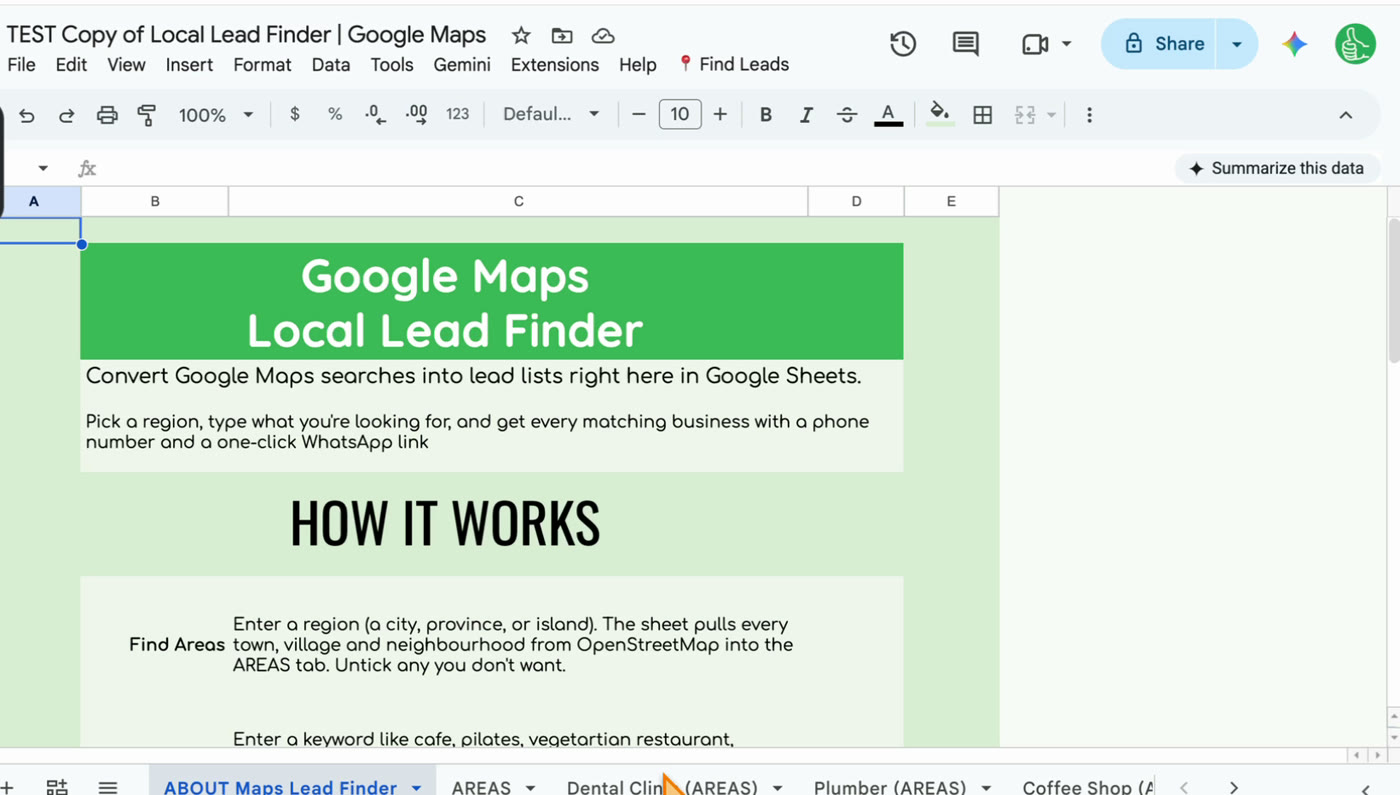
- Local Lead Finder itself, copied to your Google Drive
- A Google account to authorize the sheet the first time it runs
- A region, like Gainesville, Florida
- What you’re looking for, like coffee shop
- A short WhatsApp message, if you want to message from the sheet
Put your Places API key in SETTINGS
You must have a Google Places API key. That’s number one. Copy Local Lead Finder to your Google Drive, open the SETTINGS tab, and paste your key into “New Places API Key”.
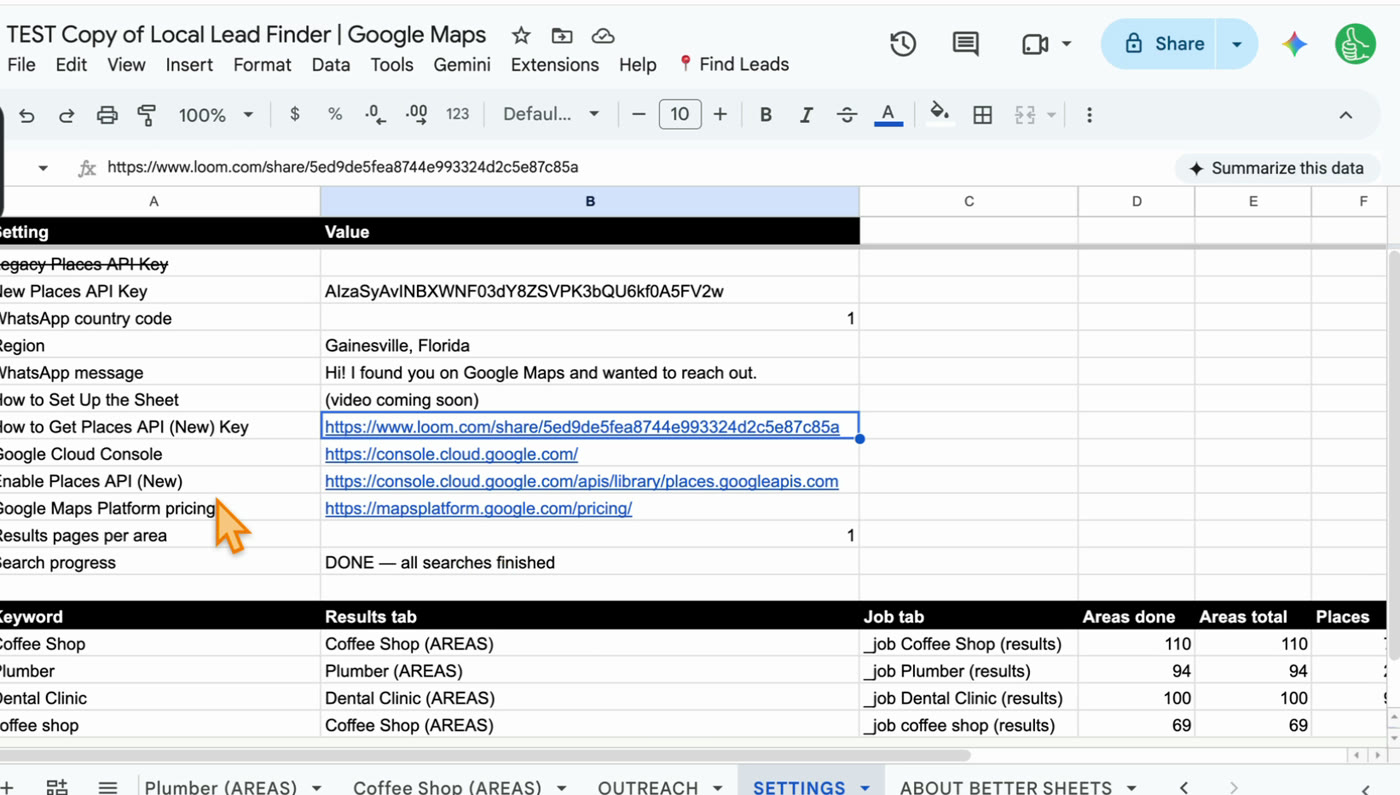
Don’t have a key yet? Here’s how to get one, step by step with screenshots: Get Free Google Maps API. Google gives you 1,000 free searches a month.
If your sheet has nothing in it except that API key, you’re ready.
Step 1: Find Areas for your region
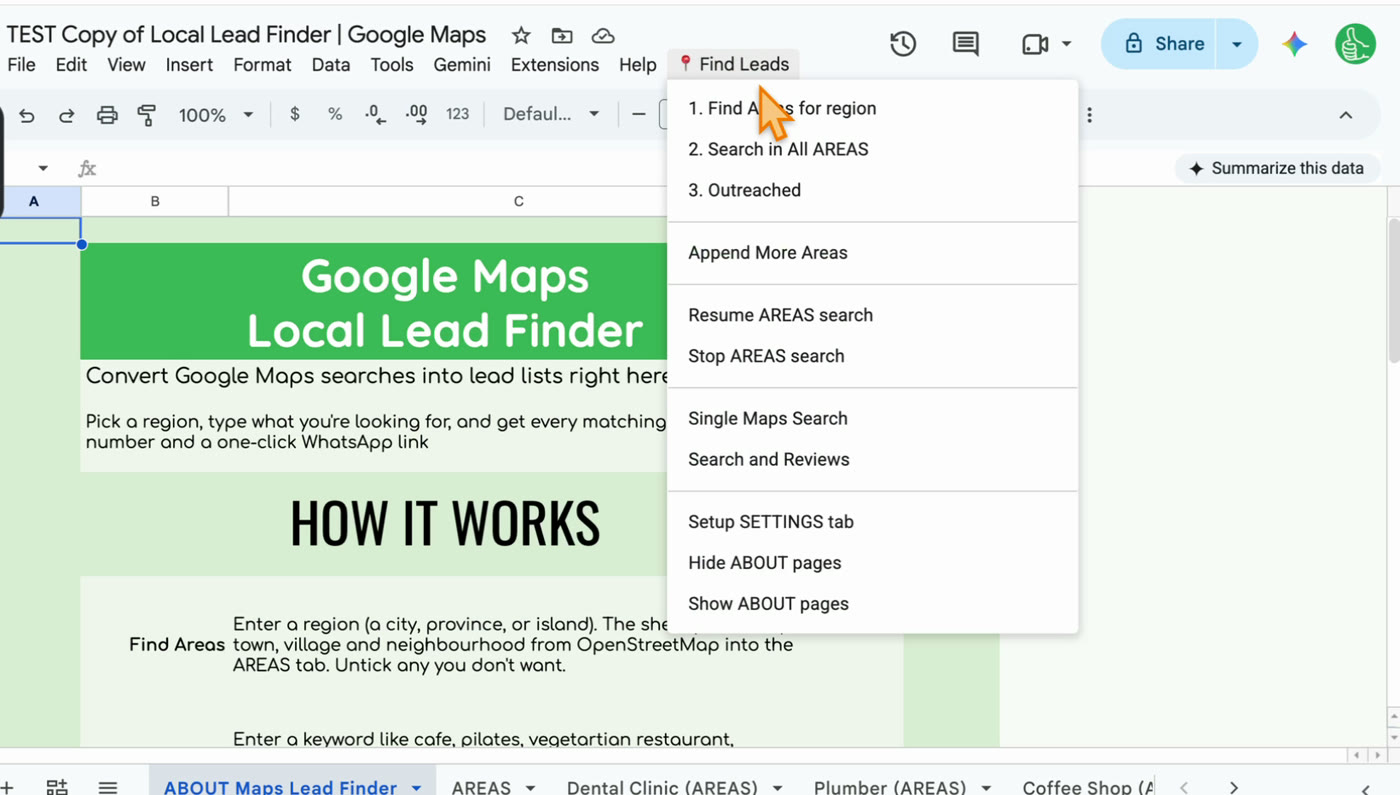
Go up to the Find Leads menu and click 1. Find Areas for region.
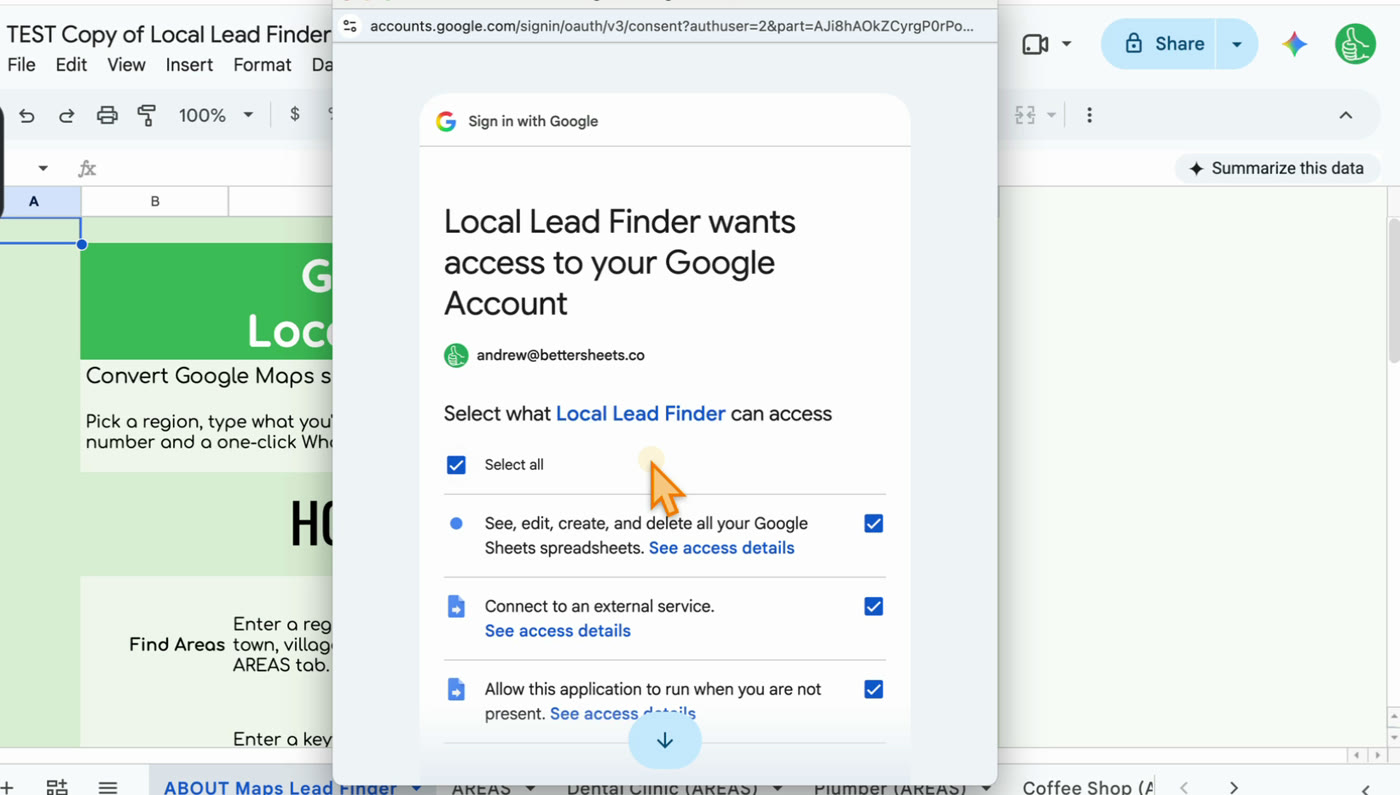
The first time, Google asks you to authorize the sheet. Do that first.
Then type a place. It can be a city, a place, an island, an area, anything. A small neighborhood works, and so does New York City. It could be Buffalo, or somewhere smaller like Solvang, California, or Dallas, Texas. It doesn’t have to be in the US either. It can be anywhere in the world.
I put in Gainesville. There are a lot of Gainesvilles, so I made it Gainesville, Florida.
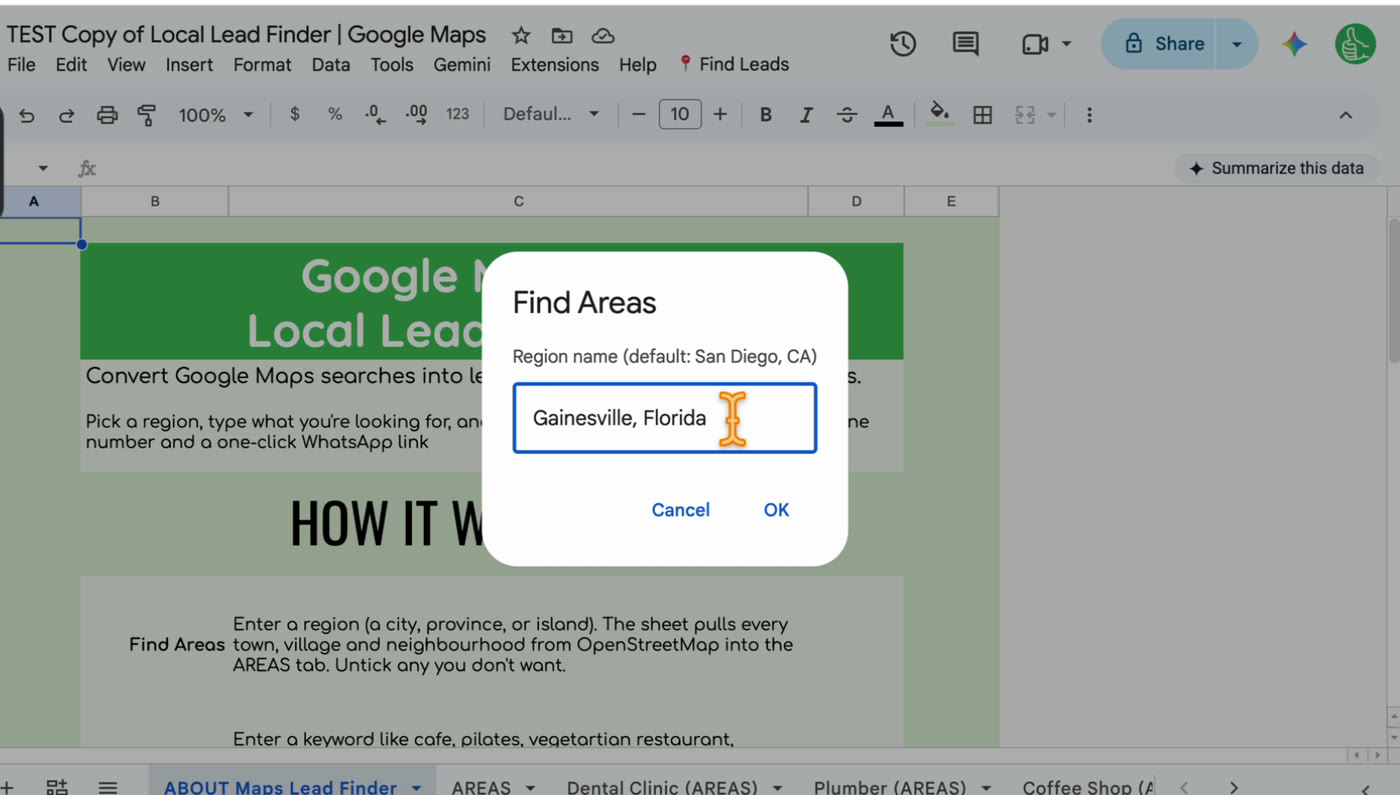
Two things happen. It uses OpenStreetMap, and it also uses your Places API key, to find every area inside that region. If your AREAS tab already has something in it, it asks if it can replace it. If you’re just setting this up, you won’t see that message.
Step 2: Untick any areas you don’t want
The areas land in the AREAS tab. Gainesville came back with 69 of them.
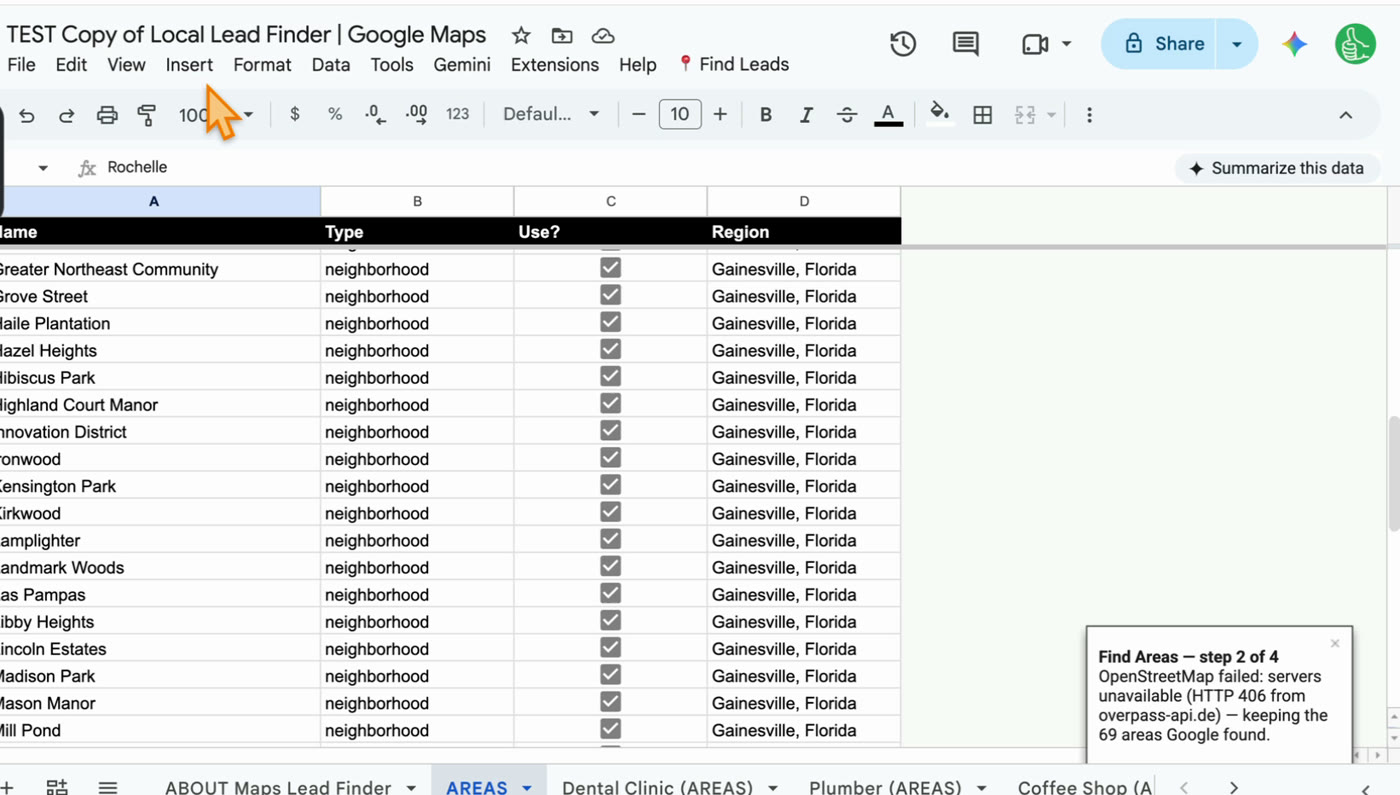
If you don’t want to search a neighborhood, uncheck it in column C. That’s a big point. Unchecked areas don’t get searched.
Step 3: Search in All AREAS
Go back up to Find Leads and click 2. Search in All AREAS.
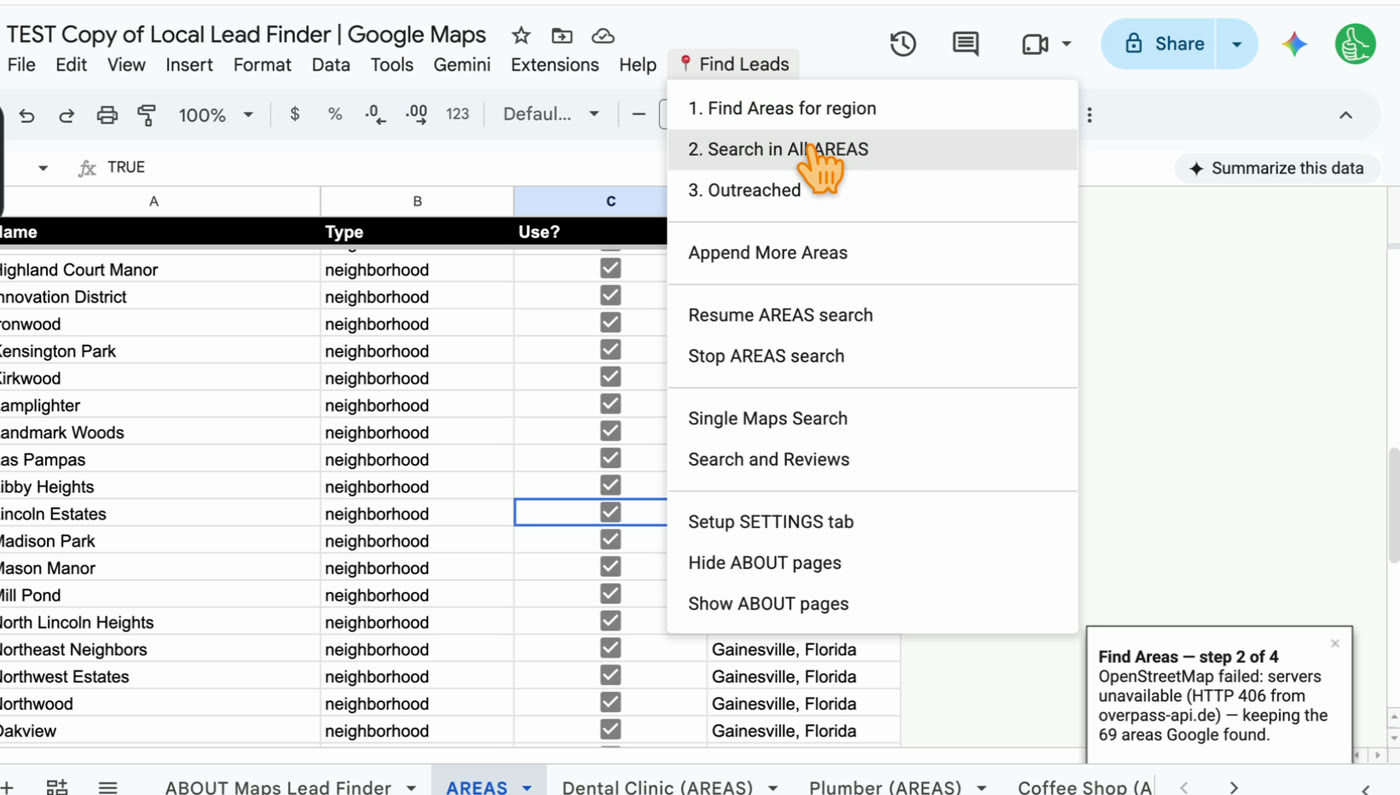
The reason for this step: it searches every area for you. You don’t have to do a separate Google Maps search in each place.
Type what you’re looking for. I typed coffee shop.
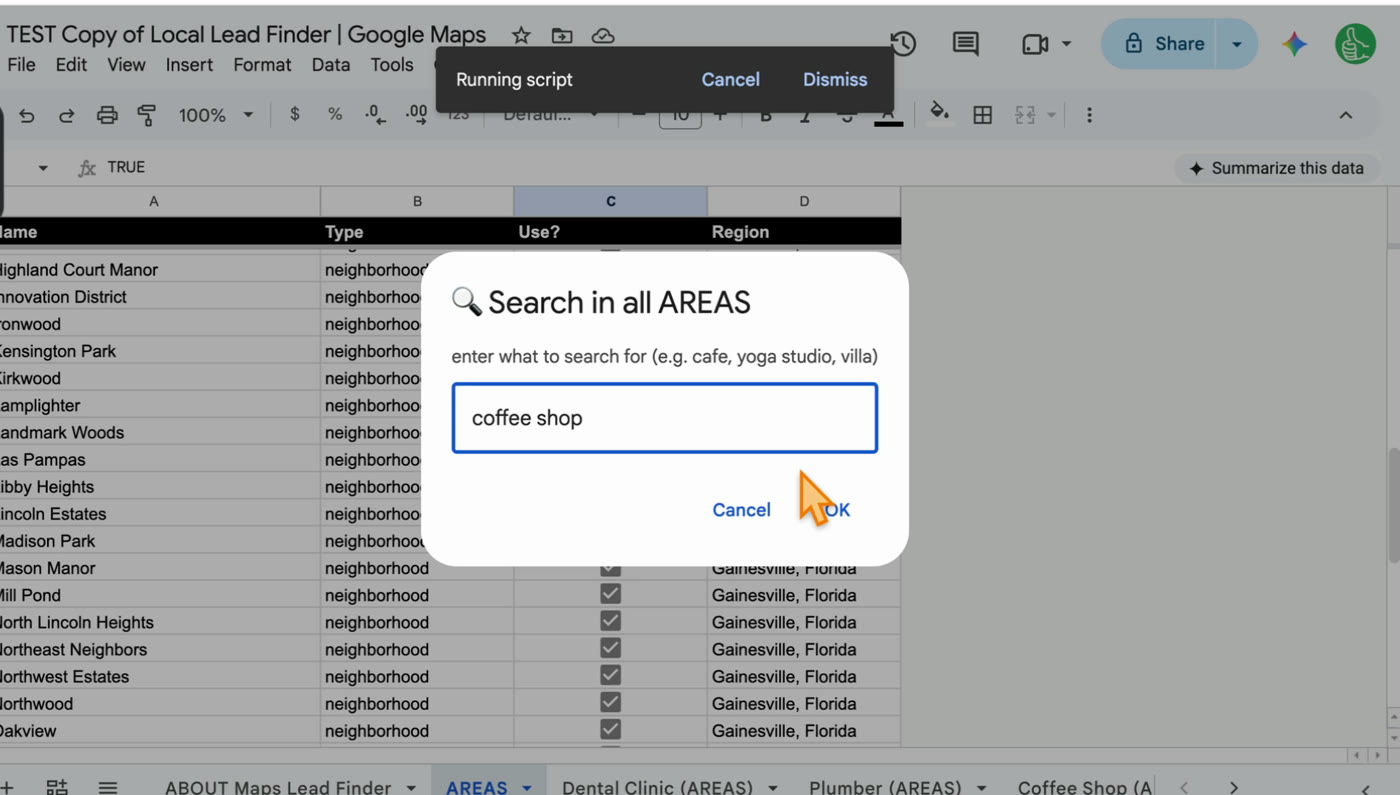
It won’t give you duplicates. If the same coffee shop turns up in two areas, it only shows up once.
Step 4: Confirm the search
Before it starts, it checks with you. Gainesville had 69 areas, so this is up to 69 Google Places requests, and it tells you you’re billed on your own API key. It’s just a heads up. Click OK.
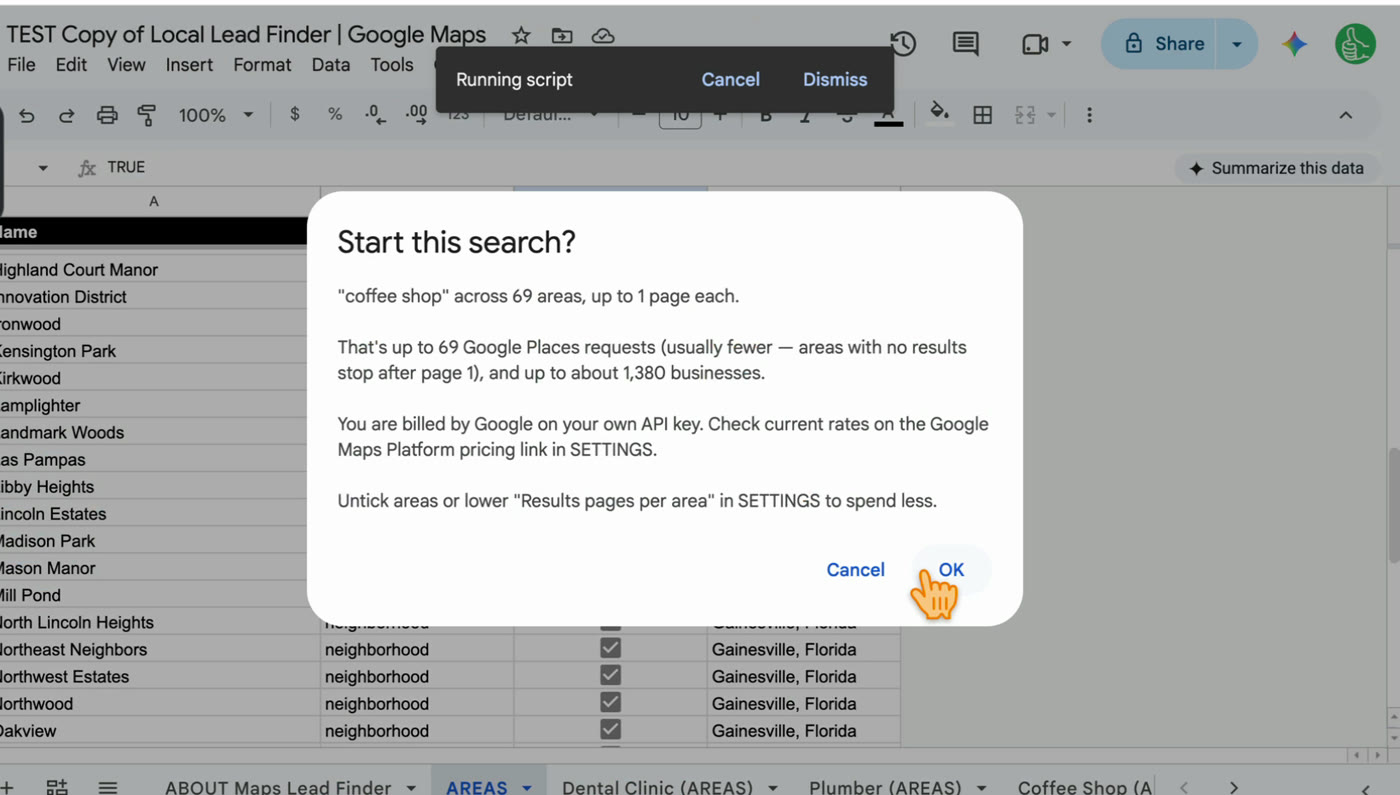
It makes a new tab and you can watch it fill in.
Step 5: Your results, from Google Maps to Google Sheets
It took seconds. The new tab is named after the search: Coffee Shop (AREAS). This one came back with 74 coffee shops across the 69 areas.
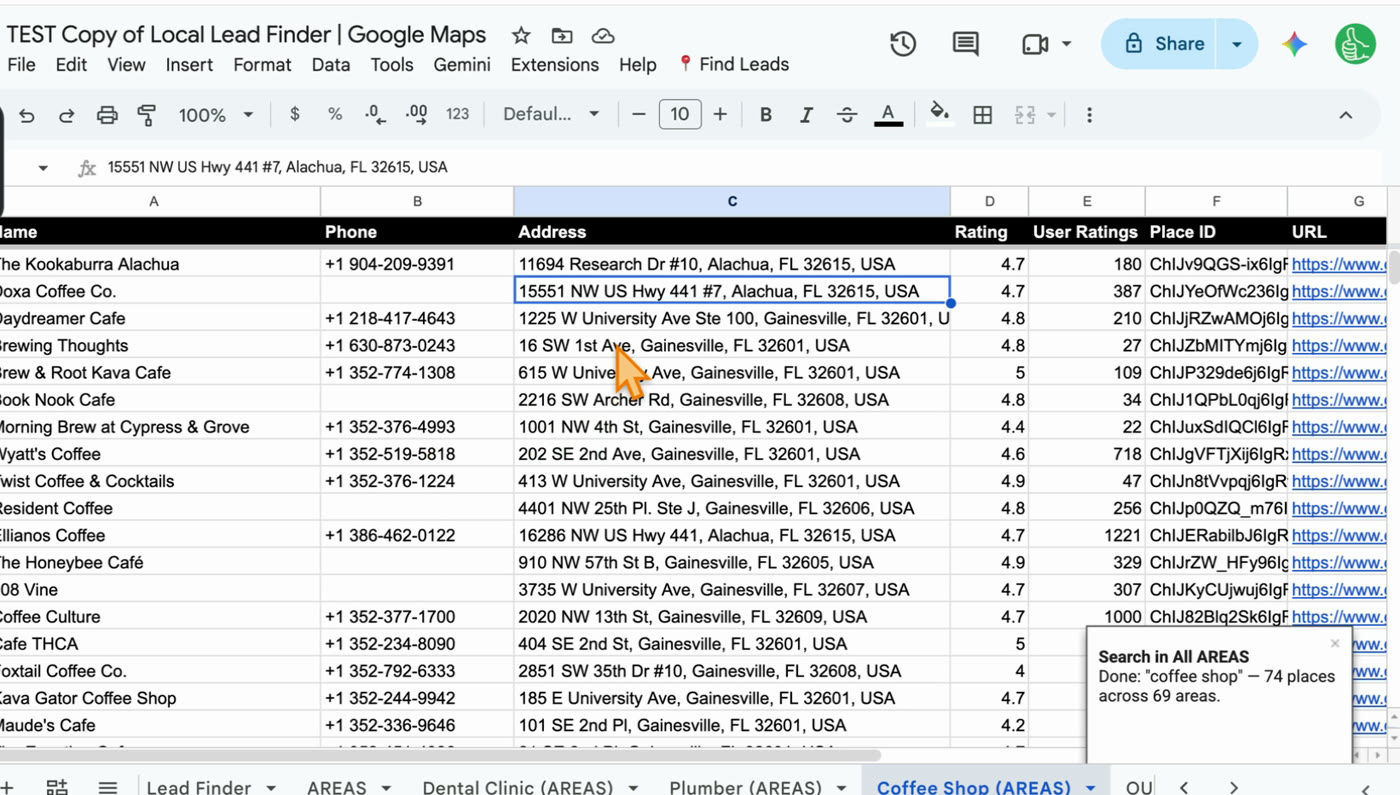
One thing to know: if you run the exact same search again, it writes over that tab.
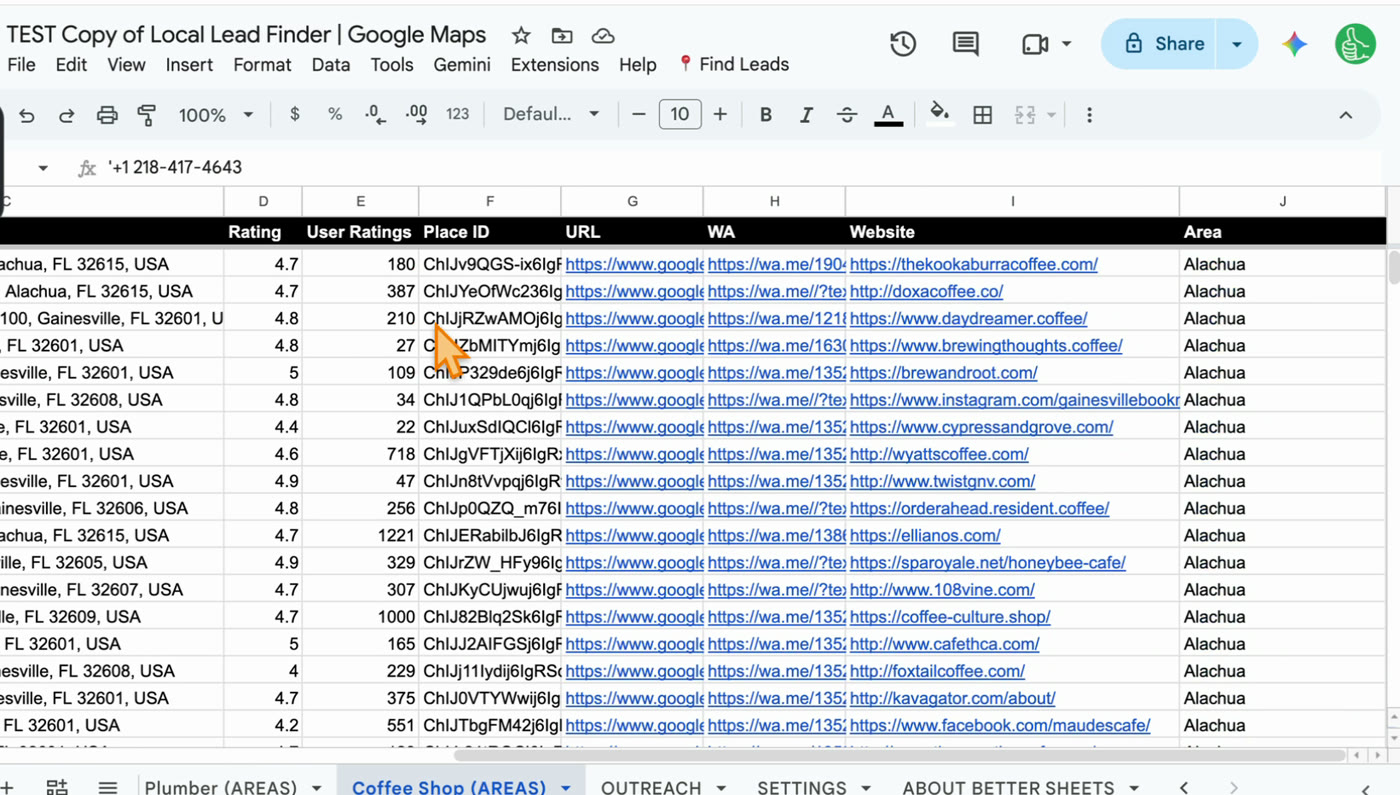
Scroll right and you get a link to each place on Google Maps, a WhatsApp link, and the business’s website.
Step 6: Set your WhatsApp message
The WA column takes each phone number and turns it into a WhatsApp link with your message already in it. You write that message in SETTINGS, under WhatsApp message.
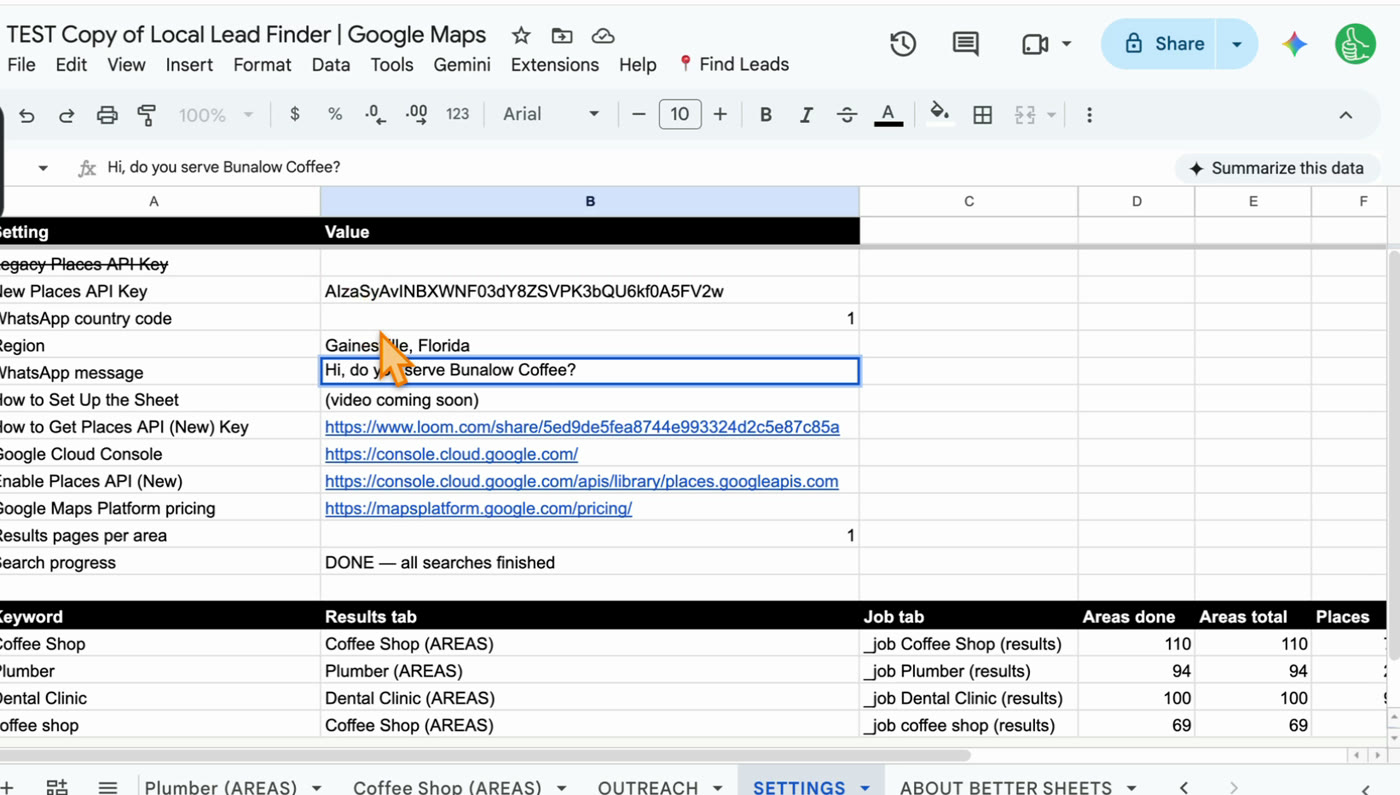
Say you’re Bungalow Coffee, and you want every coffee shop that doesn’t serve your coffee yet. Your message is “Hi, do you serve Bungalow Coffee?” Click a link and it opens in WhatsApp on the web or on your computer, with the message filled in. You can also just grab the phone numbers and message them from your phone.
Step 7: Mark who you’ve reached out to
Once you’ve messaged someone, click their row, go to Find Leads, and click 3. Outreached.
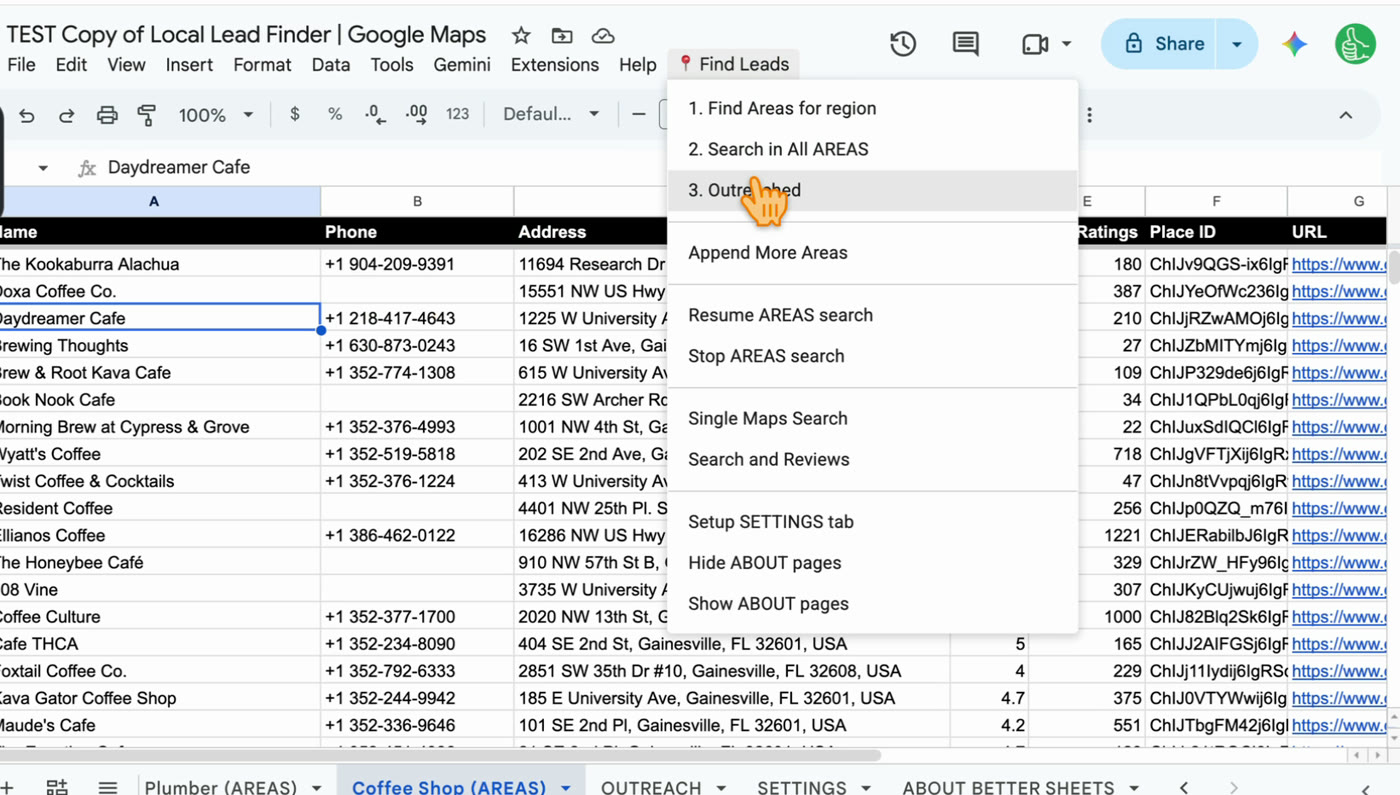
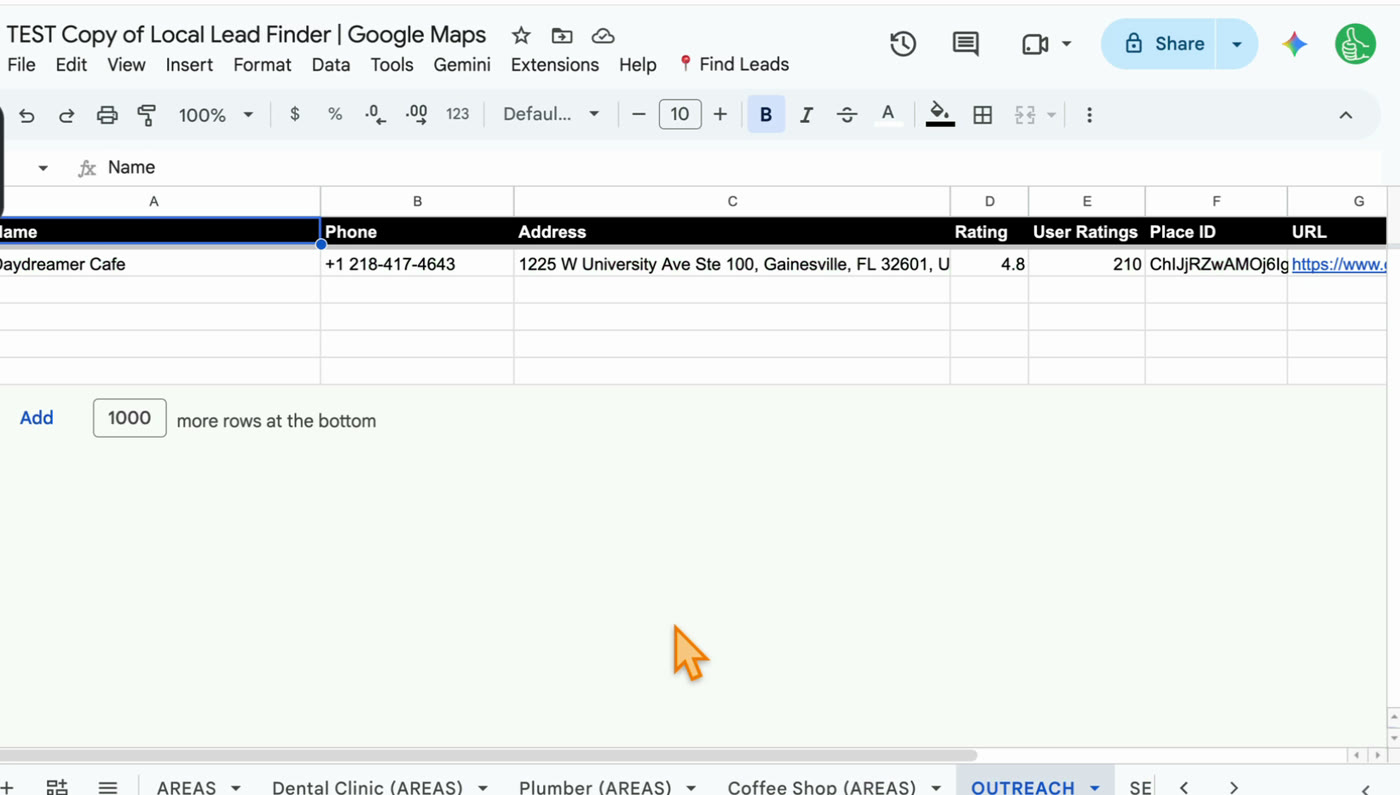
It highlights the row, and it also copies it to the OUTREACH tab.
“The most common unscalable thing founders have to do at the start is to recruit users manually.” (Paul Graham, Do Things that Don’t Scale)
Messaging local businesses one by one is that manual part, and this tab is how you keep track of it.
Here’s why that matters. Say you come back later and search for tea shop. Some of those coffee shops are also tea shops. Tea shop found way more: 146 places across the same 69 areas. And Daydreamer Cafe, which I’d already reached out to, came back highlighted.
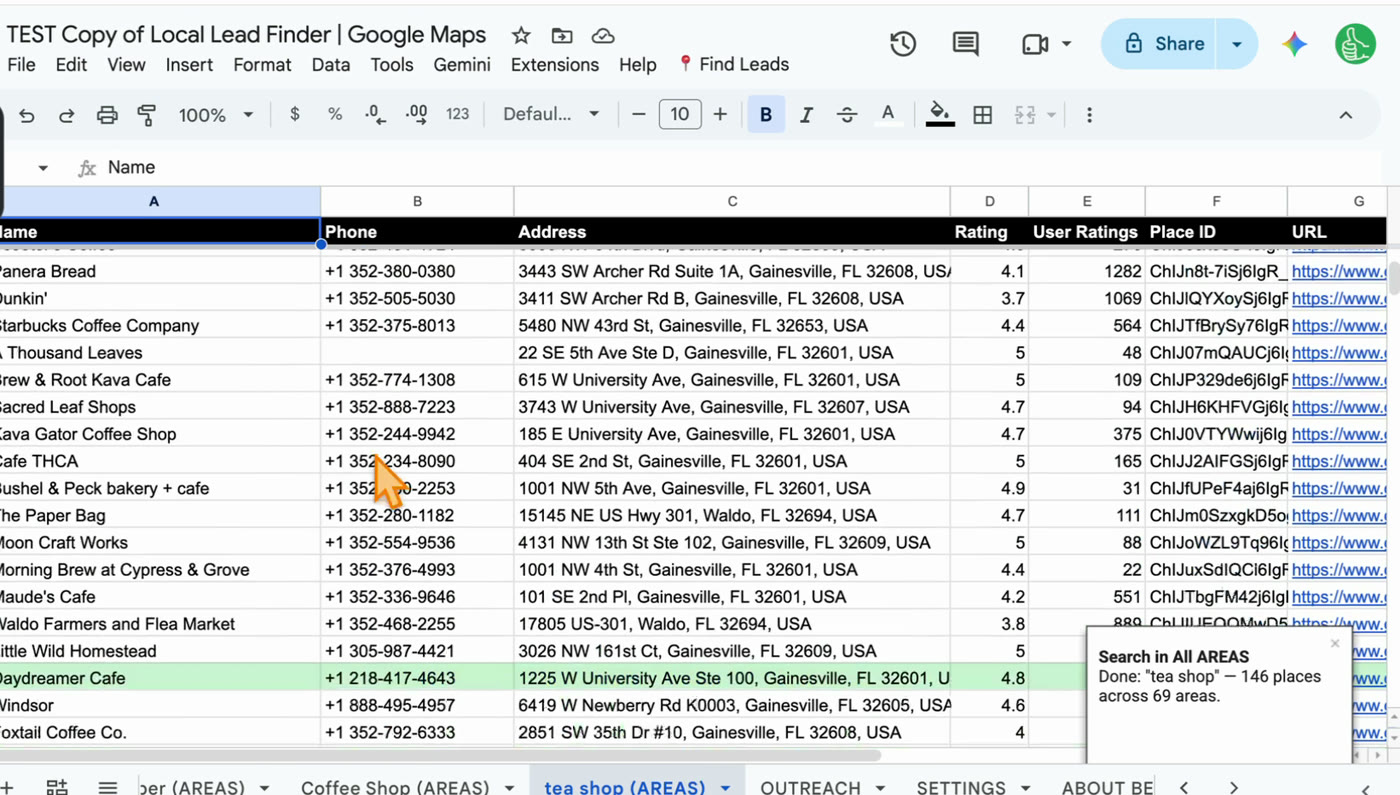
So you never message the same place twice by accident.
Step by step
- Copy Local Lead Finder to your Google Drive and paste your Places API key into SETTINGS.
- Click Find Leads > 1. Find Areas for region, authorize the script the first time, and type your region (I used Gainesville, Florida).
- In the AREAS tab, untick any areas you don’t want searched.
- Click Find Leads > 2. Search in All AREAS and type what you’re looking for (I typed coffee shop).
- Check the request count it shows you and click OK.
- Open the new tab and scroll right for the Google Maps, WhatsApp and website links.
- Write your WhatsApp message in SETTINGS.
- After you message someone, select their row and click Find Leads > 3. Outreached.
That’s it
Copy it to your Google Drive, put in your API key, authorize it, then run it. It’s so much better than searching Google Maps over and over and copy-pasting everything into a sheet. I hated that part.
I keep using this myself. I’m reaching out to a bunch of local businesses for my wife’s business, which has nothing to do with Google Sheets, and the outreach is so much simpler now.
Common pitfalls
- Skipping the authorization screen: the first time you click Find Areas, Google asks you to authorize the sheet. Do that first, then type your region.
- Searching before Find Areas finishes: it keeps adding areas in the background for a minute or two. In another run I started searching at 87 areas and it finished at 150, so wait for “Find Areas, step 4 of 4”.
- Leaving junk neighborhoods ticked: neighborhood names that are also other place names pull in junk. In other cities I got a park, a cemetery, and a dentist in Dartford, England. Untick those in column C and check your results before you message anyone.
- Expecting every business in an area: you get 20 results per area by default. “Results pages per area” in SETTINGS goes deeper, at more cost.
- Running the exact same search twice: it writes over that tab. Name a new search differently if you want to keep the old one.
- Not checking the request count: Gainesville’s 69 areas meant up to 69 Google Places requests. Google gives 1,000 free a month, so look at the number before you click OK on a big city.
- Forgetting to mark Outreached: if you skip it, the next search (like tea shop) won’t show you in green who you already messaged.
Learn the Google Sheets formulas in this post
- 6 Ways to Make Your Checkboxes Better: the AREAS tab runs on Use? checkboxes, and this shows what else checkboxes can do.
- User Filter a Google Sheet Database based on Dates, Checkboxes, Dropdowns: filtering a results tab like Coffee Shop (AREAS) down to the rows you care about.
- How To Sort A Filter: sorting your results, like putting the most-reviewed coffee shops at the top.
- How to Find Duplicates: the idea behind the sheet showing each coffee shop only once, even when it turns up in two areas.
- Rishabh Asks: Conditional Format Whole Row Via Text inside a Cell: how a whole row turns a color, like Daydreamer Cafe going green after Outreached.
Better Sheets has hundreds more tutorials like these. If you want to get better at Google Sheets, join Better Sheets.
Other ways to use Local Lead Finder
- How to Find Local Businesses Without Websites (131 hair salons, Chattanooga): for web designers looking for businesses that need a site.
- How to Get Your Product Into Salons: a new shampoo, 284 salons: for beauty product makers who want their product on salon shelves.
- How to Get Snow Removal Contracts in Minneapolis: for snow plow and salting contractors going after commercial lots.
- How to Sell to Coffee Shops: 83 independent cafes in Boise: for roasters and bakeries, using the same coffee shop search on Boise.
All 18, grouped by who they’re for: Lead generation ideas: 18 local businesses to sell to.
FAQ
Is Local Lead Finder a Google Maps scraper for Google Sheets?
No. It’s not a scraper. It uses Google’s official Places API with your own key, and the results get written into your sheet.
Can I export Google Maps search results to Excel?
The results land in a Google Sheet tab, like Coffee Shop (AREAS). From there, File > Download > Microsoft Excel in Google Sheets gives you an .xlsx file.
How much does the Places API cost me?
Google gives up to 1,000 searches a month free. Each area is one Google Places request per results page, and you get 20 results per area by default. “Results pages per area” in SETTINGS goes deeper at more cost. The sheet shows you the most a search could cost before it runs, like the 69 requests for Gainesville.
What do I get in each row?
Name, phone, address, rating, number of reviews, Place ID, Google Maps link, WhatsApp link (with your SETTINGS message), website, and the area it was searched in.
Do I have to authorize anything?
Yes, once. The first time you run Find Areas, Google asks you to authorize the sheet. Do that first, then type your region.
Can I use it outside the US?
Yes. The region can be a city, a neighborhood, an island or an area anywhere in the world. A small neighborhood works, and so does New York City.
What happens if I run the same search again?
It writes over that tab. A different search, like tea shop after coffee shop, gets its own new tab, and anyone you marked Outreached shows up green.
How much is Local Lead Finder?
It’s a Google Sheet for $10, and it’s free for Better Sheets lifetime members. The page is bettersheets.co/localleads.
