How to make pie chart in Google Sheets
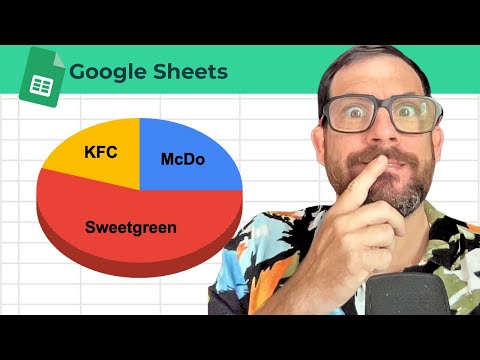
Put labels in one column and values next to them, select both, then Insert → Chart. In the Chart editor, set Chart type to Pie chart. Use the Customize tab for colors, legend, and titles. Keep categories few for pie charts; use bar or line when you have many series or trends over time.
Steps
-
1
Arrange categories and numbers in adjacent columns.
-
2
Select the range including headers.
-
3
Choose Insert → Chart.
-
4
Set Chart type to Pie chart and adjust Customize options.

Related tutorials
These videos might help you go deeper on this topic.
Create Square Cells for Dashboards or Beautiful Information
Related blog posts
Written guides that go deeper on this question.
Getting Started in Google Sheets Spreadsheet Management
Users can also customize the appearance of their spreadsheets with different fonts, colors, and themes.
Read post →How to Make a Gantt Chart in Google Sheets (and When Not To)
Make a simple Gantt chart in Google Sheets with one conditional formatting rule, try the timeline and sparkline options, and see when a year view fits.
Read post →How to Make a Year at a Glance in Google Sheets
Build a year at a glance in Google Sheets: 12 month rows, 31 day columns and weekend shading from two formulas. Or copy the free Big Year and skip it.
Read post →Better Sheets on YouTube
Watch matching videos from youtube.com/bettersheets.

Terms and formulas behind this
Want the full definition or how a formula works? Start here.
charts in Google Sheets
Charts in Google Sheets turn selected ranges into line, bar, pie, and combo visuals that update when source data chan...
Open →COLUMN()
Google Sheets COLUMN() function guide
Open →COLUMNS()
Google Sheets COLUMNS() function guide
Open →TIME()
Google Sheets TIME() function guide
Open →Related questions
How to make a pie chart Google Sheets
Put labels in one column and values next to them, select both, then Insert → Chart. In the Chart editor, set Chart type to Pie chart. Use the Customize tab for colors, legend, and titles. Keep categories few for pie charts; use bar or line when you have many series or trends over time.
Get the answer →How to make pie chart on Google Sheets
Put labels in one column and values next to them, select both, then Insert → Chart. In the Chart editor, set Chart type to Pie chart. Use the Customize tab for colors, legend, and titles. Keep categories few for pie charts; use bar or line when you have many series or trends over time.
Get the answer →How do i make a pie chart in Google Sheets
Put labels in one column and values next to them, select both, then Insert → Chart. In the Chart editor, set Chart type to Pie chart. Use the Customize tab for colors, legend, and titles. Keep categories few for pie charts; use bar or line when you have many series or trends over time.
Get the answer →How to make pie chart Google Sheets
Put labels in one column and values next to them, select both, then Insert → Chart. In the Chart editor, set Chart type to Pie chart. Use the Customize tab for colors, legend, and titles. Keep categories few for pie charts; use bar or line when you have many series or trends over time.
Get the answer →How to make a pie chart on Google Sheets
Put labels in one column and values next to them, select both, then Insert → Chart. In the Chart editor, set Chart type to Pie chart. Use the Customize tab for colors, legend, and titles. Keep categories few for pie charts; use bar or line when you have many series or trends over time.
Get the answer →How to sort chronologically in Google Sheets
Select your data, then use Data → Sort sheet or Data → Sort range. Pick the column and direction. Advanced range sorting options let you add secondary keys. Sorting changes the sheet in place; =SORT(...) builds a sorted spill range elsewhere.
Get the answer →Need more than a quick answer?
600+ walkthrough videos, unlimited generators, and every template. From $9/month. Practical lessons. Zero fluff.
Need one fix
Watch a free tutorial for the step-by-step version of any answer.
Learning Sheets for real
Unlock the full library, generators, and templates with membership.