How to make a comparison chart in Google Sheets
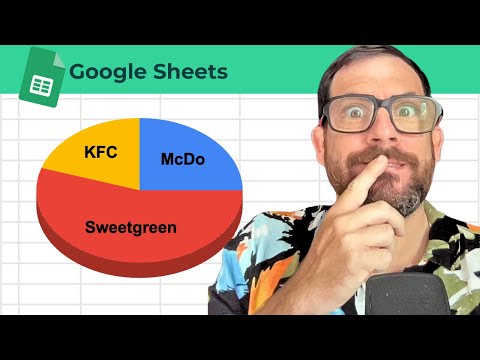
Put labels in one column and values next to them, select both, then Insert → Chart. In the Chart editor, set Chart type to the chart type you need. Use the Customize tab for colors, legend, and titles. Keep categories few for pie charts; use bar or line when you have many series or trends over time.
Steps
-
1
Arrange categories and numbers in adjacent columns.
-
2
Select the range including headers.
-
3
Choose Insert → Chart.
-
4
Set Chart type to the chart type you need and adjust Customize options.

Related tutorials
These videos might help you go deeper on this topic.
How Can I Compare Two Tabs for Differences?
Ultimate Checklist in Google Sheets
Magical Things You Can do with Checkboxes in Google Sheets
3 Free Tools to Make Your Google Sheets Better
How To Get Someone to look at a Cell in Your Sheet
Related blog posts
Written guides that go deeper on this question.
Sell a SaaS Pricing Comparison Table Built in Google Sheets
Build a SaaS pricing table in Google Sheets that tracks competitors by plan and tier, and sell it to pricing consultants and no-code builders.
Read post →Getting Started in Google Sheets Spreadsheet Management
Users can also customize the appearance of their spreadsheets with different fonts, colors, and themes.
Read post →How to Make a Gantt Chart in Google Sheets (and When Not To)
Make a simple Gantt chart in Google Sheets with one conditional formatting rule, try the timeline and sparkline options, and see when a year view fits.
Read post →Better Sheets on YouTube
Watch matching videos from youtube.com/bettersheets.

Terms and formulas behind this
Want the full definition or how a formula works? Start here.
charts in Google Sheets
Charts in Google Sheets turn selected ranges into line, bar, pie, and combo visuals that update when source data chan...
Open →COLUMN()
Google Sheets COLUMN() function guide
Open →COLUMNS()
Google Sheets COLUMNS() function guide
Open →TIME()
Google Sheets TIME() function guide
Open →Related questions
How to make column chart in Google Sheets
Put labels in one column and values next to them, select both, then Insert → Chart. In the Chart editor, set Chart type to the chart type you need. Use the Customize tab for colors, legend, and titles. Keep categories few for pie charts; use bar or line when you have many series or trends over time.
Get the answer →How to make a column chart in Google Sheets
Put labels in one column and values next to them, select both, then Insert → Chart. In the Chart editor, set Chart type to the chart type you need. Use the Customize tab for colors, legend, and titles. Keep categories few for pie charts; use bar or line when you have many series or trends over time.
Get the answer →How to make a stacked column chart in Google Sheets
Put labels in one column and values next to them, select both, then Insert → Chart. In the Chart editor, set Chart type to the chart type you need. Use the Customize tab for colors, legend, and titles. Keep categories few for pie charts; use bar or line when you have many series or trends over time.
Get the answer →How to make a chart on Google Sheets
Put labels in one column and values next to them, select both, then Insert → Chart. In the Chart editor, set Chart type to the chart type you need. Use the Customize tab for colors, legend, and titles. Keep categories few for pie charts; use bar or line when you have many series or trends over time.
Get the answer →How to make a line chart in Google Sheets
Put labels in one column and values next to them, select both, then Insert → Chart. In the Chart editor, set Chart type to Line chart. Use the Customize tab for colors, legend, and titles. Keep categories few for pie charts; use bar or line when you have many series or trends over time.
Get the answer →Need more than a quick answer?
600+ walkthrough videos, unlimited generators, and every template. From $9/month. Practical lessons. Zero fluff.
Need one fix
Watch a free tutorial for the step-by-step version of any answer.
Learning Sheets for real
Unlock the full library, generators, and templates with membership.