Sponsored guest post by the team at Proxy-Seller. Want to write for Better Sheets too? Here's how guest posts work.
Copying competitor prices into a spreadsheet by hand takes an hour every Monday. By Wednesday, the numbers are already out of date. Learning how to scrape data from a website using built-in formulas turns that process into a cell that updates itself, no code required, no paid add-on.
How to scrape data from a website with Google Sheets: key insights
- Four built-in functions (IMPORTHTML, IMPORTXML, IMPORTDATA, and IMPORTFEED) pull website tables, elements, files, and feeds into a sheet without any code.
- The quickest answer to how to scrape data from a website is IMPORTXML combined with an XPath that you copy out of Chrome's dev tools.
- Google refreshes its import functions approximately once an hour, so a time-triggered function is the way to go if you want to have a more stringent schedule.
- Formulas can't run JavaScript, so prices that load after the page has rendered usually return blank cells or a #N/A error.
- Bots accounted for around 53% of web traffic in 2025 (Imperva), so a lot of sites run bot detection and block aggressive scraping. Robots.txt should be checked first.
Which built-in functions scrape web tables into a spreadsheet without any code?
Each import function scrapes a different source format. Paste the URL of the target into cell A2 and then select the function that corresponds to how the site publishes the data.
-
IMPORTHTML for an HTML table or list:
=IMPORTHTML(A2, "table", 1) -
IMPORTXML for one element, such as a price:
=IMPORTXML(A2, "//h1") -
IMPORTDATA for a public CSV or TSV file:
=IMPORTDATA(A2) -
IMPORTFEED for an RSS or Atom feed:
=IMPORTFEED(A2, "items title", FALSE, 10)
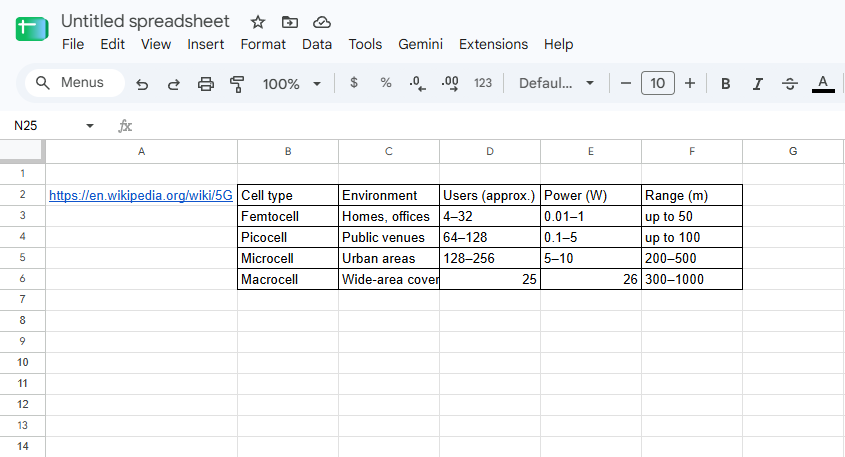
The IMPORTHTML index numbers tables from the top (starting at 1). If the wrong table comes up, increase the number by one.
How to find the XPath of a price or title using Chrome developer tools
For anyone trying to learn how to scrape data from a website, XPath is the key skill. It's a path language that tells IMPORTXML which element to grab. Chrome generates it in a few clicks:
- Right-click the price on the page and select Inspect.
- In the Elements panel, right-click the highlighted line.
- Select Copy, then Copy XPath.
- Paste it into the formula and replace the double quotes with single quotes.
Copied paths like //div[3]/span[2] fail when a store adds a banner. Attribute based paths are more robust: =IMPORTXML(A2, "//span[contains(@class,'price')]"). The Better Sheets explainer on XPath node selection has a section on meta tags and feeds.
NB: Chrome frequently inserts a tbody tag that isn't in the raw HTML. If the formula returns nothing, remove "/tbody" from the copied path.
How to set up automatic refresh for imported website data in Sheets
Google's calculation settings guide states that all four import functions recalculate every hour. That's perfectly fine for weekly reports, but not so much for a price tracker, where you need to be as up-to-date as possible.
The easiest trick is cache busting: =IMPORTXML(A2&"?v="&B1, "//h1"). Changing the value in B1 makes the URL look different and forces a fresh fetch. To automate this, you can have an Apps Script trigger that runs on a time basis and writes the current time into B1 every 15 or 30 minutes, so the import refreshes on that schedule rather than every hour.
When Apps Script and UrlFetchApp do what plain formulas can't handle
Apps Script is the thing that deals with the bits that Sheets can't (price history logs, custom headers, JSON parsing, etc.). UrlFetchApp fetches the page, and a time-driven trigger runs it on a schedule. A short Better Sheets note on UrlFetchApp shows the same rate lookup pattern.
Apps Script: logPrice
function logPrice() {
  const sheet = SpreadsheetApp.getActive().getSheetByName('Prices');
  const html = UrlFetchApp.fetch('https://example.com/item').getContentText();
  const match = html.match(/"price":\s*"?([\d.]+)/);
  sheet.appendRow([new Date(), match ? match[1] : 'not found']);
}
Save it, go to Triggers, and set logPrice to run hourly.
Why formulas fail on dynamic pages and how to read each error
Import functions read the HTML that the server sends, not what the browser renders. That's the first thing anyone learning how to scrape data from a website runs into.
- "Imported content is empty." JavaScript loads the values. Find a JSON endpoint or CSV export.
- "Could not fetch URL." The site blocks the fetcher. Check robots.txt and the terms, then look for an API or export.
- Stuck on "Loading..." Too many imports in one file. Split them across files.
- Outdated values. The hourly cache. Add the cache-busting parameter.
How to scrape data from a website into Excel with Power Query
Excel has a similar workflow. Data tab > From Web > paste in the URL > select a table in the Navigator window > click Load. Then use Refresh All to update the data.
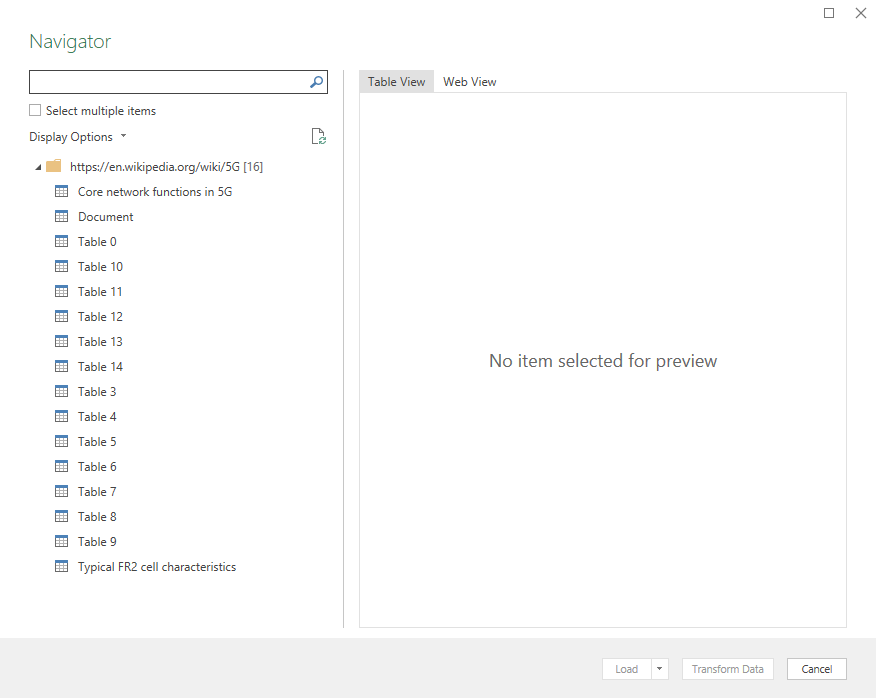
For XML feeds, =FILTERXML(WEBSERVICE(A2), "//item/title") also works. Microsoft's FILTERXML reference notes that it's not available in Excel for the web or on the Mac.
Scraping ethics: public data, robots.txt, and the site's terms of use
Knowing how to scrape data from a website responsibly is as important as knowing the formulas. You can only scrape public data (i.e. data that any visitor to the site can see without having to log in), and you must by no means scrape any personal data such as names and emails.
Open the site's /robots.txt and look out for Disallow lines that cover the folder in question. Check the terms of use as well since some sites ban automated collection. The Imperva 2026 Bad Bot Report found that bots made up 53% of web traffic in 2025, so sites are now blocking heavy request patterns very quickly.
When spreadsheets stop scaling and specialized scrapers take over
Import functions deal with dozens of URLs rather than thousands. Daily catalog checks make files slow and error-prone.
Teams then switch over to specialist scrapers, which export clean results back into the sheet. For regular collection of large volumes of public data, scrapers run along with proxies. A provider who has a range of proxy types for different purposes can help you pick the best proxy for the job.
Which scraping method is best suited to a marketing or small business workflow?
For anyone wondering how to scrape data from a website with fewer than 50 static pages, IMPORTHTML gets the job done in minutes. If timing or history is important, add one script with a time-driven trigger. Use dedicated scrapers for your daily, catalog-scale monitoring and keep every project confined to public pages that are permitted by robots.txt.
Frequently asked questions about importing website tables into a spreadsheet
These answers deal with edge cases that go outside the scope of the tutorial.
What's the fastest way for a novice to learn how to scrape data from a website?
Start with a public page that has a visible table (e.g. a Wikipedia list). Enter =IMPORTHTML(A2,"table",1), switch over to the XPath-based function and pull the heading with "//h1". Then copy an XPath from Chrome and pull a price. Those three steps cover the basics of the import functions in under an hour.
Can you learn how to scrape data from a website using only free tools?
Yes. Google Sheets, Apps Script, and Chrome developer tools are all free with a standard Google account. The free tier comes with 20,000 daily URL Fetch calls, which easily covers checking hundreds of pages per hour. You only pay at the catalog level if you're running a team and need hosted scrapers, storage, and proxy infrastructure for your regular collection.
Can IMPORTDATA read JSON from an API, or is it strictly limited to CSV and TSV files?
IMPORTDATA expects either comma- or tab-delimited text, so the JSON comes in as one huge messy column. For APIs you're generally better off with a script (UrlFetchApp to get the response, JSON.parse to parse it, and setValues to write fields you want into rows). A lot of public APIs also have a CSV export option, which you can feed straight into IMPORTDATA with no script at all.
Can Google Sheets import data from a page that requires a login?
No. Import functions pull pages anonymously, so anything behind a sign-in screen returns an error or the sign-in page. You can use Apps Script to put the actual API key in headers, which is the proper way to get at account data. Scraping members-only pages without permission is a direct breach of the ToU and can result in your account getting suspended.
