Guest post by Amney Mounir. Amney is a Product Growth Analyst at Meta, the founder of Dataford.io, and runs I Got An Internship. Want to write for Better Sheets too? Here's how guest posts work.
Internship season piles up fast. By mid-October you can have twenty tabs open, three spreadsheets, and a notes app full of half-saved links. The question that keeps coming back is simple: what is due this week, and who needs a follow-up?
I built one Google Sheet to answer that. It has an Applications tab and a Dashboard. Everything runs on basic formulas you can read in a minute, so you can change them to fit your own search. You can make your own copy of the template here. The version you open is view only, and the link creates a copy in your own Drive.
This is a companion to How I Track Interview Prep in a Google Sheet. That post covers practice and stories. This one covers the applications themselves.
Who this is for
I wrote this for students applying to summer internships who are juggling more than a handful of postings at once. You need one place for deadlines, visa notes, and status, and you need the sheet to tell you what to do today without a long cleanup pass every Sunday.
The columns
One row per internship. Keep the column names as they are so the Dashboard counts stay accurate.

- Company and Role: the employer and the posting title.
- Source: where you found it. Use the dropdown (Career page, referral, career fair, and so on) so you can later see which sources turn into interviews.
- Link: the posting URL. Paste it the day you find it, before the page rotates.
- Date opened: the day the posting went live, or the day you first saw it.
- Deadline: application close date. Leave blank only if the posting truly has none.
- Date applied: fill this the day you submit. The follow-up formula depends on it.
- Visa notes: short phrases like "CPT welcome" or "US work auth required." This column saves you from reopening the posting later.
- Status: Wishlist, Applied, Recruiter screen, Phone screen, Onsite, Offer, Rejected, or Withdrawn. Spelling matters because the Dashboard uses exact matches.
- Notes: anything else, such as a recruiter name or a campus deadline that differs from the public one.
Three grey columns are calculated. You do not type in them.
Formula 1: Days until deadline
This column subtracts today from the deadline:
Applications: Days until deadline
=IF(OR(A2="",F2=""),"",F2-TODAY())
If the company or deadline cell is empty, the formula stays blank. Otherwise you get a number: positive means days left, zero means due today, negative means the deadline has passed.
I turn on conditional formatting on this column so deadlines within 7 days show yellow, and past deadlines show red. In the template, the rule is:
Conditional formatting: due within 7 days
=AND(ISNUMBER(J2),J2>=0,J2<=7)
for the yellow highlight, and a second rule for values below zero. Open the sheet, pick Format > Conditional formatting, and you can change the colors or the 7-day window.
Formula 2: Follow-up date
Most internship applications go quiet after you hit submit. A week is a useful default before you nudge:
Applications: Follow-up date
=IF(G2="","",G2+7)
G2 is the date applied. Change the 7 if you prefer a shorter or longer cadence. The formula stays blank until you fill in a date applied, so wishlist rows do not create fake follow-ups.
Formula 3: Follow-up status
This compares the follow-up date to today and skips stages that are closed or not yet applied:
Applications: Follow-up status
=IF(OR(A2="",G2="",I2="Offer",I2="Rejected",I2="Withdrawn",I2="Wishlist"),"",IF(K2<TODAY(),"Overdue",IF(K2<=TODAY()+2,"Due soon","On track")))
You get one of three labels: Overdue, Due soon, or On track. Conditional formatting colors them red, yellow, and green. When a row moves to Offer, Rejected, or Withdrawn, the status clears so the Dashboard does not keep nagging you about it.
The Dashboard tab
The Dashboard has no inputs. It uses COUNTIF on the Status column so you can see the pipeline at a glance:
Dashboard: applications per status
=COUNTIF(Applications!$I$2:$I$200,A5)
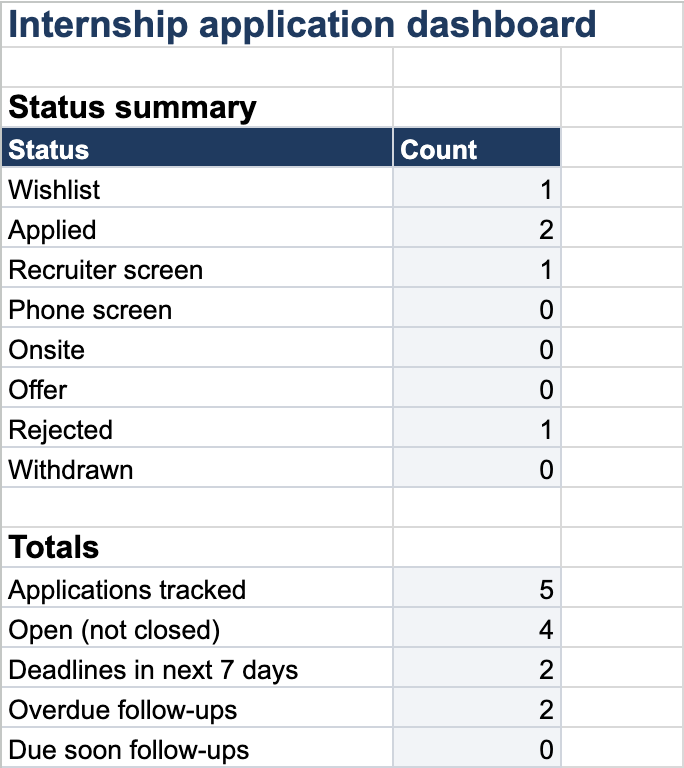
Each status on the left (Wishlist, Applied, Recruiter screen, and the rest) has a count on the right. Below that, a few totals pull the same data in a different way:
- Applications tracked with COUNTA
- Open roles (everything that is not Offer, Rejected, or Withdrawn)
- Deadlines in the next 7 days with COUNTIFS on the Days until deadline column
- Overdue and Due soon follow-ups with COUNTIF on the Follow-up status column
When you open the sheet in the morning, start on the Dashboard. If deadlines in the next 7 days is above zero, sort the Applications tab by that column and finish those first. Then clear overdue follow-ups.
A weekly routine that fits the sheet
This takes about ten minutes, a few times a week.
- Add every new posting the day you find it, even if you are not ready to apply.
- Fill Date applied the same day you submit.
- Update Status after any email or call.
- Once a week, open the Dashboard, clear overdue follow-ups, and delete rows you have fully withdrawn from so the counts stay honest.
Where to find openings to drop in
The sheet works best when the rows come from somewhere current. If you need a place to pull listings from employer career pages into the sheet, I Got An Internship is a free board that aggregates those openings. Copy a role into a new row, paste the link, and set the deadline before you close the tab.
Make it yours
The easiest changes are the follow-up cadence, the 7-day deadline window, and the status list. You can add columns for location, referral contact, or expected reply date. The formulas are filled down to row 200, so if you need more rows, copy the last row of formulas further down. The example rows (Northwind, Fabrikam, Contoso, Adventure Works, and Tailspin Toys) are made up, so delete them before you start and add your first three applications.
About the author

Amney Mounir
Amney Mounir is a Product Growth Analyst at Meta and founder of Dataford (0 to 50k users), with 85k+ followers on LinkedIn. Amney also runs I Got An Internship.
This is a guest post. Read about guest posts on Better Sheets.