
Free template. Everything in this post is in Track Anything, a free habit tracker for Google Sheets. Log in free at bettersheets.co/habits to copy it. This post shows how it works, so you can build your own too.
Most habit tracker spreadsheets are a grid of checkboxes. You tick today’s box, and tomorrow you have to find tomorrow’s box. After a week you’re scrolling sideways looking for the right cell, and after two weeks you stop.
I wanted one box. Click it, and today gets filled in. That’s the whole sheet.
TL;DR
- One big checkbox in A1. Clicking it records today. Click it twice in a day and it still counts once.
- A DATA tab holds a 1 or a 0 for every day. The calendar tab shows your emoji wherever DATA has a 1:
=IF(DATA!J7>0,$A$2,). - A LOG tab keeps the exact time of every click.
- The result looks like a GitHub contribution grid: weeks across, weekdays down.
Step 1: Make one checkbox you click every day
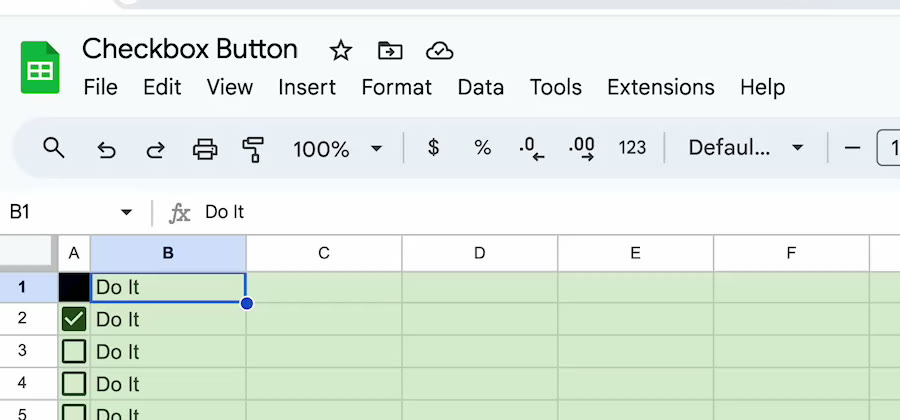 1. From my checkbox tutorial: a checkbox can be a button.
A normal checkbox goes on and off. That’s the problem with checkbox trackers: you have to find the right box for the right day.
Instead, make A1 a single, large checkbox and treat it as a button. Insert > Checkbox, then make the cell big: in Track Anything, A1 is a wide, tall grey block. You click it once a day, and a script notices the click and records the day.
The trigger is the click on A1. The effect happens somewhere else. You never see the box flip on and off, you just see today’s square fill in.
Step 2: Pick your emoji and your Day 1
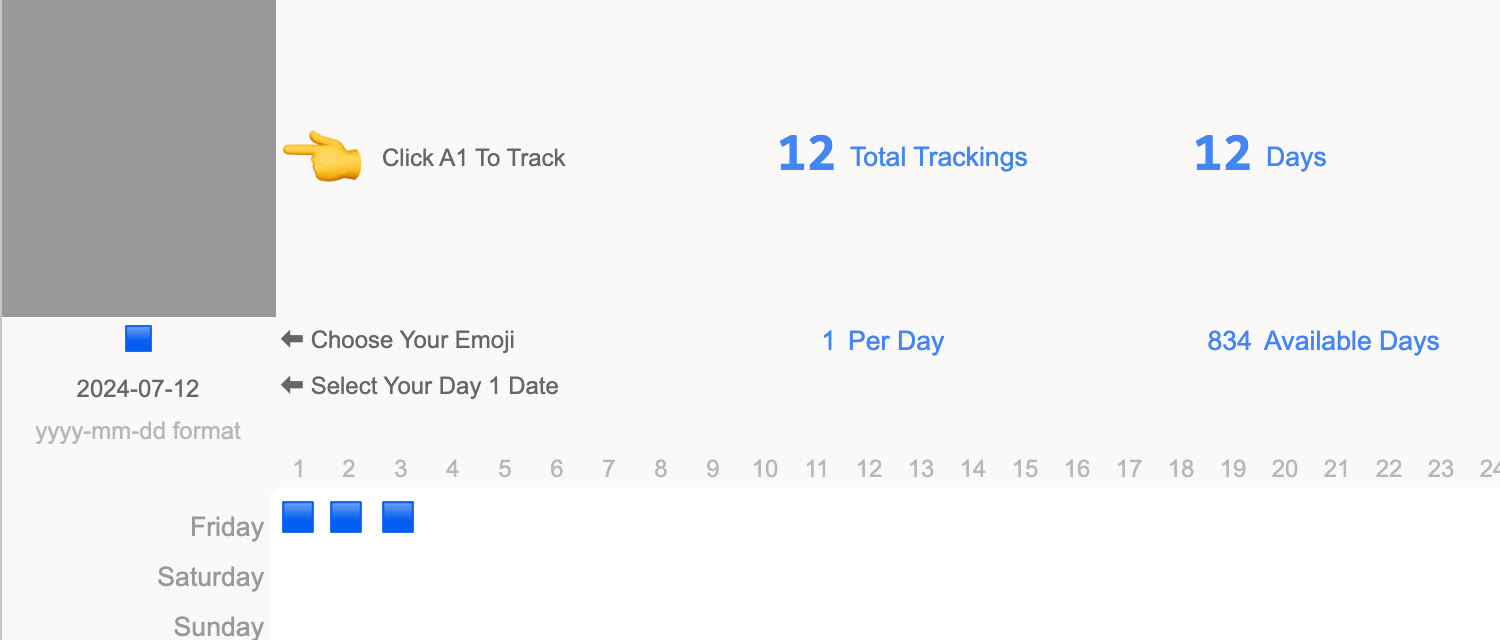 2. The top of the calendar tab: the box, your emoji, your start date and the counters.
Under the box are two cells you fill in once:
- Your emoji. A blue square, a green square, a 🏃, a 📚. It’s what a done day looks like.
- Your Day 1 date, in yyyy-mm-dd format. The grid starts there, and the weekdays line up from it.
Across the top, the sheet counts for you: total trackings, days, the limit per day (1), and how many days are left in the grid.
Step 3: Show the year as a grid
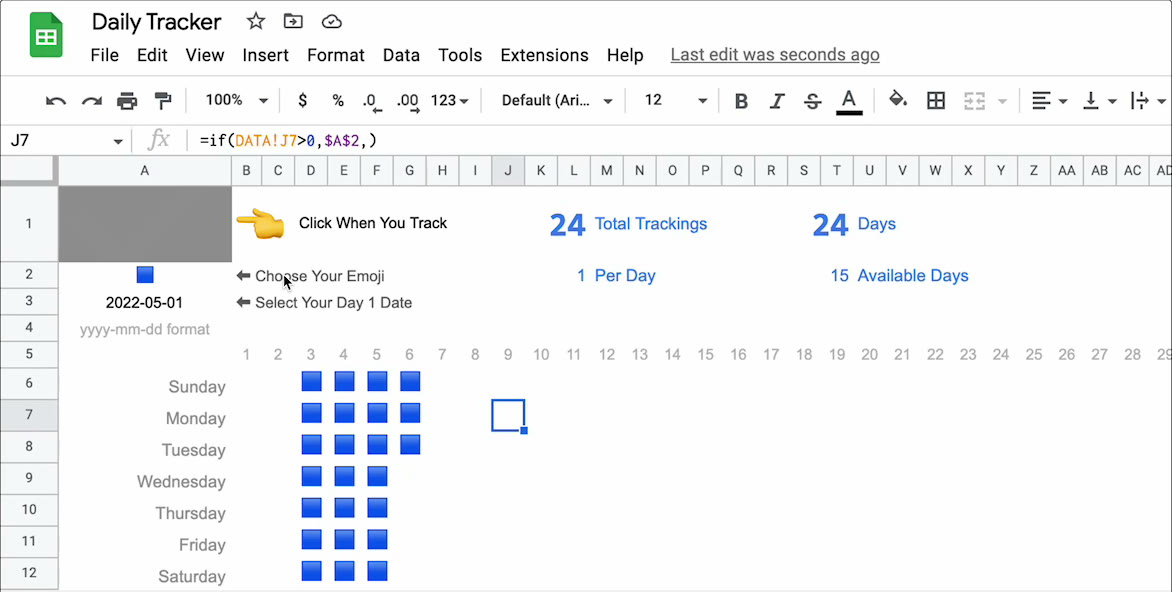 3. Track Anything 24 days in. Every square is the same formula.
The calendar tab is weeks across (1, 2, 3 and on) and weekdays down (Sunday to Saturday). Each cell has one formula:
=IF(DATA!J7>0,$A$2,)
In plain words: if the DATA tab has something in the matching cell, show the emoji from A2. Otherwise show nothing. That’s it. No conditional formatting, no charts. The emoji does the drawing.
Because each square only looks at DATA, you can change the emoji in A2 and the whole year changes with it.
Step 4: Keep the data on its own tab
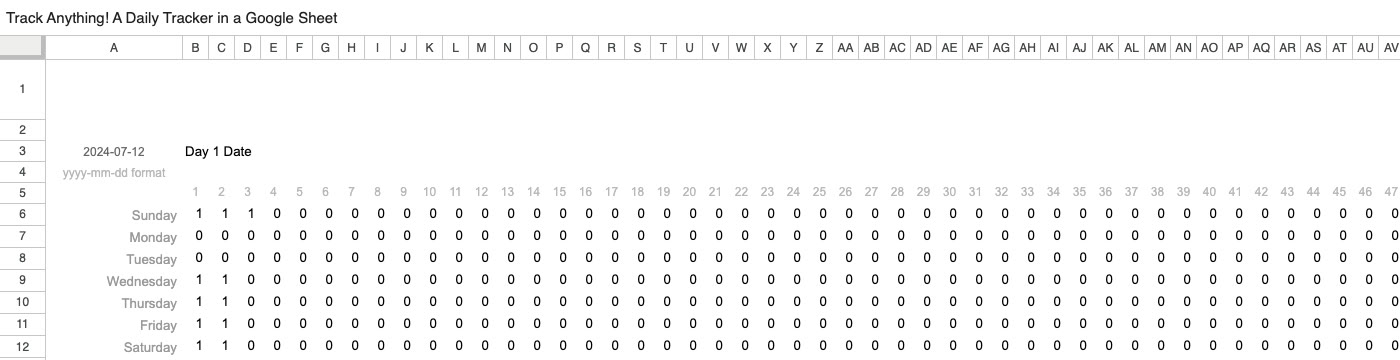 4. The DATA tab: a 1 for a day you tracked, a 0 for a day you didn’t.
The DATA tab is the same shape as the calendar: weekdays down, weeks across. A tracked day is a 1, everything else is a 0.
Keeping data and display apart is the trick that makes the tracker easy to change. Want a different look? Change the calendar tab. Want to total a month or count a streak? Point a formula at DATA. The two never fight.
Step 5: Log every click with the time
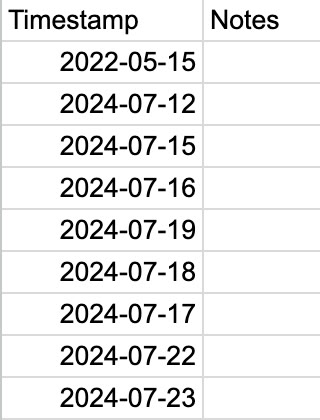 5. The LOG tab: one row per click.
Every click on A1 also adds a row to the LOG tab with the date and time. This is the same idea as my track every edit tutorial: an onEdit script that writes a timestamp to a LOG tab whenever a cell changes.
The log is your proof and your history. If you ever wonder “did I really do it on the 15th?”, it’s there. The Notes column is yours: write what you read, how far you ran, how you felt.
What to track with it
One copy per habit. Some ideas that fit “did I do it today?”:
- Work out, do yoga, meditate
- Read, write, practice an instrument
- Take your medication
- Stop eating fried food (click on the days you didn’t)
For more, see habit tracker ideas. If you’re trying to stop something and want streaks toward a goal, that’s a different sheet: how to track a streak in Google Sheets.
Habit tracker spreadsheet or app?
An app is faster to start. A spreadsheet is yours. Your data is in your Google Drive, nothing to subscribe to, and you can change anything: the emoji, the colors, add a notes column, add a second grid. And it still works next year.
Common pitfalls
- Typing the date the wrong way. Day 1 has to be yyyy-mm-dd, like 2026-10-26. Anything else and the grid won’t line up.
- One sheet for five habits. Track Anything is one habit per copy. Make a copy per habit and name each one.
- Clicking twice and expecting two. It’s one per day. A second click on the same day doesn’t add a square.
Get the sheet
Track Anything is free. Log in free and copy it at bettersheets.co/habits. It comes with the checkbox, the calendar, the DATA tab, the LOG tab and the script, all ready.
Want to see me build the parts? The checkbox tutorial walks through Track Anything at 5:35, and the track every edit tutorial builds the log. Both are in the Better Sheets membership.
FAQ
Is there a free habit tracker template for Google Sheets? Yes. Track Anything is free with a free Better Sheets account: bettersheets.co/habits.
Can I make a habit tracker in Google Sheets without a script? Yes, with a checkbox per day and conditional formatting. You lose the one-box click and the timestamps. The script is what lets one box track every day.
Does it work on my phone? Open the sheet in the Google Sheets app and tap A1. Test it on your own phone first: scripts that react to edits don’t always run the same way in the mobile app.
Can I track more than one habit? Make one copy per habit. For several habits side by side with streaks, use Dark Habits.

