Know if IMPORTXML will work before you paste.
Click anything on a web page. Get the formula for Google Sheets, and see exactly what Sheets will get back. Or why it won't.
Free Chrome extension. No account, no AI, no tracking.
- to a formula
- 1 click
- to a formula
- ways to read a page
- 5
- ways to read a page
- XPath to write
- 0
- XPath to write
- data collected
- 0
- data collected
Your browser and Sheets see different pages
When you open a page, your browser runs its JavaScript and sends your cookies. When Sheets runs IMPORTXML, Google's servers fetch the bare HTML. No JavaScript, no login.
So a price you can see right there comes back as #N/A, and you spend an hour fixing an XPath that was never the problem.
IMPORTXML Helper fetches the page the way Sheets does and runs your formula on it, before you paste.
| A | B | |
|---|---|---|
| 1 | Page | Price |
| 2 | shop.example.com/coffee | #N/A |
| 3 | shop.example.com/tea | #N/A |
Error
Imported content is empty.
⚠️ Loaded by JavaScript
The helper would have told you before you typed it.
A straight answer for every pick
Knowing a formula won't work saves as much time as getting one that does.
Likely works
The value is in the page's raw HTML. Paste with confidence.
Loaded by JavaScript
Your browser draws it after the page loads. Sheets never runs that code.
Different value
The raw HTML has a placeholder, like "Loading…" or $0.00, that JavaScript swaps out.
Needs a login
You can see it because you're signed in. Sheets isn't.
No matches
The XPath finds nothing in the raw HTML. When the value is there, you get one that does.
Won't load without cookies
The page refuses a plain request, so every formula on it will fail.
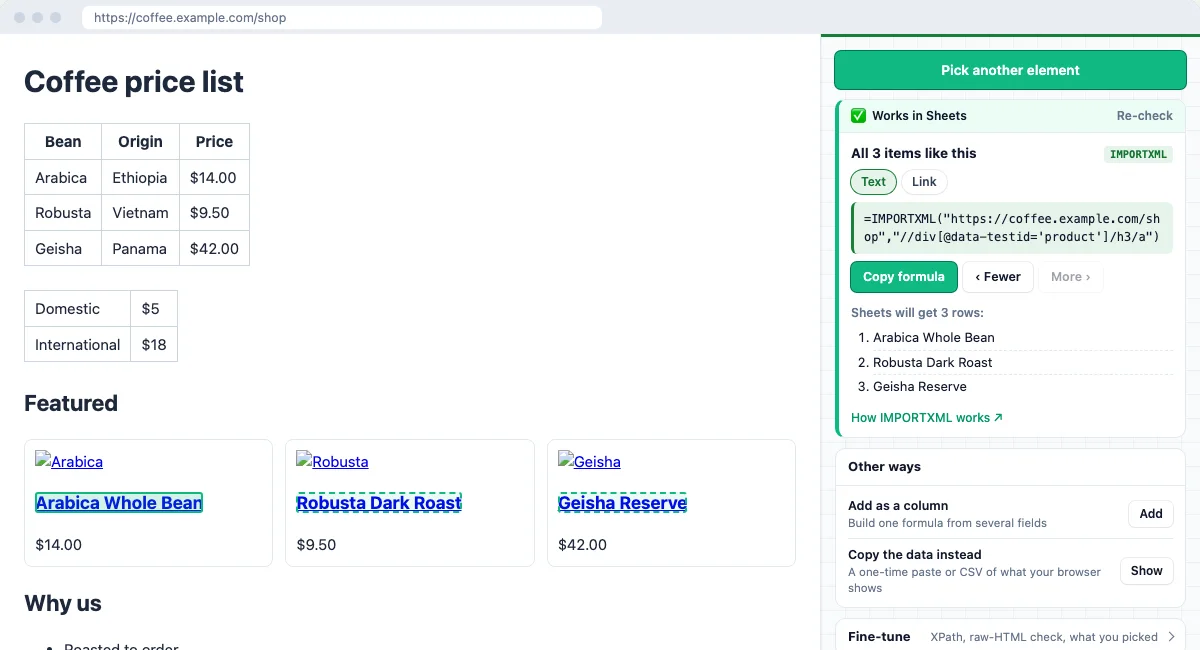
Click what you want. It picks the formula that works.
Not the first formula it can make. The one Sheets can actually fill.
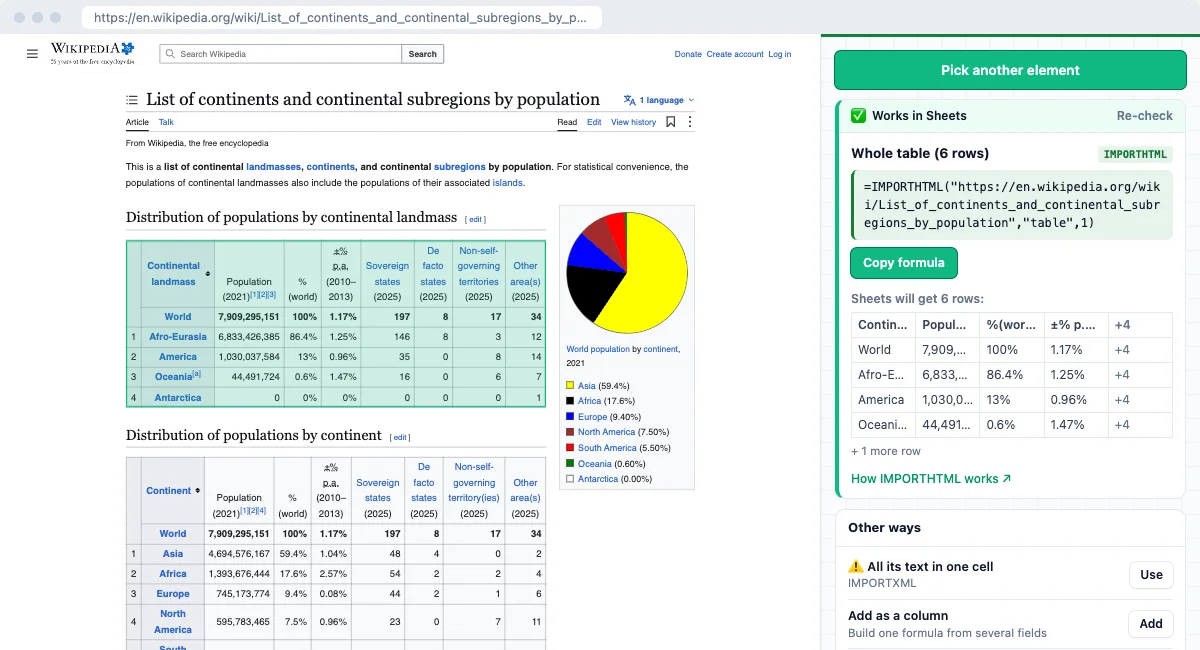
Picked a table? You get IMPORTHTML, numbered right.
Click any cell. The panel finds the table in the raw HTML and counts it the way Sheets does, so the number is right the first time.
The right table number, first try
IMPORTHTML wants a number: table 1, table 2, table 7. Count the tables you can see and you'll often be wrong.
Sheets counts in the raw HTML, where hidden tables, nested tables and empty lists all count too. The helper finds your table there by what's in it.
Checked against real Sheets on a Wikipedia page full of nested tables and dozens of lists.
=IMPORTHTML(url,"table",3)
The table you clicked, counted like Sheets counts.
=IMPORTXML(url,"//table")
⚠️ Works, but puts the whole table in one cell.
| City | Country |
|---|---|
| Tokyo | Japan |
| Delhi | India |
| Shanghai | China |
Preview of what Sheets will get, before you paste
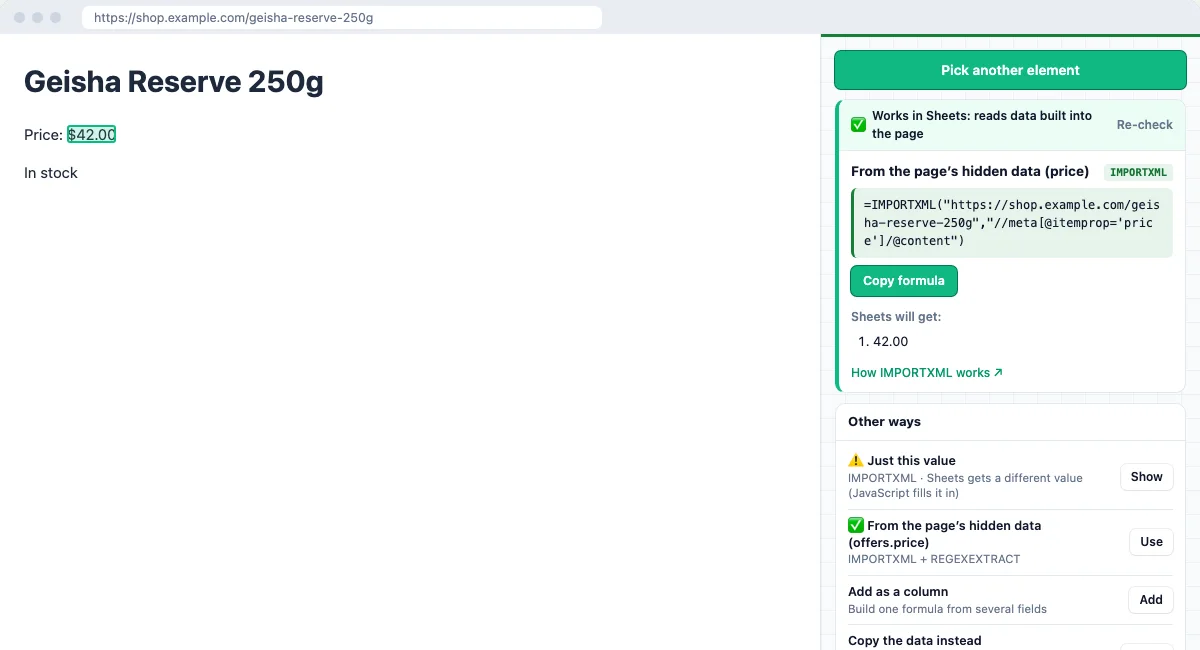
Drawn by JavaScript isn't always the end
Shops and news sites often keep a second copy of the price, title or date in the page for Google: meta tags and JSON-LD.
When the visible value won't work, the helper looks there. If it finds the same value, you get a formula that reads it instead.
It even handles the Sheets quirks, like the line breaks Sheets adds to long imported text.
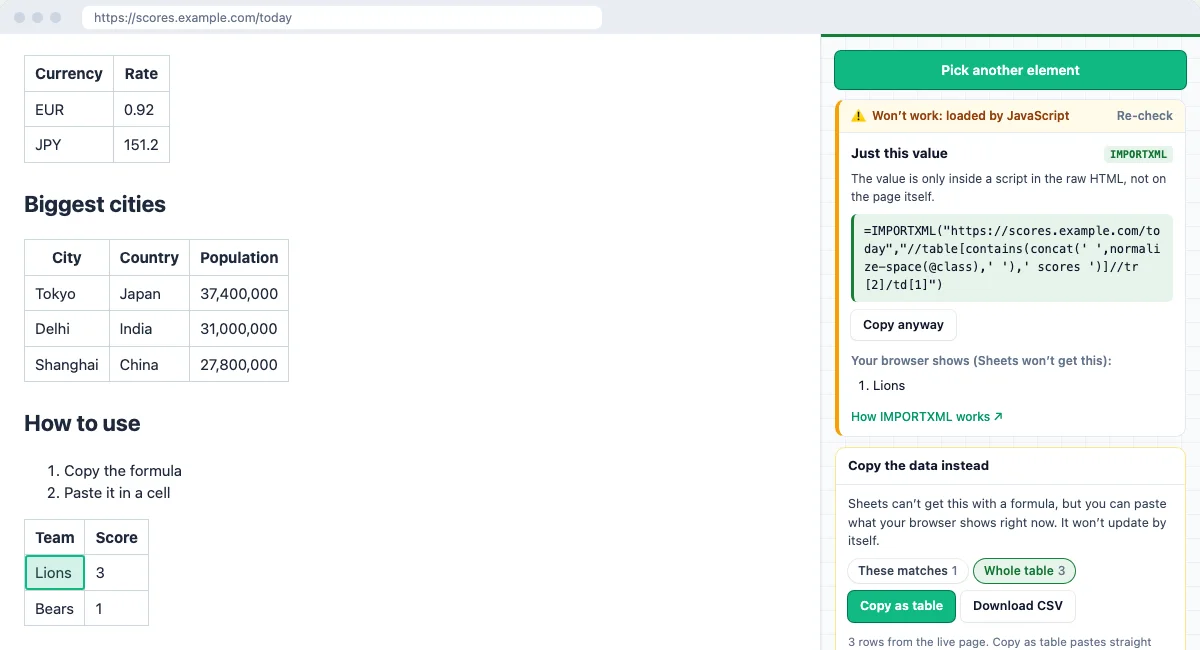
No formula can work? Take the data anyway
Some pages only build their tables in the browser. IMPORTXML will never see them.
Copy what your browser shows as a table and paste it straight into cells, or download a CSV. Up to 5,000 rows.
Cells that start with = or + are made safe, so scraped text never runs as a formula.
Formulas it writes for you
Clean XPath, no DevTools, ready to paste.
=IMPORTXML(url,"//h1")
One value, like the page title or a price.
=IMPORTXML(url,"//li[@class='product']//a")
Every item in a list, after one click on Select similar.
={"Title","Price";IMPORTXML(…),IMPORTXML(…)}
Several columns in one formula, with a header row.
=IMPORTHTML(url,"table",3)
A whole table or list, with the number Sheets uses.
=IMPORTXML(url,"//meta[@property='og:title']/@content")
Hidden data the page keeps for Google.
=IMPORTXML(A1;"//h1")
Semicolons and a URL cell, if that's how your Sheets works.
New to these? How IMPORTXML works · How IMPORTHTML works
Who it's for
Price trackers
Watch competitor or product prices in a sheet, and know which shops Sheets can read.
SEO folks
Pull titles, meta descriptions and headings for a list of URLs.
Researchers
Turn a Wikipedia table or a stats page into live cells.
Lead lists
Grab names, links and details from directory pages.
Dashboard builders
Feed exchange rates, scores or rankings into a dashboard.
Anyone stuck on #N/A
Find out in one click if it's fixable, or if Sheets just can't see it.
Reads only what you click
Nothing runs until you click the icon on a page. No access to your other tabs or sites.
Nothing leaves your browser
The one request it makes is to the page you're already on. Nothing comes to us.
Same answer every time
Fixed rules, no AI. The same click gives the same formula and the same verdict.
Questions
Is it free?
Yes. No account, no email, no API key. Install it from the Chrome Web Store and click the icon on any page.
Why does my IMPORTXML formula show #N/A?
Usually because Sheets fetches the page differently from your browser. It gets the raw HTML, with no cookies and no JavaScript. If the value is added by JavaScript, or only shows when you're logged in, Sheets gets "Imported content is empty". The extension runs that same check before you paste.
What's the difference between IMPORTXML and IMPORTHTML?
IMPORTXML gets anything an XPath points at: one price, every link, a list of titles. IMPORTHTML gets a whole table or list by its number on the page. If you click inside a table, the extension suggests IMPORTHTML first, because IMPORTXML on a whole table puts all of it in one cell.
Why is my IMPORTHTML table number wrong?
Because Sheets counts tables in the raw HTML, not the page you see. JavaScript often adds or removes tables, so counting in your browser gives the wrong number. The extension finds your table in the raw HTML by its contents and gives you the number Sheets uses.
Does it use AI?
No. Every formula and every verdict comes from fixed rules, so the same click gives the same answer every time.
Is it ever wrong?
Rarely, but yes. A few sites block Google's servers by network while still serving the page to everyone else. The check can't see that, so it says the formula should work and Sheets says "Could not fetch url".
What does it read, and what does it send?
Only the tab you click the icon on. It re-fetches that one page from inside the page, without cookies, to see what Sheets would get. Nothing is sent to Better Sheets or anyone else, and nothing is stored except your three settings.
Does it work in other countries' Sheets?
Yes. Switch the separator to semicolons in Options if your Sheets uses commas for decimals. You can also put the URL in a cell and point every formula at it.
Which browsers?
Chrome, and Chromium browsers that install from the Chrome Web Store, like Edge, Brave and Arc.
Stop guessing at #N/A
Click the thing you want. Get the formula that works, or the reason none will.
Free. Made by Better Sheets. Google Sheets is a trademark of Google LLC.