Google clasp is Google’s command line tool for Apps Script. It copies a script project between script.google.com and a folder on your computer. That one thing is what lets you write Google Apps Script with AI properly: once the script is a set of files, an AI coding tool like Claude Code can read them, change them, and push them back into your sheet.
On November 26, 2026 I built the Sheety Championship, two Google Sheets with a countdown timer and a leaderboard. Claude Code wrote all 353 lines of the Apps Script, and clasp put it into the sheets. I didn’t type any of it in the Apps Script editor.
Here is the short version:
- Turn on the Apps Script API at script.google.com/home/usersettings.
- Run
npx -y @google/clasp@latest loginonce and sign in with the Google account that owns the sheet. - Make a folder with a
.clasp.jsonthat holds your script’s ID, or runclasp clonewith the ID to make one. - Let the AI edit the
.gsfiles, then runclasp push. - To check the push worked, clone into an empty folder and diff it against your files.
The rest of this post is how I set it up, the script I push with, and the things that broke.
Good to know before you start
-
clasp pushreplaces everything in the online project with your files. Anything typed in the browser editor that isn’t in your files gets wiped. - A copy of a sheet keeps the script it had on the day it was copied. Pushing updates the original, not the copies.
- clasp can’t rename a script project. You do that by hand in the editor.
- If you sign in with a Google Workspace account, your clasp login can expire with an
invalid_rapterror. The fix is at the end of this post.
What I built this way
The Sheety Championship is a Google Sheets take on the Excel World Championship. You make a copy of a case, open the 🏆 Compete menu, and start the clock. The script asks bettersheets.co for the case, draws it into your sheet, and sends your answers back for scoring when you submit. When time runs out, it submits for you.
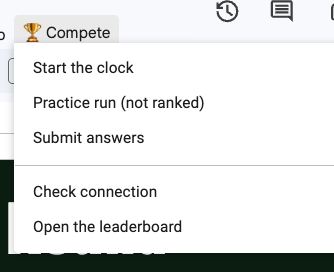
Two sheets, one shared script, a menu, pop-ups, a timer and calls to my website. None of it was written in the browser.
Why clasp instead of the Apps Script editor
I do a lot of work with Claude in Chrome, which can click and type in web pages for me. It can’t do that in the Apps Script editor. It can’t read the code there or type a single line.
clasp gets around that. The script lives in my repo, next to the code for the website, and clasp pushes it up to Google. Because the files are on disk, Claude Code reads, edits, diffs and commits them like any other code. Every change has a commit message, so I can look back and see what changed and why. The Sheety Championship script has 11 commits so far.
Setting up clasp
If you only want a definition first, here’s clasp explained. This is what I actually ran.
No install. I run clasp with npx, which downloads it and runs it in one step:
npx -y @google/clasp@latest push
There’s nothing to install or update, and it’s always the latest version. You need Node.js 20 or newer. If you’d rather type plain clasp, install it once with npm install -g @google/clasp.
Turn on the Apps Script API. Go to script.google.com/home/usersettings and switch on Google Apps Script API. clasp talks to your scripts through that API, and nothing works until it’s on. The clasp README still lists this as the first step after installing.
Log in once.
npx -y @google/clasp@latest login
A browser window opens. Pick your Google account and allow access. clasp saves the login in a file called .clasprc.json in your home folder. That file is a key to your scripts, so don’t commit it or paste it anywhere.
Point a folder at your script. Each folder has a .clasp.json file, and the line that matters is the script’s ID:
"scriptId": "1GPOv7q1NTTuHNXBf-Wqo-l7CL0FD2krGtNVqaWUW4cWjqIlLvizDpBx_",
To find your script’s ID, open the sheet, go to Extensions → Apps Script, click Project Settings (the gear) and copy the Script ID. Or run clasp clone with that ID in an empty folder. It makes the .clasp.json for you and downloads the files.
clasp also comes as a Claude Code plugin and an MCP server now. I didn’t use either. Claude Code ran the normal clasp commands in the terminal, and that was enough.
One shared script, one small file per sheet
Both sheets run the same code. The only difference is which case they play. So there’s one shared Code.gs, and each sheet gets its own folder with a tiny Case.gs:
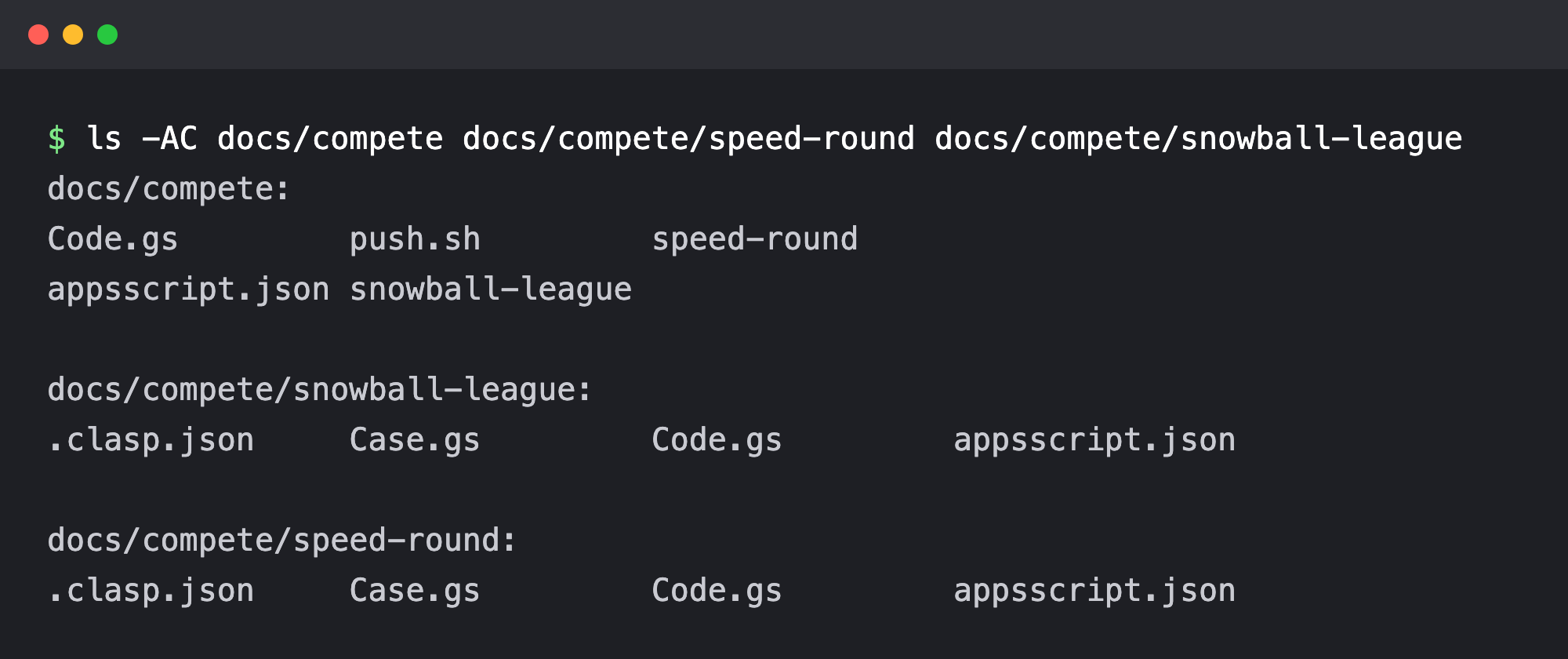
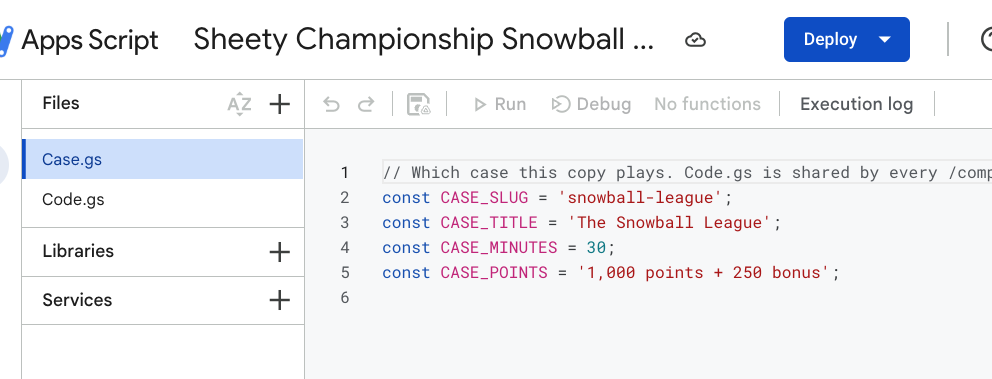
This is the whole Case.gs for the 30-minute case:
// Which case this copy plays. Code.gs is shared by every /compete sheet.
const CASE_SLUG = 'snowball-league';
const CASE_TITLE = 'The Snowball League';
const CASE_MINUTES = 30;
const CASE_POINTS = '1,000 points + 250 bonus';
Every file in an Apps Script project shares the same scope, so Code.gs can use CASE_SLUG without importing anything.
The push script
Claude wrote a short shell script that copies the shared files into each sheet’s folder and pushes both sheets in one go:
#!/bin/sh
# Copies the shared Code.gs + appsscript.json into each case's clasp folder and pushes it.
# Run from anywhere: sh docs/compete/push.sh
cd "$(dirname "$0")" || exit 1
for c in snowball-league speed-round; do
  cp Code.gs appsscript.json "$c/"
  (cd "$c" && npx -y @google/clasp@latest push --force) || exit 1
done
Without --force, clasp stops and asks “Manifest file has been updated. Do you want to push and overwrite?” whenever appsscript.json changed. Claude runs this script itself, so it can’t stop for a question. --force answers yes.
Running it looks like this:
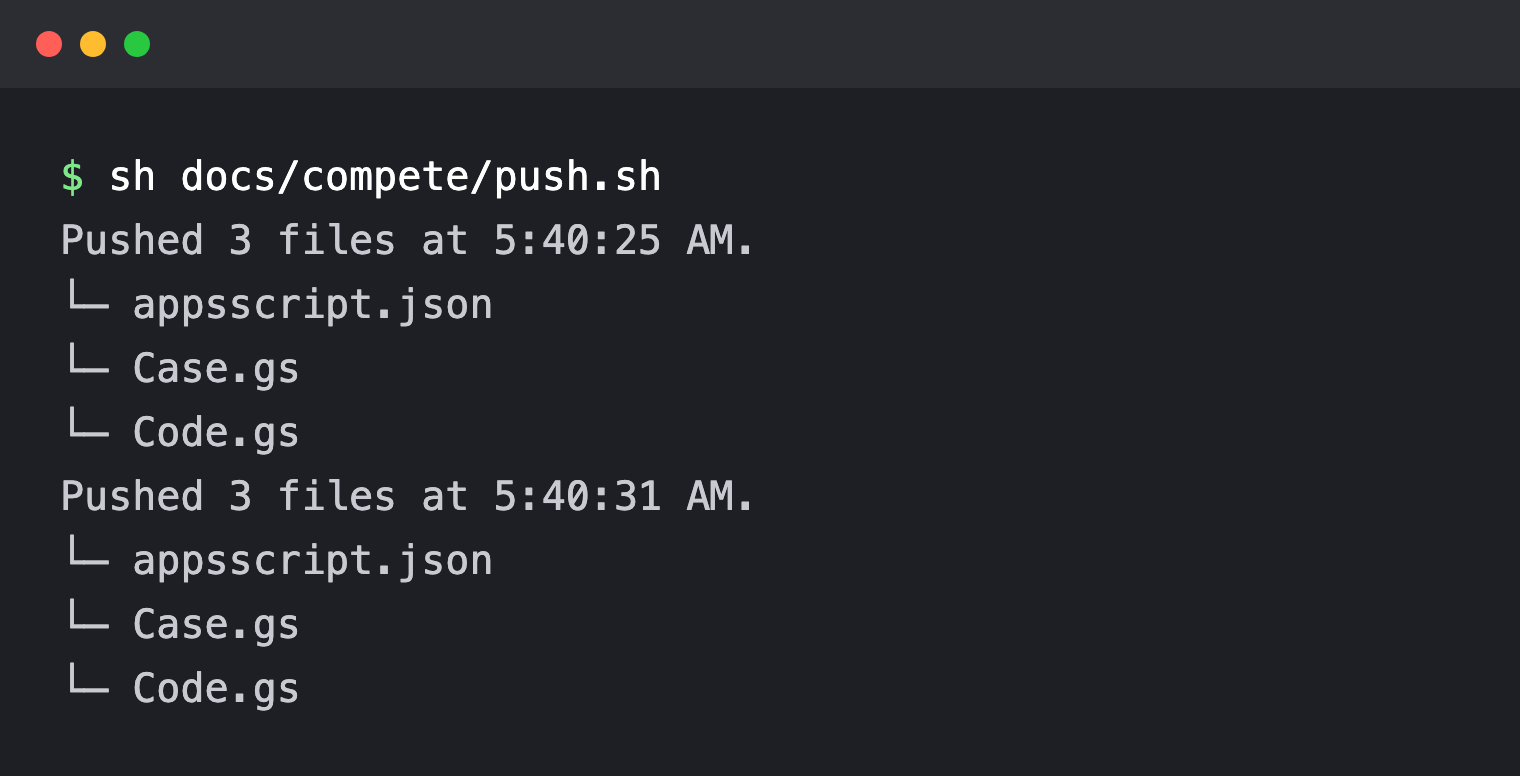
Each sheet gets three files: the shared Code.gs, its own Case.gs, and appsscript.json. Open the script in the browser and they’re there:
Check that the push worked
clasp says “Pushed 3 files”, but that doesn’t prove the sheet has the code you think it has. This does: clone the live script into an empty folder and diff it against the files in your repo.
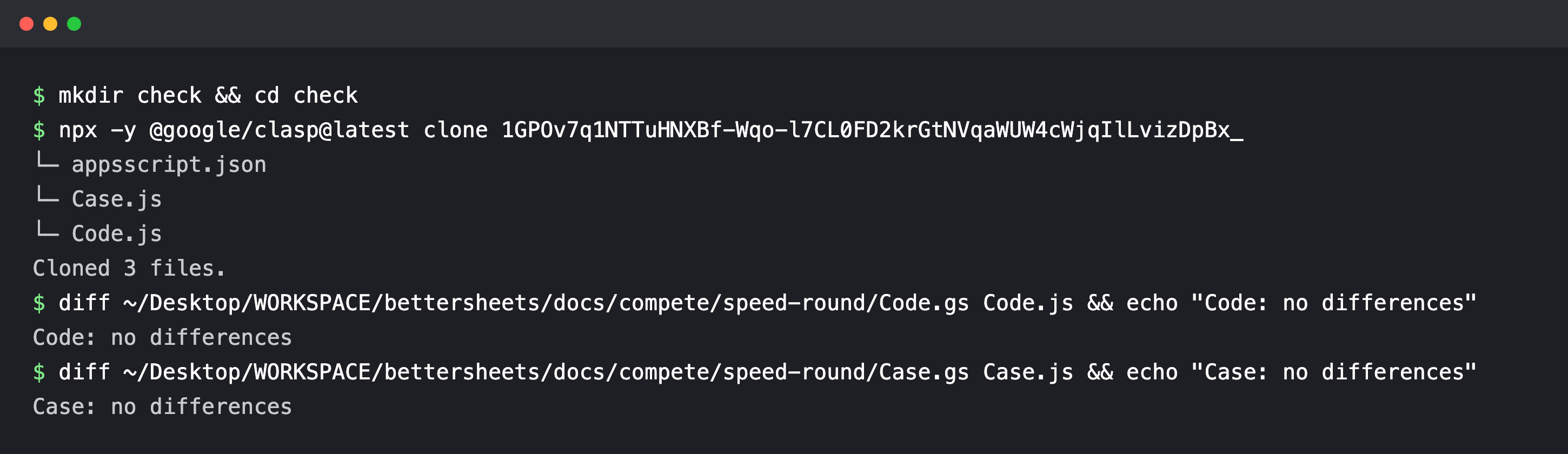
The clone names the files Code.js and Case.js, not .gs. It’s the same code. clasp saves them as .js when it downloads.
List your scopes in appsscript.json
appsscript.json is the project’s manifest. If you don’t list scopes, Apps Script works them out from your code, and for anything using SpreadsheetApp it asks to see, edit and delete every spreadsheet in your Drive. I list them myself, so the permission screen asks only for what the script uses:
{
  "timeZone": "America/New_York",
  "exceptionLogging": "STACKDRIVER",
  "runtimeVersion": "V8",
  "oauthScopes": [
    "https://www.googleapis.com/auth/spreadsheets.currentonly",
    "https://www.googleapis.com/auth/script.container.ui",
    "https://www.googleapis.com/auth/script.external_request",
    "https://www.googleapis.com/auth/userinfo.email",
    "https://www.googleapis.com/auth/script.scriptapp"
  ]
}
What each one is for:
-
spreadsheets.currentonly: edit this one spreadsheet, not every sheet you own. -
script.container.ui: the 🏆 Compete menu and its pop-ups. -
script.external_request: talk to bettersheets.co, once to get the case and once to send the answers. -
userinfo.email: so only your first run counts on the leaderboard. -
script.scriptapp: one timer that submits your answers when the clock hits zero.
The top of Code.gs has the same list in a comment, so anyone who opens the script can read what it does before they allow it.
That narrow spreadsheets.currentonly scope caused the next problem.
A real bug: setRecalculationInterval fails under currentonly
On November 26 a Practice run in one of the sheets failed. The execution log said:
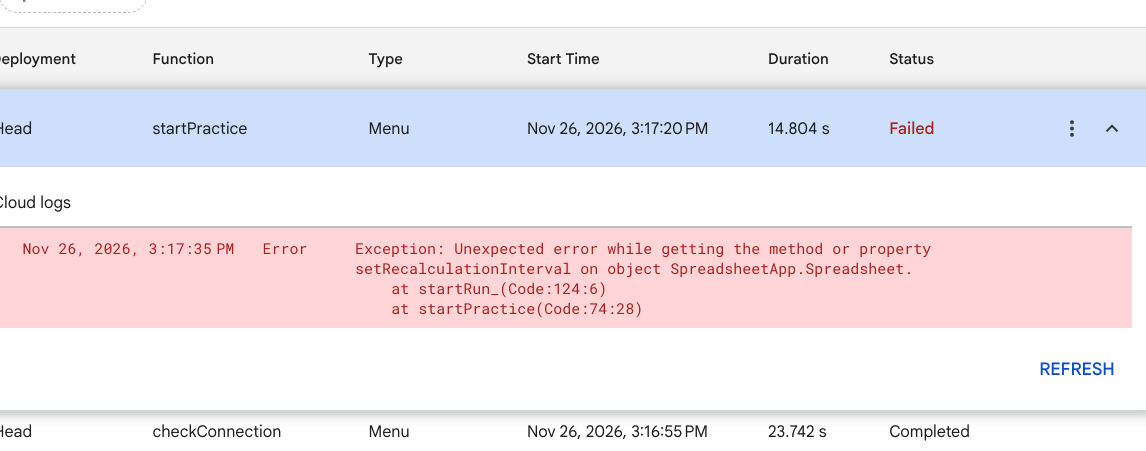
I took a screenshot and pasted it into Claude Code. That was the whole bug report.
The line that broke sets the sheet to recalculate every minute, so the countdown timer ticks. It turns out setRecalculationInterval fails under the spreadsheets.currentonly scope. Because it threw an error, the whole run stopped before anything was saved.
Claude did three things:
- Wrapped the call in try/catch, so it can never stop a run again.
- Set the recalculation on both template sheets through the Google Sheets API instead. That’s the same as File → Settings → Calculation → On change and every minute, and a copy of the sheet keeps that setting.
- Ran the push script.
The fix:
// The templates already recalc every minute (File → Settings → Calculation), so copies inherit it.
// This call fails under spreadsheets.currentonly ("Unexpected error"), so it must never stop a run.
try { ss.setRecalculationInterval(SpreadsheetApp.RecalculationInterval.ON_CHANGE_AND_MINUTE); } catch (e) { console.warn('recalc interval: ' + e); }
The error happened at 3:17 PM. The fix was committed at 3:20 PM.
Gotchas
A copied sheet keeps its old script. When someone makes a copy of your sheet, the copy gets its own copy of the script, as it was that day. clasp push only updates the template. So after every fix, anyone testing needed to make a fresh copy, or they’d hit the bug I’d already fixed.
clasp can’t rename the project. Neither can the Apps Script API. And the project name is what Google shows on the permission screen the first time someone runs the script. To rename it, open the script in the browser and click the name at the top.
Cloudflare can block Apps Script. UrlFetchApp calls come from Google Cloud IP addresses. My site sits behind Cloudflare, and I had a rule that challenges traffic from cloud providers. A script can’t pass a challenge, so the sheet got a 403:
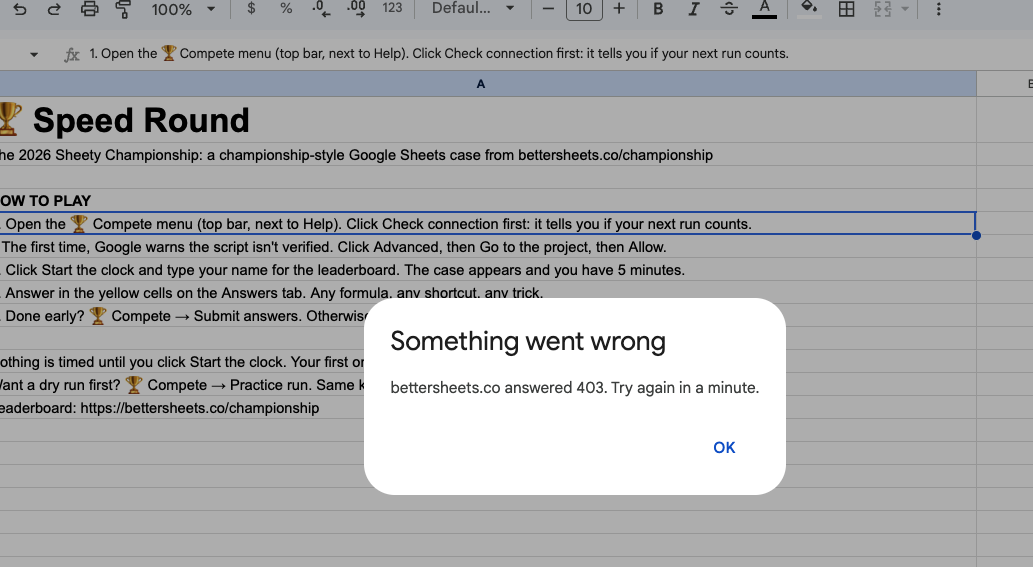
That rule already skipped paths starting with /api/, so we moved the sheet’s endpoints under /api/. If your script calls your own site and gets a 403 you can’t reproduce in the browser, look at your bot rules.
Push replaces everything. clasp’s own README warns that a push always replaces the whole online project with the files you push. If someone edits the code in the browser, the next push wipes it. Keep the repo as the only place the code gets edited.
When the clasp login goes stale
On my Google Workspace account, clasp stopped working more than once in November. Every command failed with this:
"error": "invalid_grant",
"error_description": "reauth related error (invalid_rapt)",
"error_uri": "https://support.google.com/a/answer/9368756"
That link goes to Google’s page on Google Cloud session control. It’s a Workspace admin setting that makes people sign in to Google Cloud tools again every so often, anywhere from every hour to every 24 hours. clasp’s login asks for Google Cloud permissions (Cloud Logging, for one), so it’s covered by that setting. Running clasp login again fixes it, until the next time.
The fix is two settings in the Google Admin console:
- Mark clasp’s OAuth client as trusted. Go to Security → API controls → Manage app access → Configured apps → Configure new app, search for clasp’s client ID,
1072944905499-vm2v2i5dvn0a0d2o4ca36i1vge8cvbn0.apps.googleusercontent.com, and set it to Trusted. - Exempt trusted apps from reauthentication. Go to Security → Access and data control → Google Cloud session control and tick Exempt trusted apps.
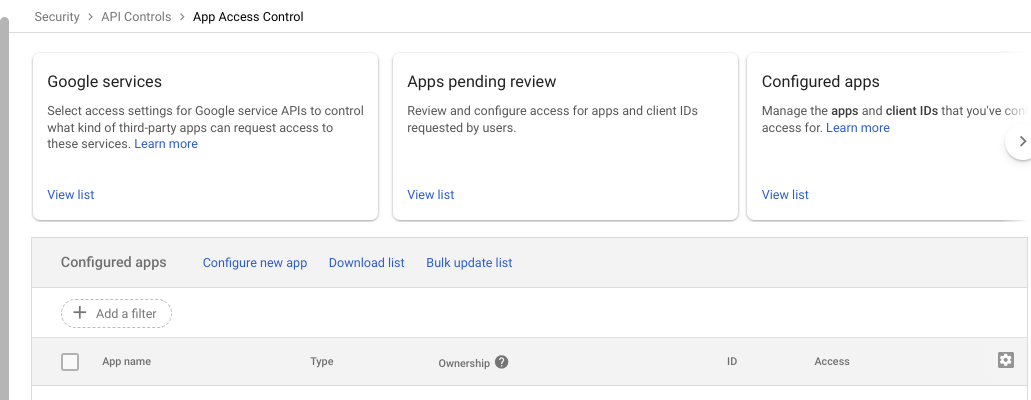
That client ID is the one built into clasp. If you log in with your own OAuth client (clasp login --creds), trust that one instead.
These settings only apply to Google Workspace accounts, and you have to be the admin to change them. Google says changes can take up to 24 hours.
I’m making this change as I write this, on November 27, 2026, so I don’t know yet how long a clasp login lasts after it. I’ll update this post when I know.
If you want to see what came out of all this, play a case in the Sheety Championship. Every line of script in those sheets went through clasp.
If you’d rather build something that runs in other people’s sheets, I recorded every step of building and publishing an add-on in the add-on course.

