To delete a Google Sheets add-on from the Google Workspace Marketplace, you unpublish it. There is no Delete button. Unpublish is how you remove an add-on you published, take down the listing, and stop new people installing it.
Here is the short version:
- Open the add-on’s project in Google Cloud Console.
- Go to APIs & Services → Enabled APIs & services → Google Workspace Marketplace SDK.
- Open the Store Listing tab and scroll to the very bottom.
- Click More Actions → Unpublish, then confirm.
On November 11, 2026 I did this to one of my own add-ons. It took about two seconds once I found the button. Finding the button was the hard part.
The rest of this post is every step with screenshots, so you can get rid of an old or unused Google Sheets add-on of your own without hunting for it.
Good to know before you start
- Deleting, removing, retiring and taking down an add-on are all the same action here: Unpublish.
- It lives in Google Cloud Console, not in Apps Script and not on the Marketplace itself.
- Google asks one question, then it’s done. The listing turns back into a draft. Undoing it means going through review again.
- Only want to uninstall an add-on someone else made? That’s different, and quicker. Skip to that.
The add-on I deleted from the Marketplace, and why
The add-on was Asa: Ask Sheets Anything. You typed =asa("what is the formula to convert miles to kilometers?") in a cell and it answered, using your own OpenAI API key.
I built it before Gemini was inside Google Sheets. Now Gemini is built into Google Sheets and answers the same questions, and you don’t need an API key. There is no reason to install Asa today. It was an old add-on that nobody needed, and I wanted it off the Google Workspace Marketplace so it stopped confusing people.
Check who still has it installed first
Before unpublishing, look at the numbers. Google shows them in the same place you’ll unpublish from: the Analytics tab of the Google Workspace Marketplace SDK.
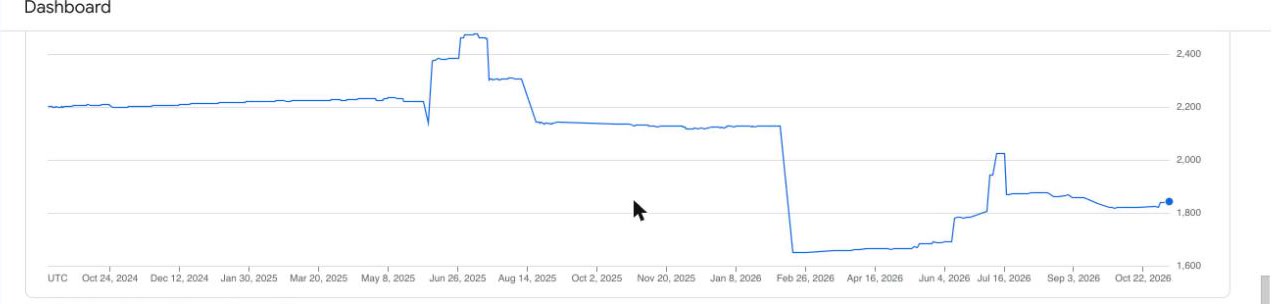
Asa had:
- About 1,830 installed seats, down from about 2,480 at its peak
- About 40 Google Workspace domains where an admin installed it for everyone
- About 430 people who installed it themselves
- 0 to 3 visits a day to the listing page
So it wasn’t nothing. But almost nobody new was finding it, and the number of people installing it themselves had been flat for more than a year. I decided to go ahead.
Step 1: Open the add-on’s project in Google Cloud Console
Every published add-on has its own Google Cloud project. Go to console.cloud.google.com and pick that project from the project menu at the top.
Make sure you’re signed in to the Google account that owns the project. I have several Google accounts, and the first one I tried just said “You need additional access”.
Step 2: Go to the Google Workspace Marketplace SDK
In the left menu, open APIs & Services → Enabled APIs & services. In the list of APIs, click Google Workspace Marketplace SDK.
Step 3: Open the Store Listing tab
The SDK page has five tabs: Credentials, App Configuration, HTTP Deployments, Store Listing and Analytics. Click Store Listing.
At the top it tells you the current state. Mine said “This app is published”.
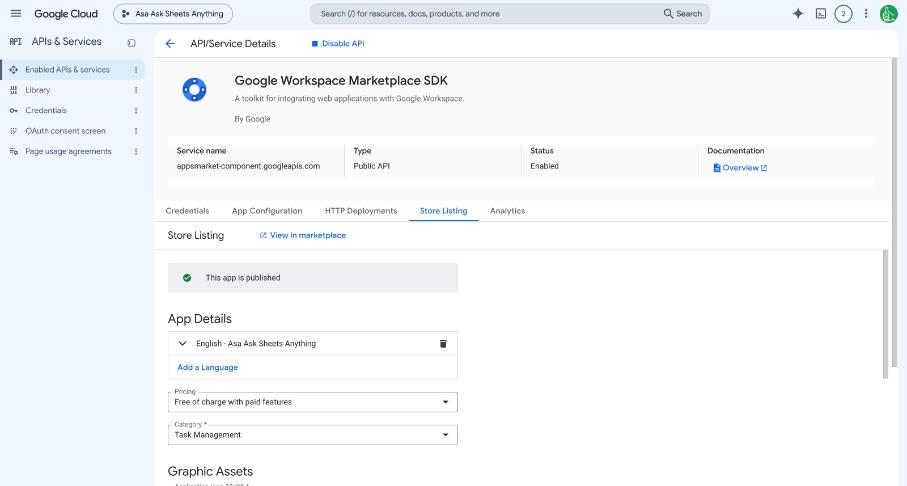
Step 4: Scroll all the way to the bottom
This is the part that’s easy to miss. Nothing at the top of the page lets you remove the listing. Scroll past the app details, the icons, the screenshots and the support links, all the way to the bottom.
There are three buttons there: Publish, Save Draft and More Actions.
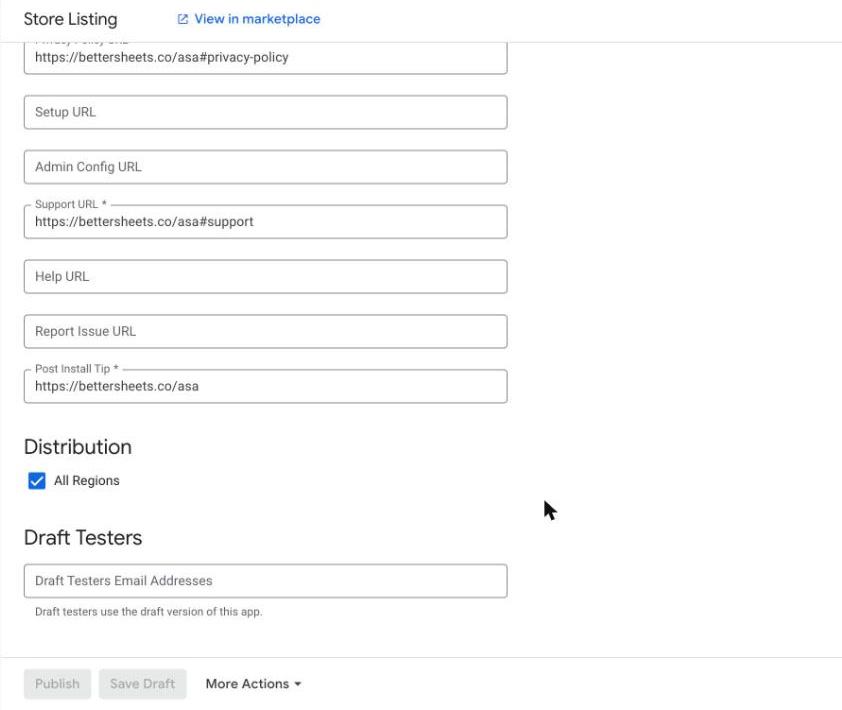
Step 5: Click More Actions, then Unpublish
More Actions opens a menu with exactly one item in it: Unpublish.
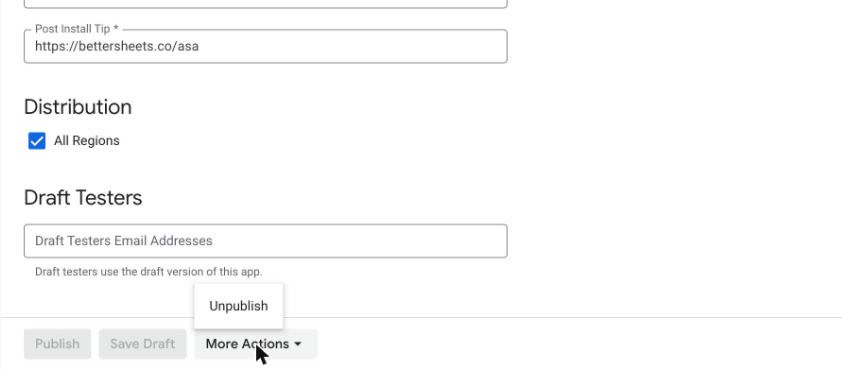
Step 6: Confirm
Google asks one question:
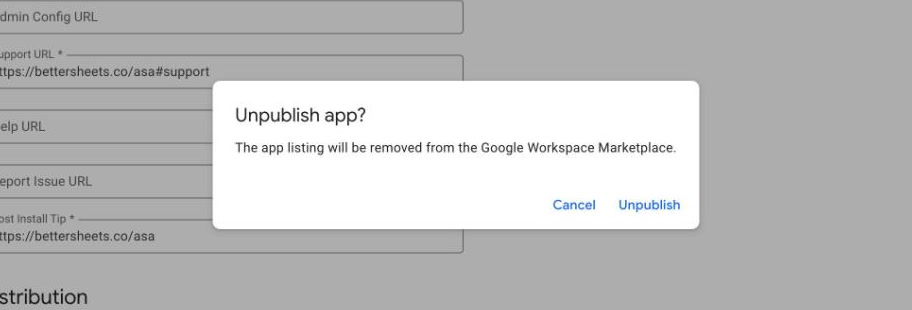
“Unpublish app? The app listing will be removed from the Google Workspace Marketplace.”
Click Unpublish. A second or two later a message at the bottom says “Application unpublished”.
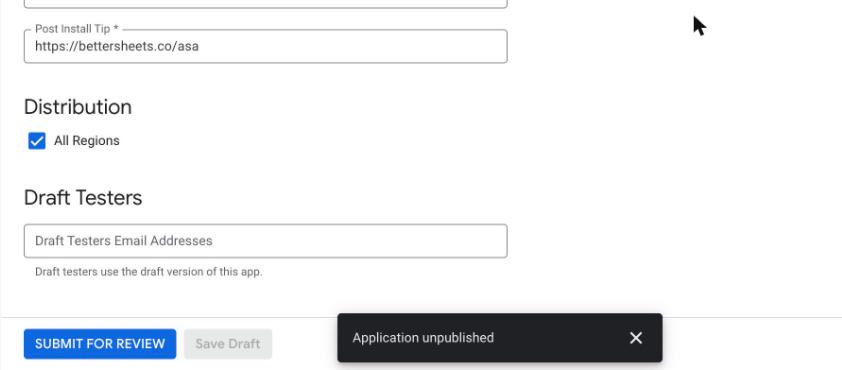
That’s the whole thing.
Can you undo unpublishing a Google Sheets add-on?
The Publish button turns into Submit for Review, and the top of the Store Listing tab now says “You’re viewing a draft. Changes made in this draft require a review before publishing.”
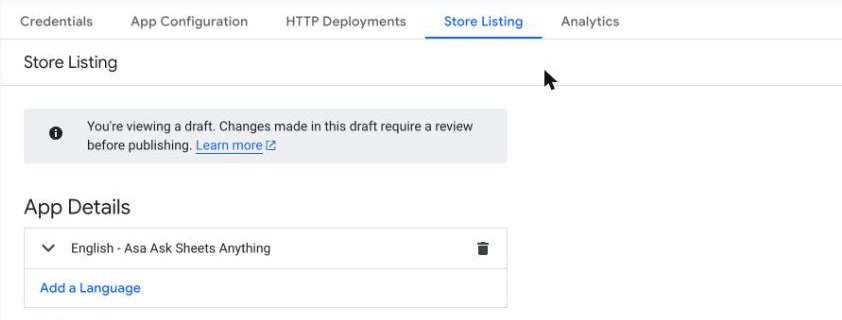
So yes, you can undo it, but unpublishing is not a pause button. If you change your mind and want to republish, the add-on goes back through Google’s review like a new submission.
Everything you filled in is still there: the description, the icons, the screenshots, the links. Nothing is deleted.
What Google doesn’t tell you
A few things surprised me.
- The dialog says nothing about the people who already have it installed. I had about 1,830 installed seats and Google didn’t mention them. No count, no warning.
- There’s no email and no waiting period. One click and it’s gone from the Marketplace.
- Unpublish removes the listing, not the add-on itself. The Google Cloud project is still there. So is the Apps Script project and the OAuth consent screen. If you want to permanently delete the add-on, code and all, shutting down the Cloud project is a separate step. I haven’t done that.
I don’t know yet what happens for the people who already installed Asa. I’m watching the install numbers in the Analytics tab and I’ll update this post with what they do.
Just want to uninstall an add-on from your own Google Sheets?
If you didn’t build the add-on and only want it gone from your own sheets, you don’t need any of the steps above. In Google Sheets, open Extensions → Add-ons → Manage add-ons, find the add-on, open its options menu and choose Uninstall. That removes it from your account only. It stays on the Marketplace for everyone else.
Before you delete your own add-on from the Marketplace
Three things I’d do, in this order:
- Check the Analytics tab. Know how many people have it installed before you decide.
- Take it off your own website first. I removed Asa from my add-ons page before unpublishing, so nobody was sent to a dead listing.
- Leave a page up that says what happened. Your Marketplace listing pointed at a privacy policy, terms and a support link. People who still have the add-on may still click those. Asa’s page is still up, and now says the add-on is retired.
If you’d rather build an add-on than delete one, I recorded every step of publishing one, rejection emails included, in the add-on course.
