A swipe file is a list of marketing you want to learn from: headlines, pricing pages, landing pages, emails, ads. You save the good ones as you see them, and you open the list when you have to write your own.
Most swipe files die the same way. You see a great pricing page, you leave the tab open “for later”, and two weeks later you close 50 tabs at once and it’s gone.
This post builds a swipe file in Google Sheets where saving a page takes one click. I did it on November 11, 2026 with six real pages. Every screenshot below is from that sheet.
Here is the short version:
- Get a copy of Link Saver.
- Run one menu item. It gives you a Save Link button for your bookmarks bar.
- On any page worth keeping, click Save Link. Pick a category, write one line on why, submit.
- When you need ideas, tick the ones you want and turn them into a list.
Set it up once
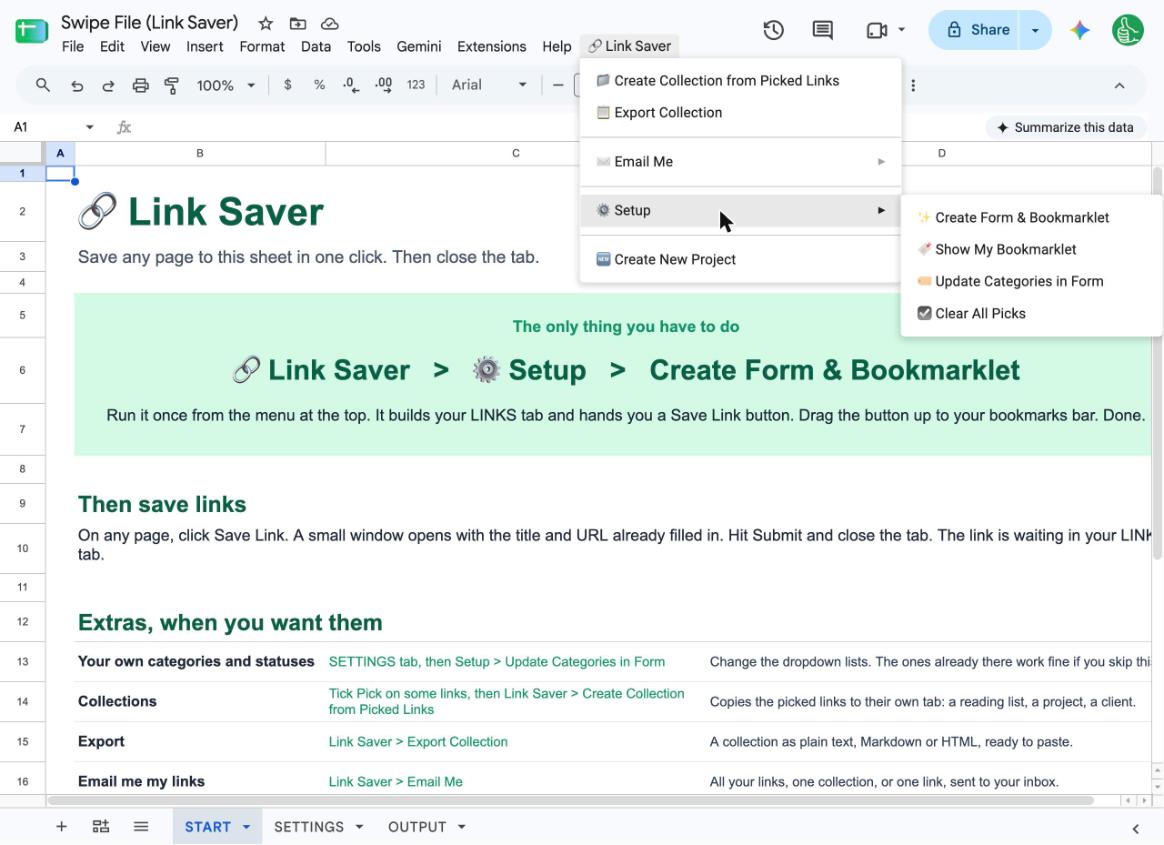
Open your copy of the sheet. In the menu at the top, click Link Saver → Setup → Create Form & Bookmarklet.
The first time, Google asks you to allow the script. On that screen, tick Select all, then click Continue. The script runs inside your own Google account and nowhere else.
When it finishes you get this:
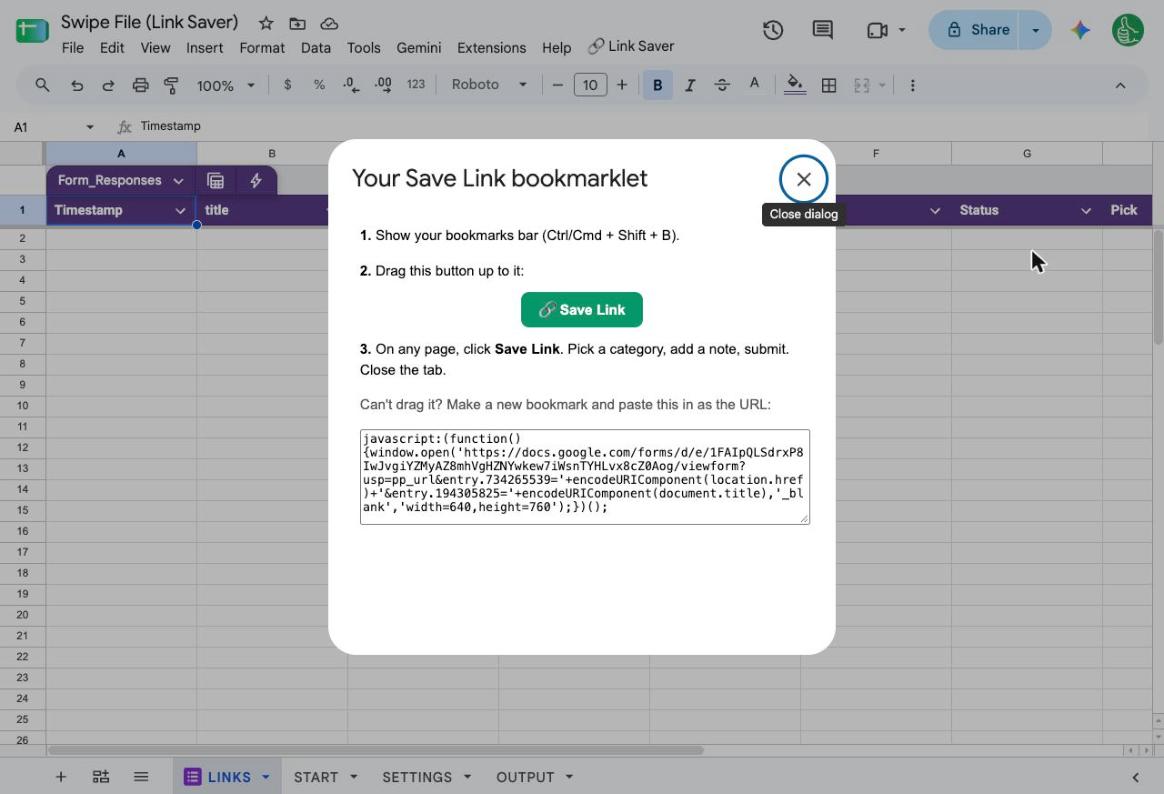
Drag the green Save Link button up to your bookmarks bar. That is the whole setup.
Before I ran it, I changed one thing. On the SETTINGS tab I replaced the categories with the five kinds of marketing I wanted to collect:
- Headlines
- Pricing pages
- Landing pages
- Emails
- Ads
You can skip that. The sheet comes with categories that work, and you can change them later.
Save a page
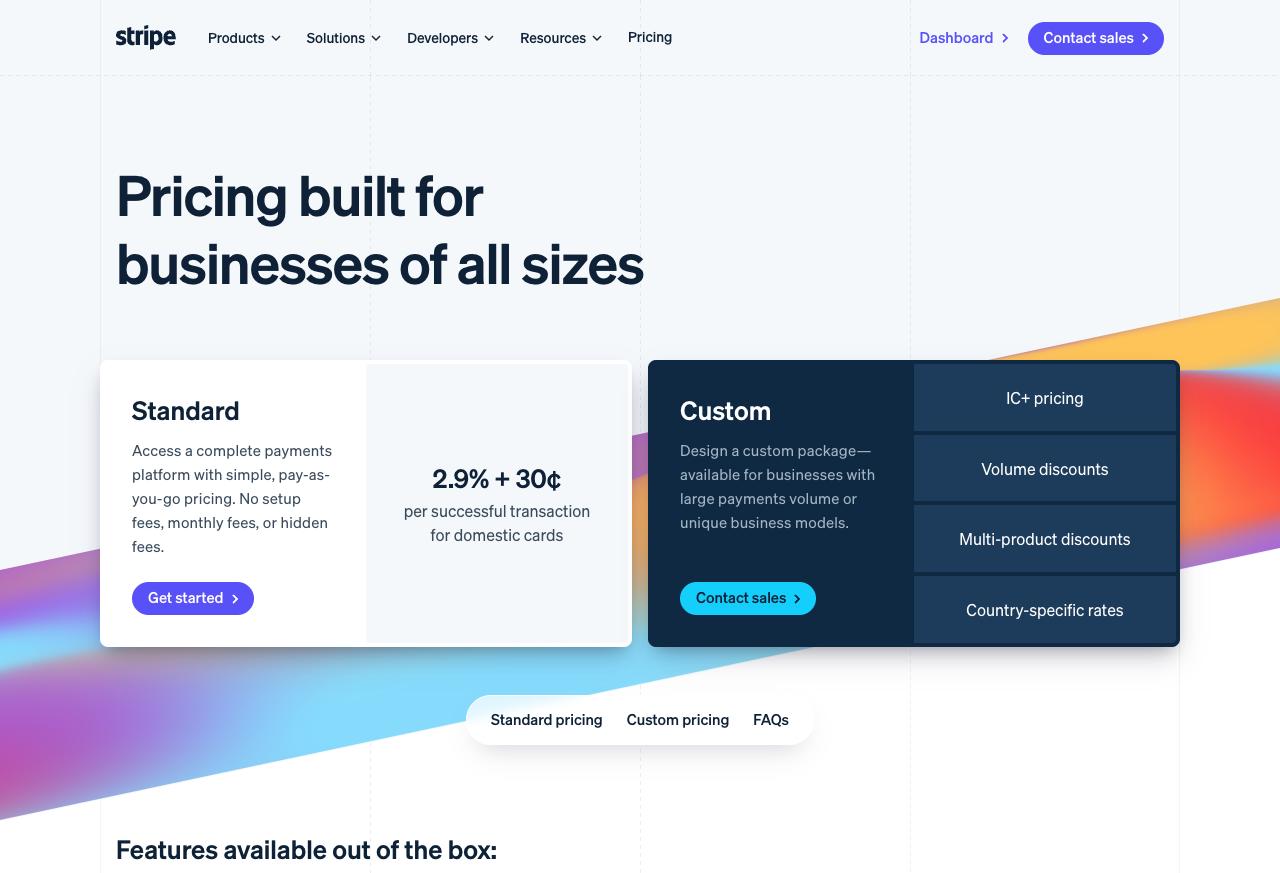
I started with Stripe’s pricing page, because it does something most pricing pages don’t: it shows one price.
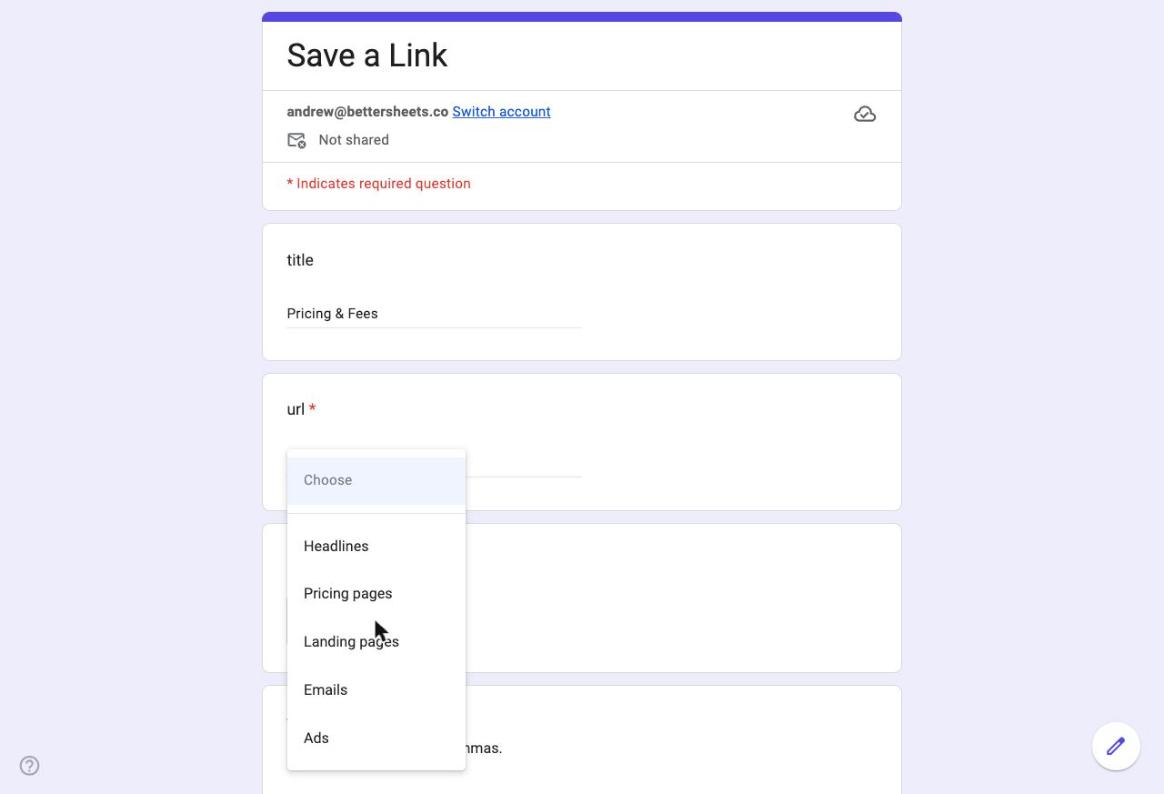
With the page open, click Save Link. A small window opens with the title and the URL already filled in. Pick a category:
Then add tags if you want them, and a note.
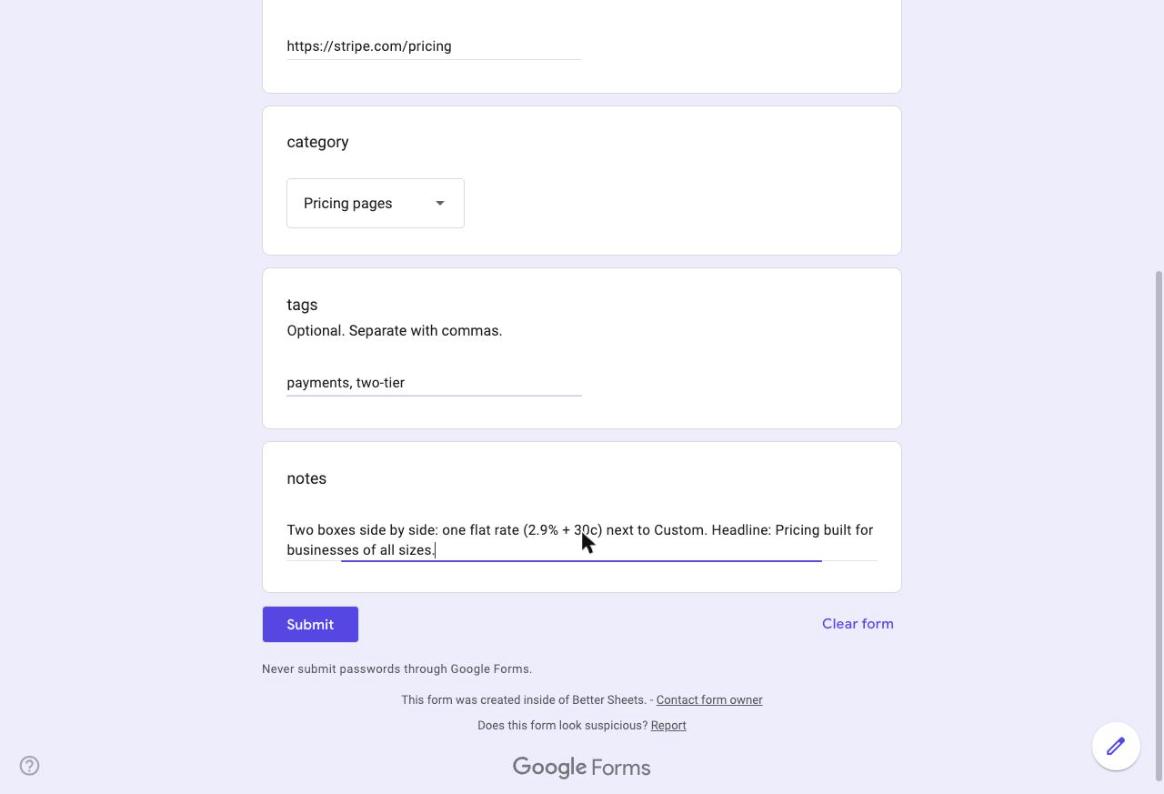
The note is the part that makes a swipe file useful. A link on its own tells you nothing in three months. Write down what you noticed. Mine says:
Two boxes side by side: one flat rate (2.9% + 30c) next to Custom. Headline: Pricing built for businesses of all sizes.
Click Submit and close the tab.
Six pages later
I did the same thing on five more pages. Here is the LINKS tab after all six:
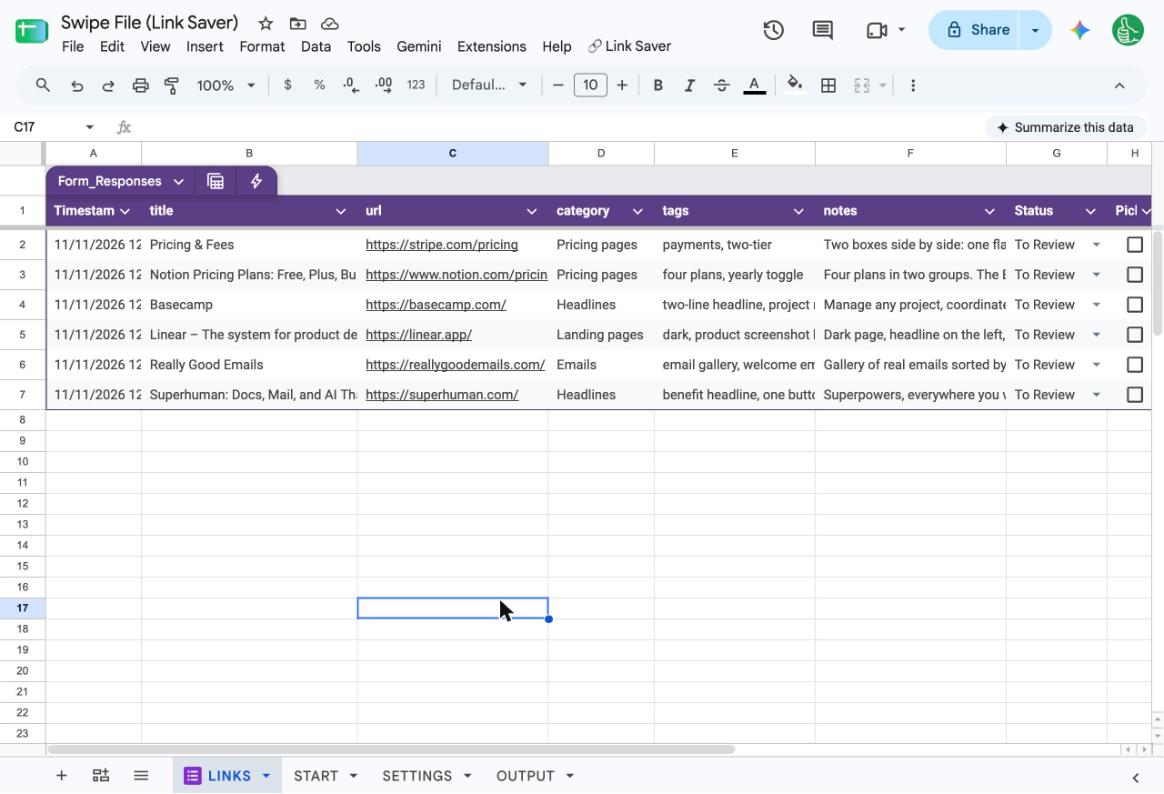
What I saved, and why:
- stripe.com/pricing (Pricing pages): Two boxes side by side: one flat rate next to Custom.
- notion.com/pricing (Pricing pages): Four plans in two groups. The Business plan is tagged Recommended and sits in its own blue box.
- basecamp.com (Headlines): “Manage any project, coordinate every team. Master your company with Basecamp.” Two short sentences, product name last.
- superhuman.com (Headlines): “Superpowers, everywhere you work.” Benefit first, product named in the line under it.
- linear.app (Landing pages): Dark page, headline on the left, the real product right under it. No stock art.
- reallygoodemails.com (Emails): A gallery of real emails sorted by type. Start with the Welcome emails filter.
Each row gets the date it was saved, a Status that starts on To Review, and a Pick checkbox. I didn’t type any of that.
Because it is a sheet, you can sort by category, filter to one tag, or add your own column.
Pull out the ones you need
A swipe file earns its keep on the day you have to make something. Say it’s a pricing page.
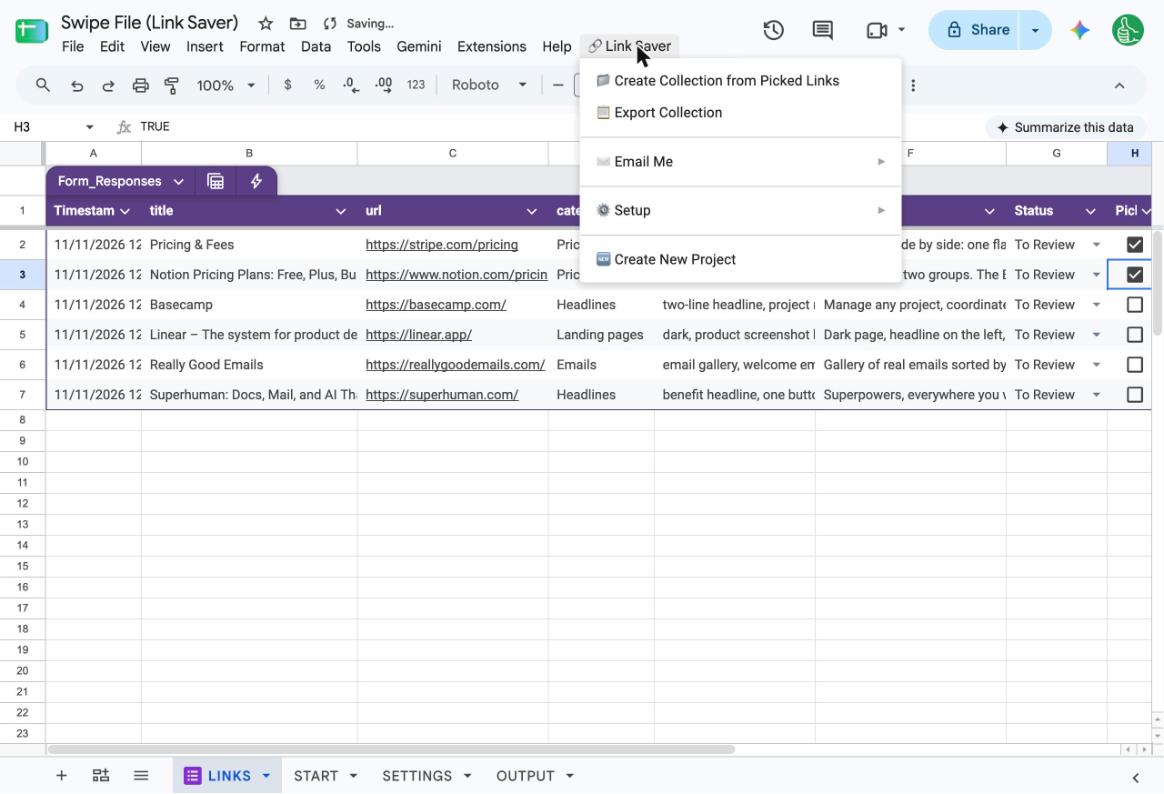
Tick Pick on the rows you want. I ticked the two pricing pages. Then click Link Saver → Create Collection from Picked Links.
It asks what to call the collection.
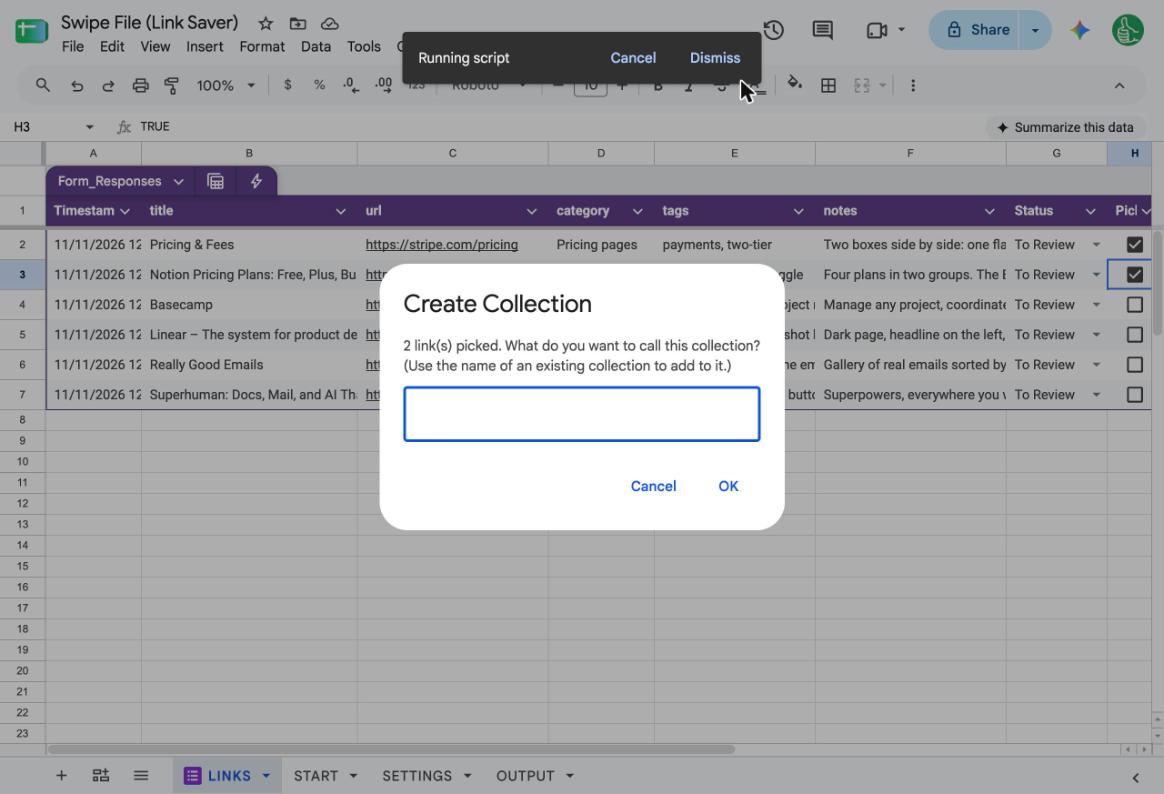
I called mine “Pricing page ideas”. The two links were copied to their own tab, notes and all:
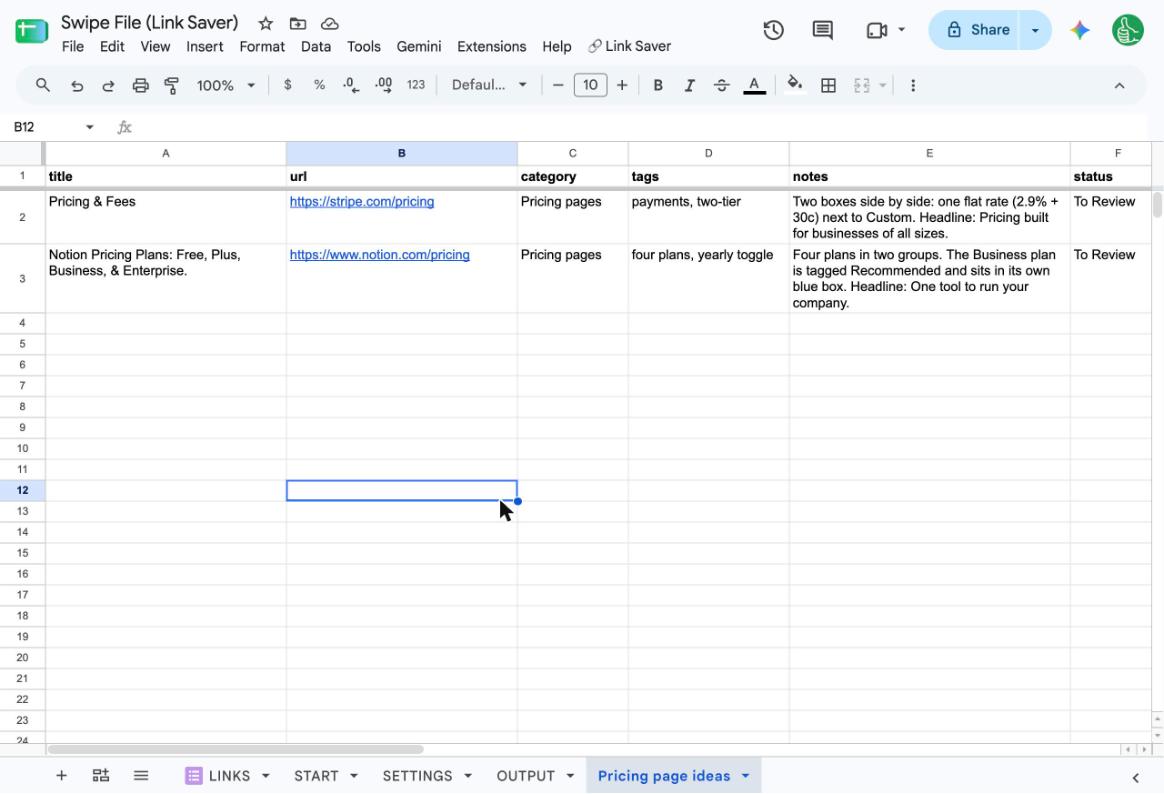
The originals stay on the LINKS tab. Their Collections column now says which collection they went into, and the Pick boxes are cleared for next time.
Paste the list anywhere
With the collection tab open, click Link Saver → Export Collection. The OUTPUT tab fills in with the same list three ways: plain text, Markdown and HTML.
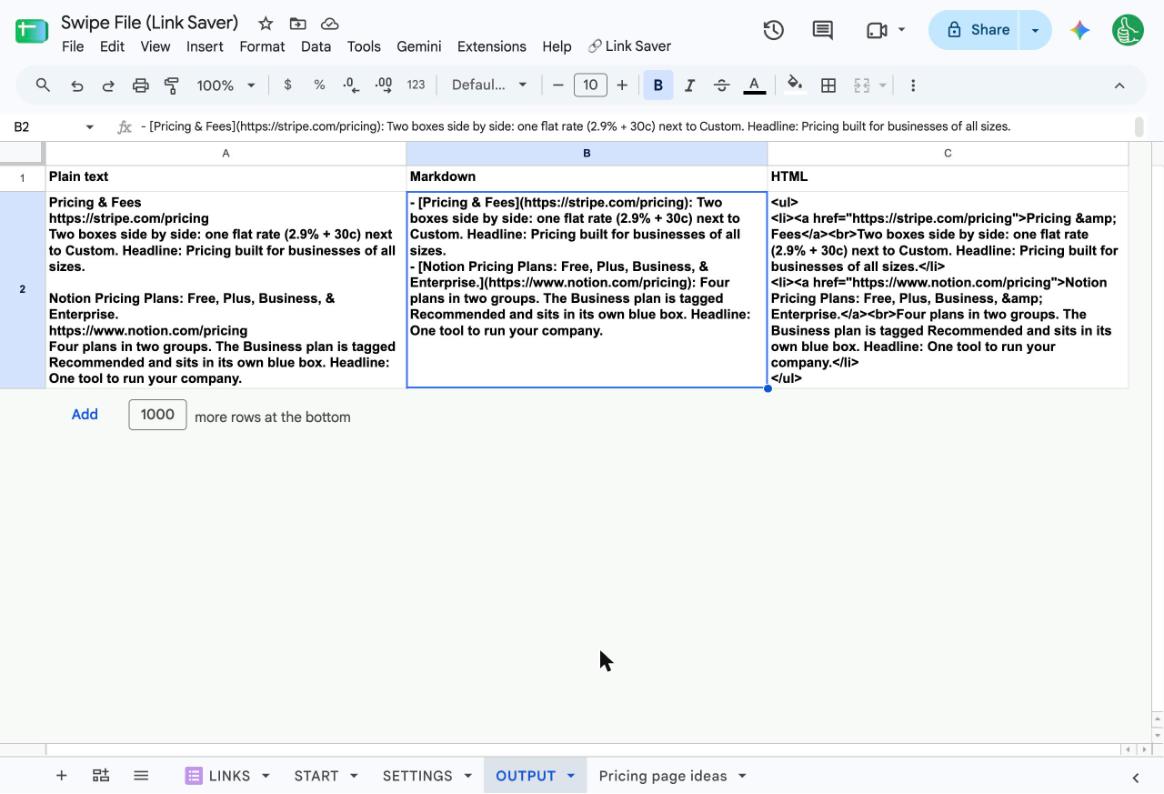
Copy the plain text into a brief or a doc. Copy the Markdown into Notion or a README. Copy the HTML into an email.
Notes if you try this
- Write the note while the page is open. You will not remember why you saved it.
- Keep the categories few. Five was enough. Use tags for the detail, like “two-tier” or “yearly toggle”.
- Page titles are whatever the site wrote. Stripe’s pricing page is titled “Pricing & Fees”, with no mention of Stripe. The URL column tells you where it’s from, and you can edit the title in the form before you submit.
- One file per project works well. Link Saver → Create New Project makes a fresh, empty copy with its own Save Link button, so a client’s swipe file doesn’t mix with yours.
- Let it come back to you. Link Saver → Email Me → Turn On Daily Link Email sends you one saved link a day. I didn’t use it for this post.
Get the sheet
Link Saver is $10, one time. Better Sheets lifetime members get it free.
